
Build Your Skill
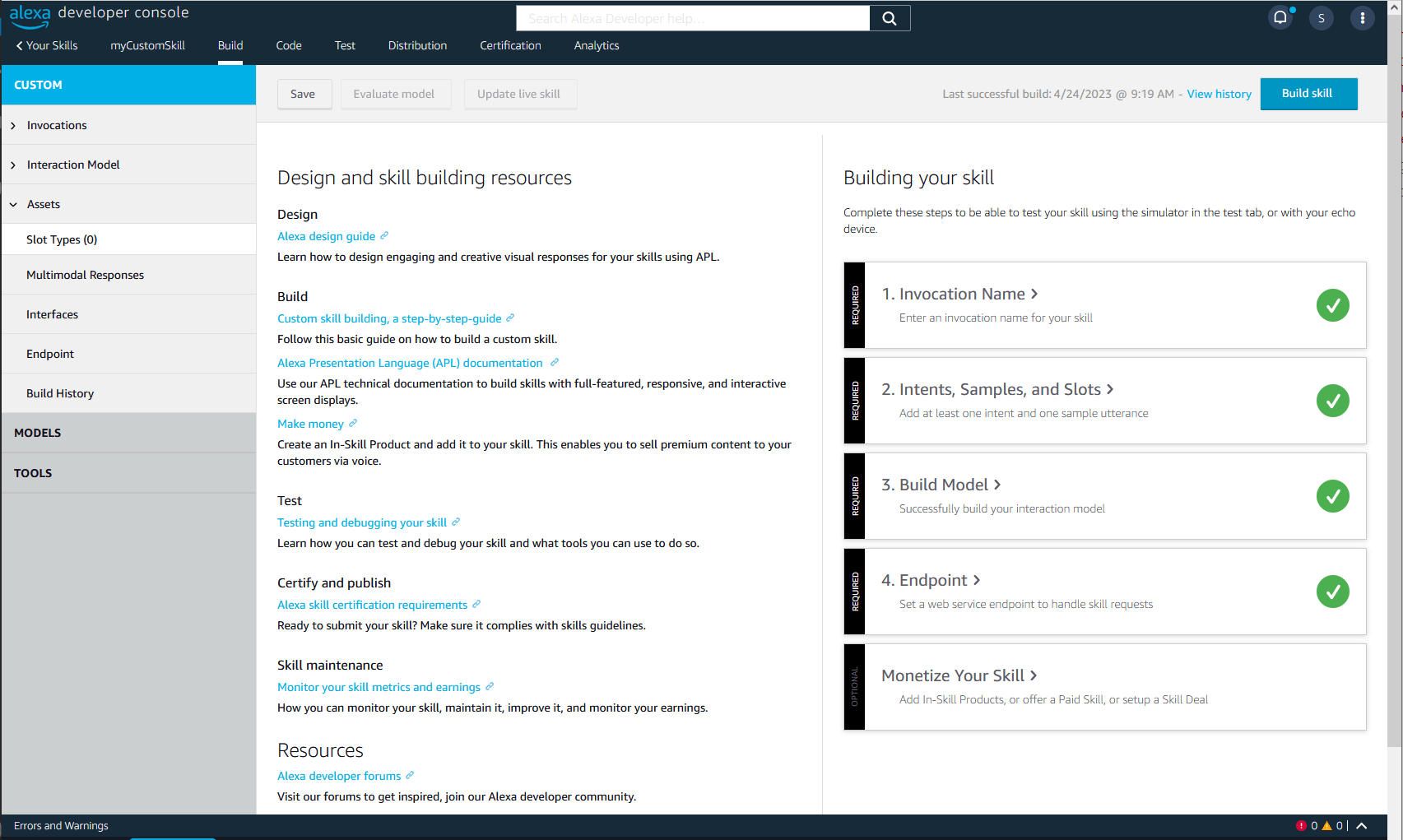
Use the Build page to set up your skill, configure settings specific to the interaction model, and specify the endpoints for your service. All the configuration options for your skill are available as links in the left-hand column (sidebar) of the Developer Console.
This document provides an overview of the options in the sidebar and links to more information. The items you see in the sidebar for your skill depend on the interaction model you added to the skill.
Custom Model
For a skill with a custom model, the main Build page displays the Skill builder checklist. This shows your progress through the minimum steps to create a skill and get it ready to test.
The following table summarizes the configuration options for a skill with a custom model.
All of these items are in the left-hand sidebar under Custom.
| Section | Description |
|---|---|
|
Interaction Model |
Use these sections to create the interaction model for your skill. |
|
Invocation |
Provide the invocation name for your skill. This is the phrase users say to begin an interaction with your skill. See Choose the Invocation Name for a Custom Skill. |
|
Intents |
Create and edit your intents, slots, and sample utterances. An intent represents an action that fulfills a user's spoken request. Intents can optionally have arguments called slots that represent variable information in the request. A sample utterance is a phrase users can say to invoke a particular intent. You provide a set of sample utterances for each intent. See: |
|
Slot Types |
Create custom slot types and search for built-in slot types to use in your intents. Every slot included in your interaction model has a type that determines how Alexa handles the user's spoken data the user provides. For example, the See: |
|
JSON Editor |
View and edit your interaction model for your skill in JSON format. You can make changes directly to the JSON and then click Save Model. You can also use this section to upload a JSON file. For details about the JSON schema for the interaction model, see Interaction Model Schema. |
|
Interfaces |
Interfaces provide additional directives and request types for specific additional features in your skill. Select any additional interfaces your skill uses. See the linked reference documents for details about each interface:
|
|
Endpoint |
Specify the endpoint for your skill. Alexa sends requests to this endpoint when users invoke your skill.
Note: If you host your skill as a web service, you must configure an SSL certificate. Your endpoint must have certificate from a trusted certificate authority, or your endpoint must be a sub-domain of a domain with a wildcard certificate from a trusted certificate authority. For testing purposes, you can create self-signed certificate, but this can only be used for testing.
|
|
Intent History |
View aggregated, anonymized frequent utterances and the resolved intents. This data is available for a given locale if your skill has at least 10 unique users in a day in that locale. For details, see Review the Intent History for a Custom Skill. |

Pre-built Models
The following table summarizes the pre-built model sections. You can fill in these sections in any order. Only the model you selected is shown in the left-hand navigation of the Build page.
| Section | Description |
|---|---|
|
Flash Briefing |
Add feeds to your skill and configure a custom error message. A Flash Briefing skill can contain multiple feeds of text or audio content. Click Add new feed and then fill in the fields. For a description of each field, see Add One or More Flash Briefing Feeds Also see: |
|
Smart Home |
Specify the AWS Lambda ARN endpoint for your smart home skill. Skills with the smart home model require account linking. Click Setup Account Linking to jump to the Account linking section within Capabilities. See: |
|
Video |
Specify the AWS Lambda ARN endpoint for your video skill. Skills with the video model require account linking. Click Setup Account Linking to jump to the Account linking section within Capabilities. See: |


Account Linking
Use this section to configure your skill to connect the identity of the end user with a user in another system. Account linking is optional for skills with a custom model, and required for both the smart home and video models. Account linking does not apply to flash briefing skills.
The account linking configuration is similar for custom, smart home, and video, with a few minor differences:
- For a skill that includes either the smart home or video model:
- Account linking is required.
- Account linking must be configured with authorization code grant.
- For a skill that includes a custom model:
- Account linking is optional
- The skill can use either authorization code grant (recommended) or implicit grant.
For details about how account linking works, see the following:
- For a skill with a custom model, see Link an Alexa User with a User in Your System
- For a skill with either a smart home or video model, see: Authenticate an Alexa User to a User in Your System with Account Linking

Permissions
Use this section to configure your skill to ask the user for permission to access specific personal information. The available permissions depend on the model included in your skill.
| Permission Setting | Description | Applies to |
|---|---|---|
|
Device Address |
Lets your skill ask the user for access to the address information configured for the device. See Device Address API. |
Custom |
|
Lists Read and Lists Write |
Provide access to the user's shopping and todo lists. |
Custom |
|
Send Alexa Events |
Gives your smart home skill permission to send events to the Alexa event gateway. You can use this to send proactive state reports to Alexa. See: |
Smart Home |
|
Alexa Skill Messaging |
Provides the Client Id and Client Secret values needed to send messages to your skill. This is displayed only when it applies to the skill based on the selected permissions. For the smart home model, this section applies when Send Alexa Events is enabled. For details about using these values, see:
For a custom model, this section applies when Device Address, Lists Read, or Lists Write is enabled. See: |
Custom |


Related Topics
The developer console:
- Manage Skills in the Developer Console
- Create a Skill and Choose the Interaction Model
- Test Your Skill
- Launch Your Skill
- Measure Skill Usage
Custom and pre-built interaction models: