Accessing Your Model's Data from a Controller
In this section, you'll create a new MoviesController class and write code that retrieves the movie data and displays it in the browser using a
view template.
Build the application before going on to the next step. If you don't build the application, you'll get an error adding a controller.
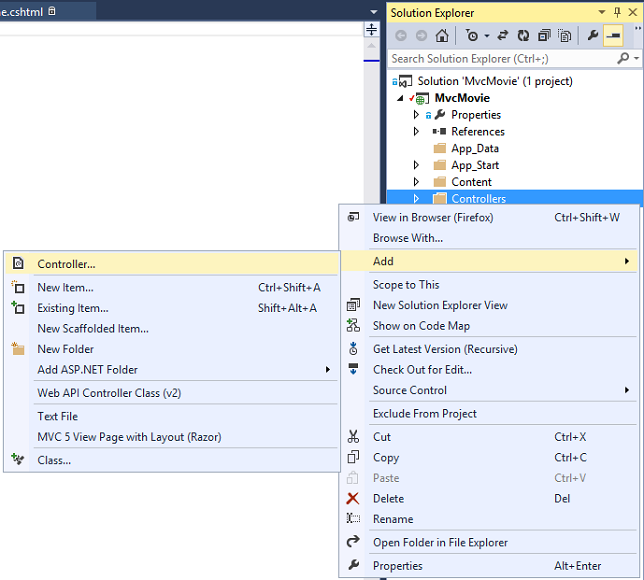
In Solution Explorer, right-click the Controllers folder and then click Add, then Controller.
In the Add Scaffold dialog box, click MVC 5 Controller with views, using Entity Framework, and then click Add.

- For the Controller name enter MoviesController.
- Select Movie (MvcMovie.Models) for the Model class.
- Select MovieDBContext (MvcMovie.Models) for the Data context class.

Click Add. (If you get an error, you probably didn't build the application before starting adding the controller.) Visual Studio creates the following files and folders:
- A MoviesController.cs file in the Controllers folder.
- A Views\Movies folder.
- Create.cshtml, Delete.cshtml, Details.cshtml, Edit.cshtml, and Index.cshtml in the new Views\Movies folder.
Visual Studio automatically created the CRUD (create, read, update, and delete) action methods and views for you (the automatic creation of CRUD action methods and views is known as scaffolding). You now have a fully functional web application that lets you create, list, edit, and delete movie entries.
Run the application and click on the MVC Movie link (or browse to the Movies controller by appending /Movies to the URL in the address bar of your browser).
Because the application is relying on the default routing (defined in the
App_Start\RouteConfig.cs file), the browser request http://localhost:xxxxx/Movies is routed to the default Index action method of the Movies
controller. In other words, the browser request http://localhost:xxxxx/Movies
is effectively the same as the browser request http://localhost:xxxxx/Movies/Index. The result is an empty list of movies, because you haven't added any yet.

Creating a Movie
Select the Create New link. Enter some details about a movie and then click the Create button.

Globalize.parseFloat. I'll show how to do this in the next
tutorial. For now, just enter whole numbers like 10.Clicking the Create button causes the form to be posted to the server, where the movie information is saved in the database. You're then redirected to the /Movies URL, where you can see the newly created movie in the listing.

Create a couple more movie entries. Try the Edit, Details, and Delete links, which are all functional.
Examining the Generated Code
Open the Controllers\MoviesController.cs file and examine the
generated Index method. A portion of the movie controller with the
Index method is shown below.
public class MoviesController : Controller
{
    private MovieDBContext db = new MovieDBContext();

    // GET: /Movies/
    public ActionResult Index()
    {
        return View(db.Movies.ToList());
    }
A request to the Movies controller returns all the entries in
the Movies table and then passes the results
to the Index view. The following line from the MoviesController class instantiates a movie database context, as described previously. You can use the movie
database context to query, edit, and delete movies.
private MovieDBContext db = new MovieDBContext();
Strongly Typed Models and the @model Keyword
Earlier in this tutorial, you saw how a controller can pass data or objects to a view template using the ViewBag object. The ViewBag
is a dynamic object that provides a convenient late-bound way to pass information to a view.
MVC also provides the ability to pass strongly typed objects to a view template. This strongly typed approach enables better compile-time checking of your code and richer
IntelliSense in the Visual Studio editor. The scaffolding mechanism in Visual Studio used this approach
(that is, passing a strongly typed model) with the MoviesController class and view templates when it created the methods and views.
In the Controllers\MoviesController.cs file examine the generated Details method. The
Details method is shown below.
public ActionResult Details(int? id)
{
    if (id == null)
    {
        return new HttpStatusCodeResult(HttpStatusCode.BadRequest);
    }
    Movie movie = db.Movies.Find(id);
    if (movie == null)
    {
        return HttpNotFound();
    }
    return View(movie);
}
The id parameter is generally passed as route data, for example
http://localhost:1234/movies/details/1 will set the controller to the movie controller, the action to details and the id
to 1. You could also pass in the id with a query string as follows:
http://localhost:1234/movies/details?id=1
If a Movie is found, an instance of the Movie model is passed to the
Details view:
return View(movie);
Examine the contents of the Views\Movies\Details.cshtml file:
@model MvcMovie.Models.Movie

@{
    ViewBag.Title = "Details";
}

<h2>Details</h2>

<div>
    <h4>Movie</h4>
	<hr />
    <dl class="dl-horizontal">
        <dt>
            @Html.DisplayNameFor(model => model.Title)
        </dt>
         @*Markup omitted for clarity.*@
    </dl>
</div>
<p>
    @Html.ActionLink("Edit", "Edit", new { id = Model.ID }) |
    @Html.ActionLink("Back to List", "Index")
</p>
By including a @model statement at the top of the view template file, you can specify the type of object that the view expects. When you created
the movie controller, Visual Studio automatically included the following
@model statement at the top of the Details.cshtml file:
@model MvcMovie.Models.Movie
This @model directive allows you to access the movie
that the controller passed to the view by using a Model object that's strongly typed. For example, in the Details.cshtml template,
the code passes each movie field to the
DisplayNameFor and
DisplayFor HTML Helpers with the strongly typed Model object. The Create and
Edit methods and
view templates also pass a movie model object.
Examine the Index.cshtml view template and the Index
method in the MoviesController.cs file. Notice how the code creates a
List
object when it calls the View helper method in the Index
action method. The code then passes this Movies list from the Index
action method to the view:
public ActionResult Index()
{
    return View(db.Movies.ToList());
}
When you created
the movie controller, Visual Studio automatically included the following
@model statement at the top of the Index.cshtml file:
@model IEnumerable<MvcMovie.Models.Movie>
This @model directive allows you to access the list of movies that the controller passed to the view by using a Model object
that's strongly typed. For example, in the Index.cshtml template, the
code loops through the movies by doing a foreach statement over the strongly typed Model object:
@foreach (var item in Model) {
    <tr>
        <td>
            @Html.DisplayFor(modelItem => item.Title)
        </td>
        <td>
            @Html.DisplayFor(modelItem => item.ReleaseDate)
        </td>
        <td>
            @Html.DisplayFor(modelItem => item.Genre)
        </td>
        <td>
            @Html.DisplayFor(modelItem => item.Price)
        </td>
         <th>
            @Html.DisplayFor(modelItem => item.Rating)
        </th>
        <td>
            @Html.ActionLink("Edit", "Edit", new { id=item.ID }) |
            @Html.ActionLink("Details", "Details", new { id=item.ID })  |
            @Html.ActionLink("Delete", "Delete", new { id=item.ID })
        </td>
    </tr>
}
Because the Model object is strongly typed (as an
IEnumerable<Movie> object), each item object in the loop is typed as Movie. Among other benefits, this means that you get
compile-time checking of the code and full IntelliSense support in the code editor:

Working with SQL Server LocalDB
Entity Framework Code First detected that the database connection string that was provided pointed to a Movies database that didn’t exist yet, so Code First created the database automatically. You can verify that it's been
created by looking in the App_Data folder. If you don't see the
Movies.mdf file, click the Show All Files button in the
Solution Explorer toolbar, click the Refresh
button, and then expand the App_Data folder.

Double-click Movies.mdf to open SERVER EXPLORER, then expand the Tables folder to see the Movies table. Note the key icon next to ID. By default, EF will make a property named ID the primary key. For more information on EF and MVC, see Tom Dykstra's excellent tutorial on MVC and EF.

Right-click the Movies table and select Show Table Data
to see the data you created.


Right-click the Movies table and select Open Table Definition to see the table structure that Entity Framework Code First
created for you.

Notice how the schema of the Movies table maps to the
Movie class you created earlier. Entity Framework Code First automatically created this schema for you based on your Movie
class.
When you're finished, close the connection by right clicking MovieDBContext and selecting Close Connection. (If you don't close the connection, you might get an error the next time you run the project).

You now have a database and pages to display, edit, update and delete data. In the next tutorial, we'll examine the rest of the scaffolded code and add
a SearchIndex method and a SearchIndex view that lets you search for movies in this database. For more information on using Entity Framework with MVC, see
Creating an Entity Framework Data Model for an ASP.NET MVC Application.
This article was originally created on October 17, 2013
Author Information

Rick Anderson – Rick Anderson works as a programmer writer for Microsoft, focusing on ASP.NET MVC, Windows Azure and Entity Framework. You can follow him on twitter via @RickAndMSFT.
Comments (0) RSS Feed