
How to Install Eclipse Oxygen IDE in CentOS, RHEL and Fedora
In this tutorial we’ll cover the installation process of the latest edition of Eclipse Oxygen IDE in CentOS, Red Hat and Fedora based Linux distributions.
Eclipse is a free integrated development environment IDE used by programmers world-wide to write and develop Java applications mostly. However, Eclipse IDE can support a large variety of compilers and programming languages via installed plugins that extend its functionality.
The latest release of Eclipse Oxygen IDE doesn’t come with pre-build binary packages specific for RHEL or CentOS based Linux distributions. Instead, you can install Eclipse IDE in CentOS, Fedora or other Red Hat Linux based distributions via tarball archive files.
Requirements:
- A Desktop machine with minimum 2GB of RAM.
- Java 9 SE SDK installed in Red Hat Linux based distributions.
Install Eclipse Oxygen IDE in CentOS, RHEL and Fedora
On the first step, open a browser, navigate to Eclipse official download page and download the latest version of the tar package specific for your installed Linux distribution architecture.
Alternatively, you can also download Eclipse IDE tarball file in your system via wget utility, by issuing the below command.
-------------- For 64-bit Architecture --------------
$ wget http://ftp.fau.de/eclipse/technology/epp/downloads/release/oxygen/2/eclipse-jee-oxygen-2-linux-gtk-x86_64.tar.gz
-------------- For 32-bit Architecture --------------
$ wget http://ftp.fau.de/eclipse/technology/epp/downloads/release/oxygen/2/eclipse-jee-oxygen-2-linux-gtk.tar.gz
After the download completes, navigate to the directory where the archive package has been downloaded and issue the below commands to start installing Eclipse Oxygen IDE.
The commands executed below will install Eclipse IDE directly into /opt directory. Afterwards, create a symlink into /usr/local/bin/ directory for Eclipse IDE executable file and verify symbolic link path via ls command.
$ sudo tar xfz eclipse-jee-oxygen-2-linux-gtk-x86_64.tar.gz -C /opt/
$ ls /opt/eclipse/
$ sudo ln -s /opt/eclipse/eclipse /usr/local/bin/eclipse
$ ls -al /usr/local/bin/eclipse
Next, create Eclipse desktop launcher into system applications directory.
$ sudo nano /usr/share/applications/eclipse-oxygen.desktop
Add the following configuration into the file eclipse-oxygen.desktop.
[Desktop Entry]
Name=Eclipse Oxygen
Comment=Eclipse Oxygen IDE
Type=Application
Encoding=UTF-8
Exec=/usr/local/bin/eclipse
Icon=/opt/eclipse/icon.xpm
Categories=GNOME;Application;Development;
Terminal=false
StartupNotify=true
After you’ve created Eclipse launcher, use Gnome dash to search and open the application. On the first application launch, add Eclipse workspace directory and hit on Launch button to start the application.
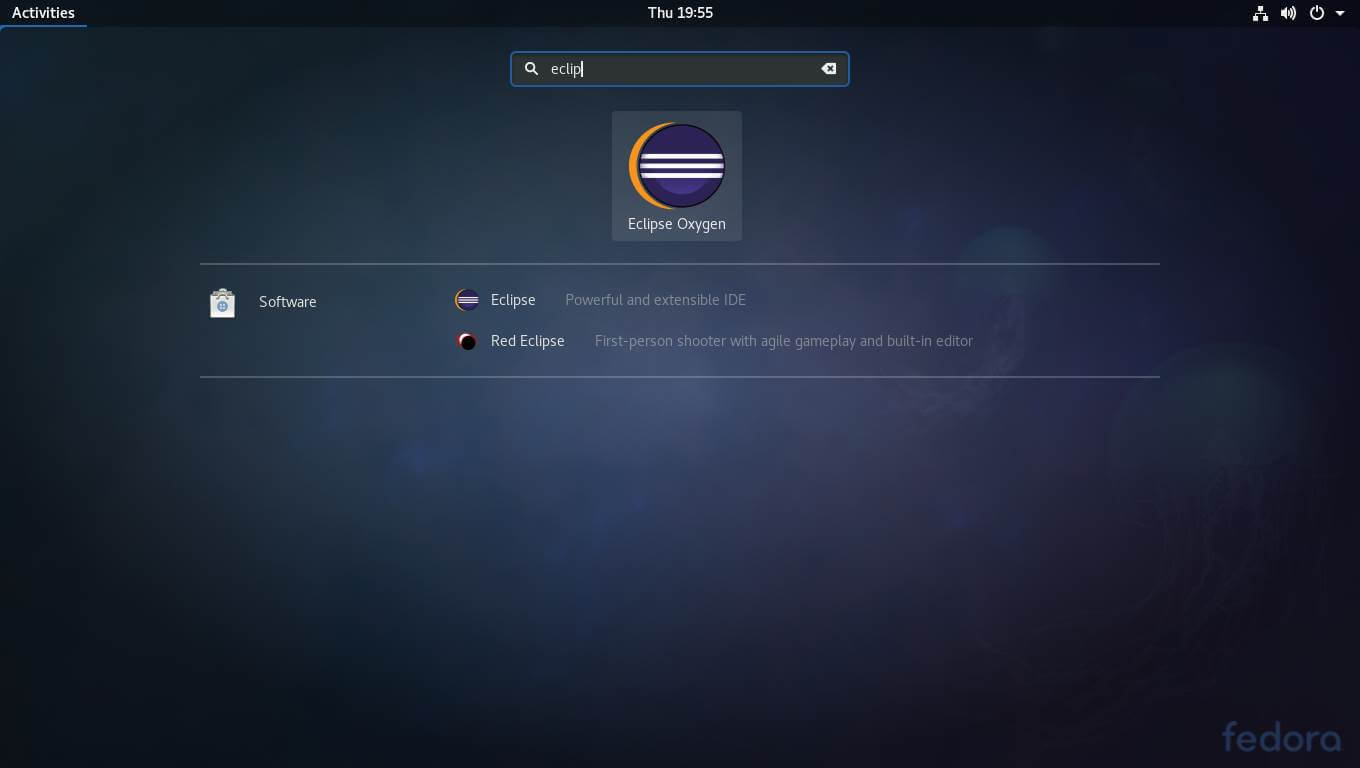
Launch Eclipse Oxygen IDE
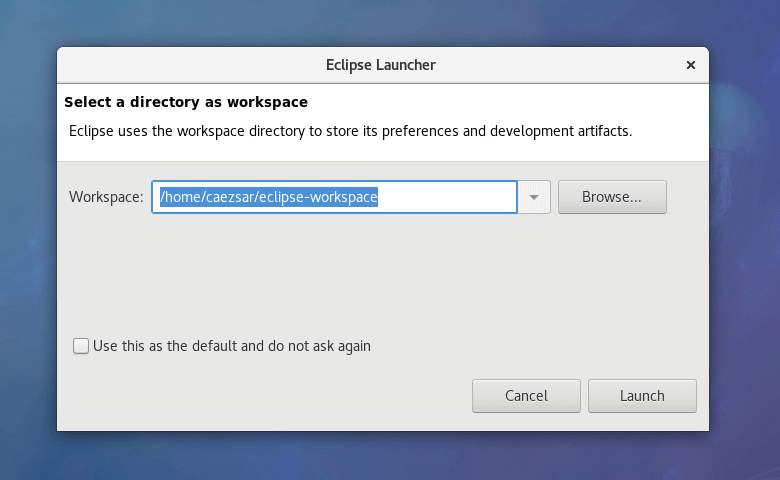
Add Eclipse Oxygen IDE Workspace
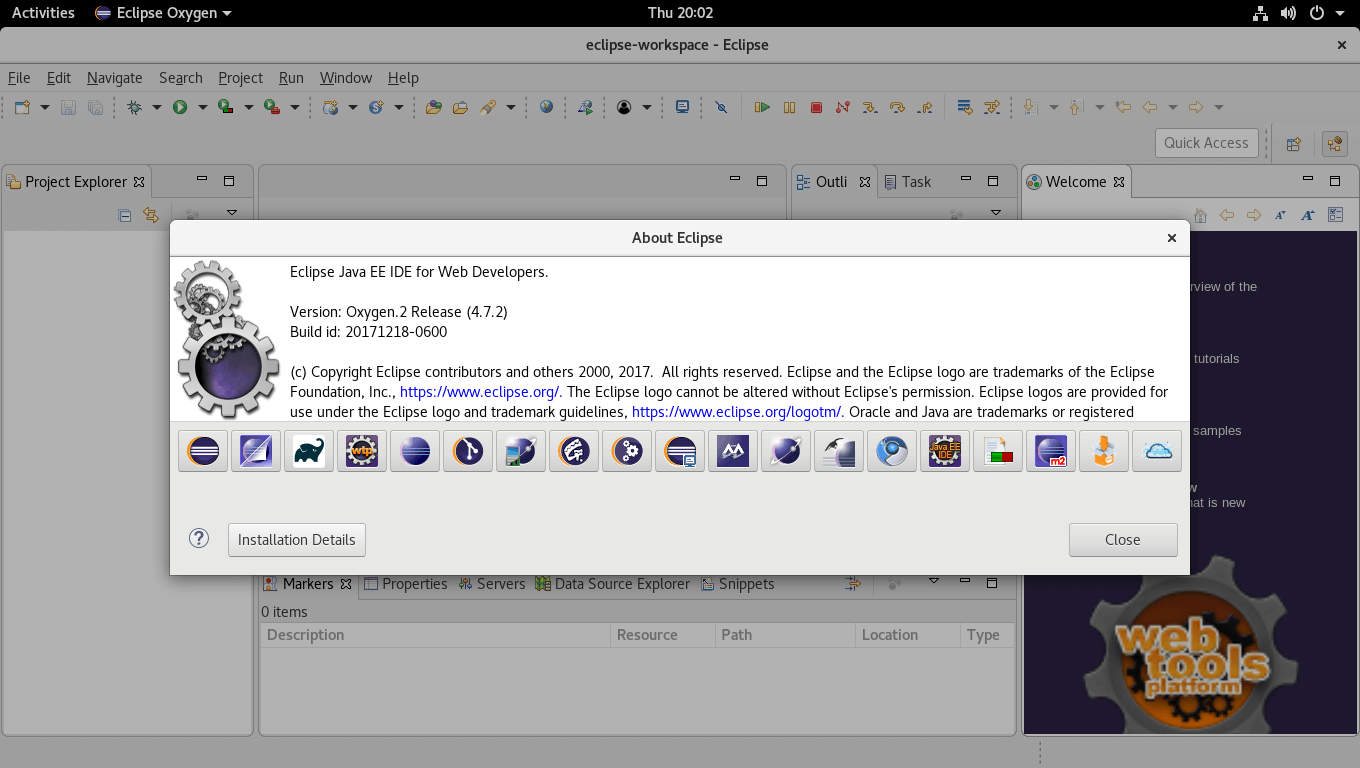
Eclipse Oxygen IDE
Congratulations! You’ve successfully installed the latest version of Eclipse IDE in your Red Hat Linux based system.



Sir Is there any rpm to install eclipse on centos5.8
@Hari,
You can find RPM packages for your CentOS version here: https://eclipse.org/downloads/eclipse-packages/
Hi all,
Can you share the wget latest link to download Eclipse.
like to download Eclipse from below link for linux , but it’s not working
http://www.eclipse.org/downloads/download.php?file=/technology/epp/downloads/release/juno/SR2/eclipse-jee-juno-SR2-linux-gtk-x86_64.tar.gz
@Sachin,
Sorry to hear that, actually this article is too old and haven’t been updated yet. Thanks for informing about that broken link, we will update the article by today so that you guys can have latest version installed on your systems..
I got these lines. Dont know what to do… Please help
/usr/bin/eclipse: line 1: [Desktop: command not found
/usr/bin/eclipse: line 4: SDK: command not found
/usr/bin/eclipse: line 9: Application: command not found
/usr/bin/eclipse: line 9: Development: command not found
This was very helpful. Thanks for the post. It worked perfect.
Need help, when I start eclispe displays this message “Error during initialization of VM
Could not reserve enough space for object heap “… help me are my first steps … I’m running the Linux operating system in a virtual machine might be that the problem?
cannot run/execute binary file. how to fix this?
Set the executable permission on the file like this.
And then execute it.
very nice, thanks alot
That was awesome! Thanks!
hey really thank you very much foe this stuff..:):):):)
Eclipse install fines on centos 6.3, However display is broken, icons are misplaced
@Akhilesh,
Can you send me the screenshot for the same. It will help us to identify the actual problem..
Thanks for reply, icons are fine now, just restarted eclipse. And Its looking nice on GTK theme.