Certain Android applications are meant for touch devices and do not function properly on your remote-controlled Fire TV Stick device. This deprives the FireStick users of some good apps. The primary reason why you can’t use such applications is because they are not compatible with your Amazon FireStick remote. However, if there was a way you could use a mouse with FireStick, you could make some of these apps work.
You could get mouse pointer on your FireStick interface without connecting a physical mouse to it. All you need is the Mouse Toggle app. In this guide, we will learn to install the Mouse Toggle on FireStick. You can maneuver the mouse pointer using the navigation buttons on your remote. To click an object, just hover the pointer over it and press the Select button on the remote.
Attention FireStick Users: Read before you continue
Governments and ISPs across the world monitor their users' online activities. If found streaming copyrighted content on your Fire TV Stick, you could get into serious trouble. Currently, your IP is visible to everyone. I strongly recommend you to get a good FireStick VPN and hide your identity so that your movie viewing experience doesn’t take a bad turn.
I use ExpressVPN which is the fastest and most secure VPN in the industry. It is very easy to install on any device including Amazon Fire TV Stick. Also, it comes with a 30-day money-back guarantee. If you don't like their service, you can always ask for a refund. ExpressVPN also has a special deal where you can get 3 months free and save 49% on annual plan.
Read: How to install and use a VPN on FireStick
Mouse Toggle App for Fire TV Stick: Installation Guide
Let’s first set up our FireStick device so that it allows you to install the third-party apps. The Mouse Toggle app we are going to install is also a third-party app. Follow the steps below:
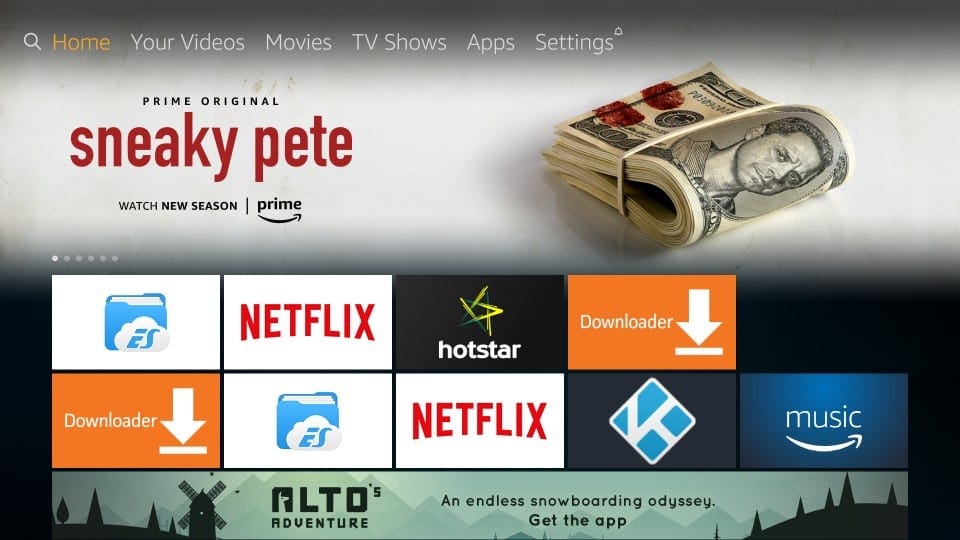
Step 1: Power on your FireStick device and open Settings from the home-screen (the Settings option is on the menu bar on the top of the screen)
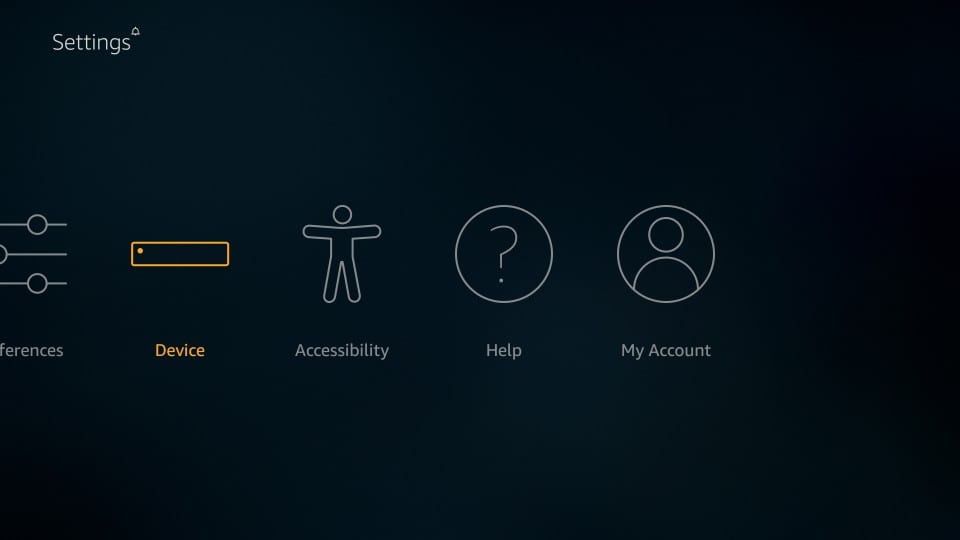
Step 2: Navigate to Device and open it on the next screen
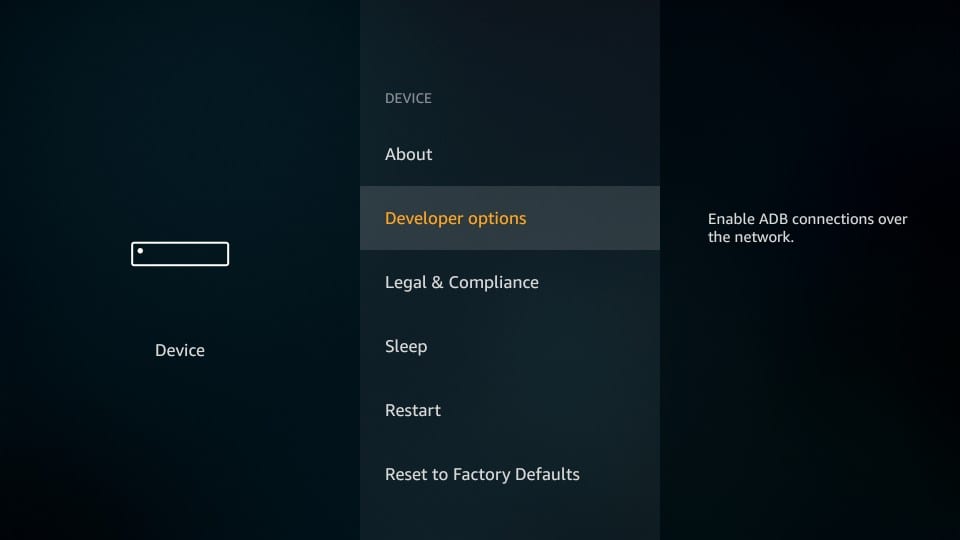
Step 3: Now open Developer Options
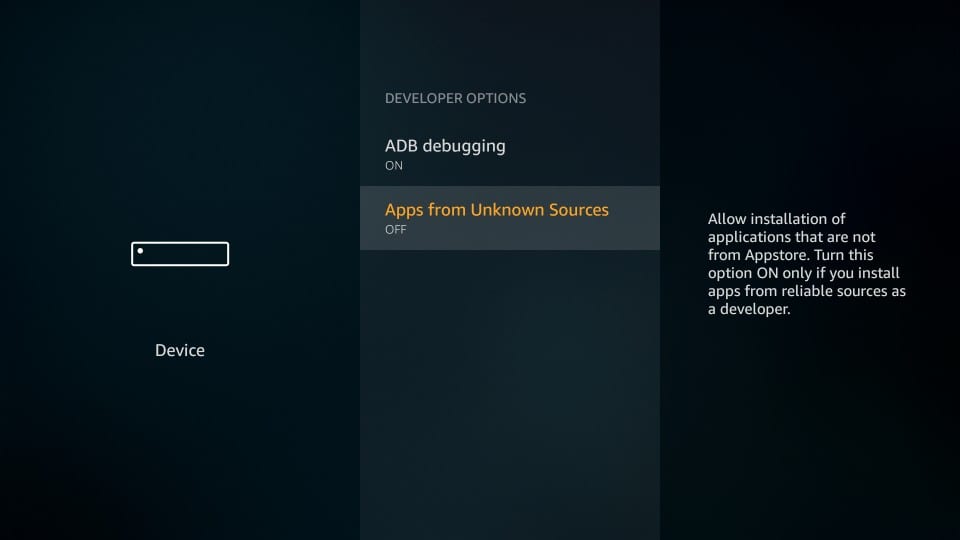
Step 4: See whether Apps from Unknown Sources is OFF or ON. If it is OFF, click it to turn it ON.
Step 5: A warning message pops up informing you about the risks of enabling Apps from Unknown Sources. Ignore this message. You are going to install Mouse Toggle app, which I have personally used. It is a safe app.
Click Turn on
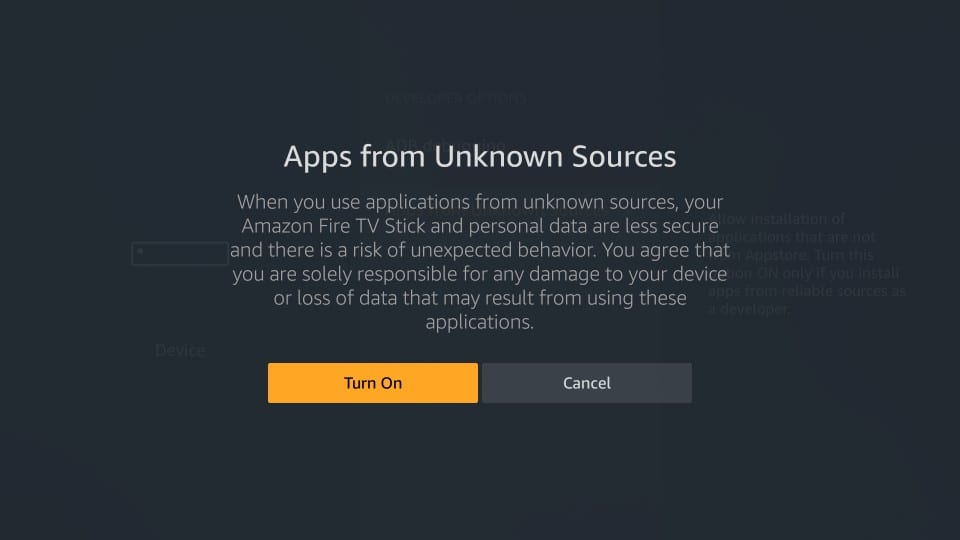
Your FireStick will now install any third-party app. Let’s get started with Mouse Toggle.
Step 6: The very first thing you need is a side-loader app. FireStick does not permit direct browser download of the files. I recommend Downloader app. It is a very effective side-loading tool for FireStick. Install Downloader on FireStick and launch it. You can easily get this app from the Amazon Store
Step 7: The main-screen of Downloader looks like this. As you can see, the Home option on the left is already clicked. On the right, there is a field where you can enter the source URL from where Mouse Toggle will be downloaded.
Click this URL field
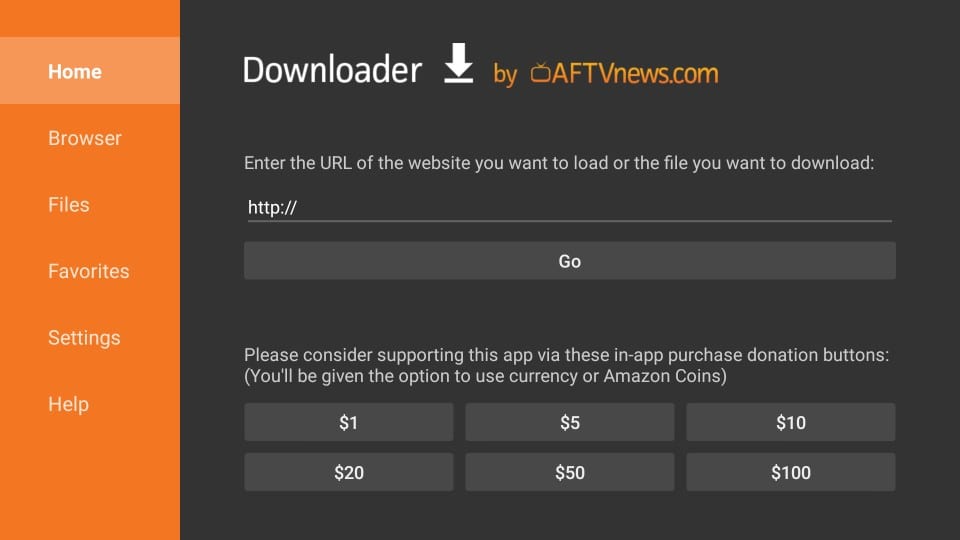
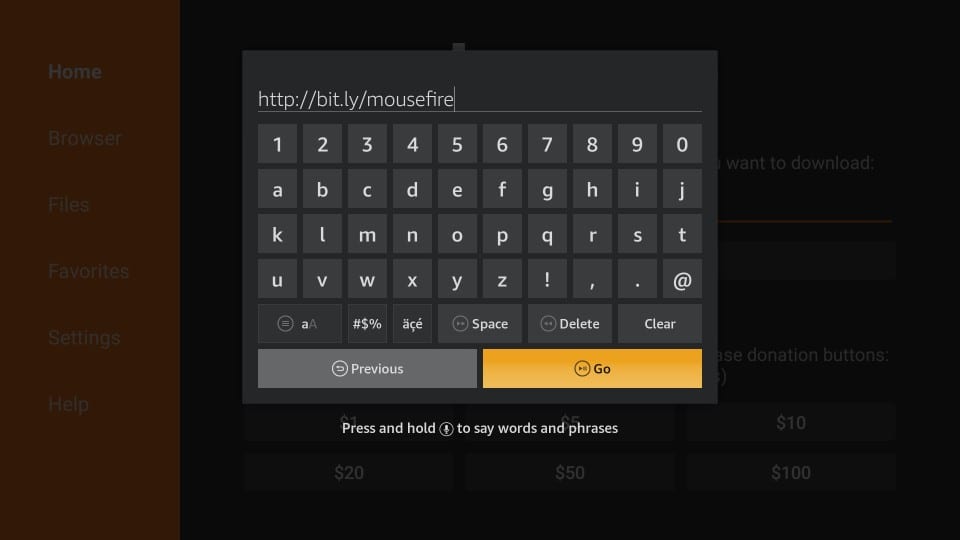
Step 8: Enter the following URL (as per your device) when you see the on-screen keyboard (look at the image below):
For Fire Stick Gen 1, Fire Stick Gen 2, Fire TV 1, Fire TV 2, Fire TV Cube – https://www.firesticktricks.com/mouse
If you have FireStick 4K, Fire TV 3 or Fire TV Edition use this link – http://bit.ly/mousefire
Hit GO after entering the URL
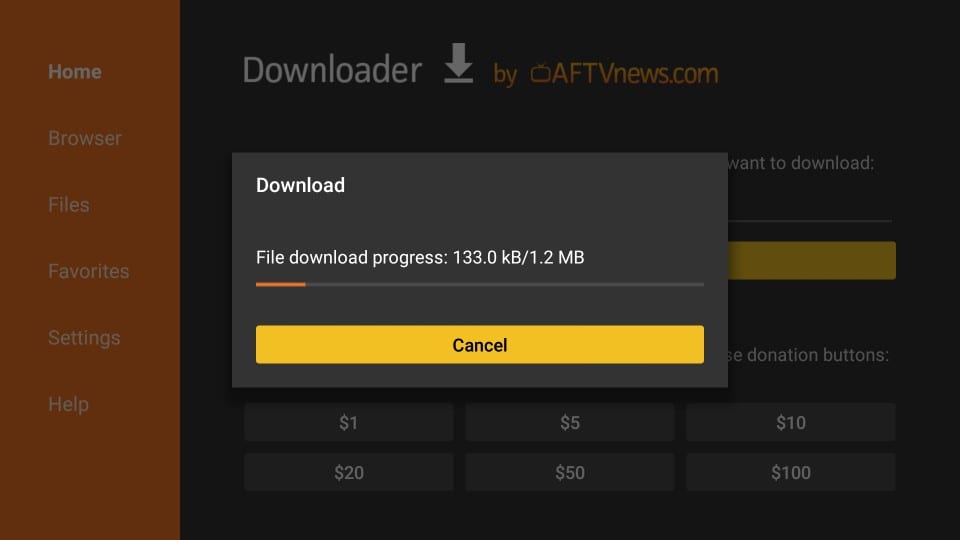
Step 9: Allow the Downloader app to download the Mouse Toggle APK file. It may take a couple of minutes.
Step 10: The good thing about Downloader is that you don’t need to execute the downloaded APK manually. It runs the file and starts the installation automatically. You should now see the following prompt.
Click Install
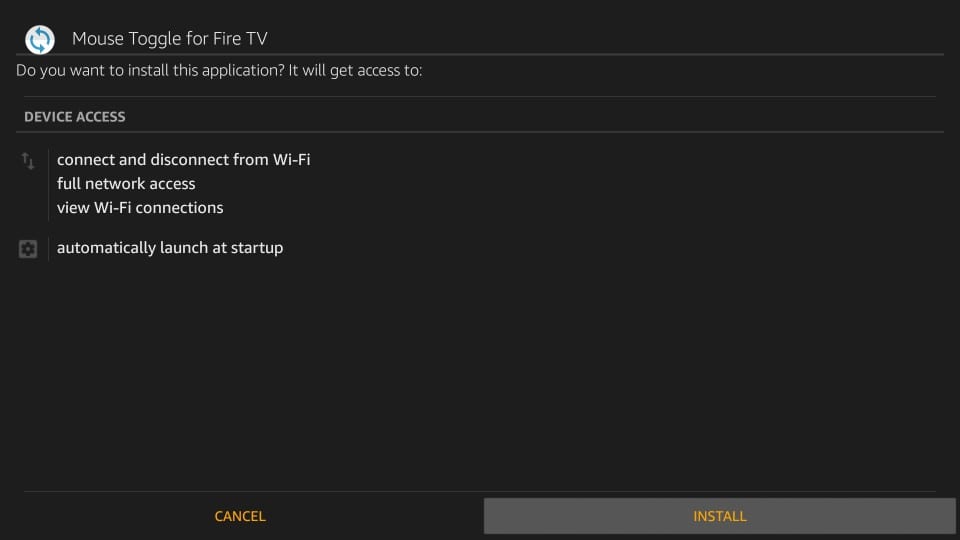
Step 11: Now wait for the Mouse Toggle APK to install on the device
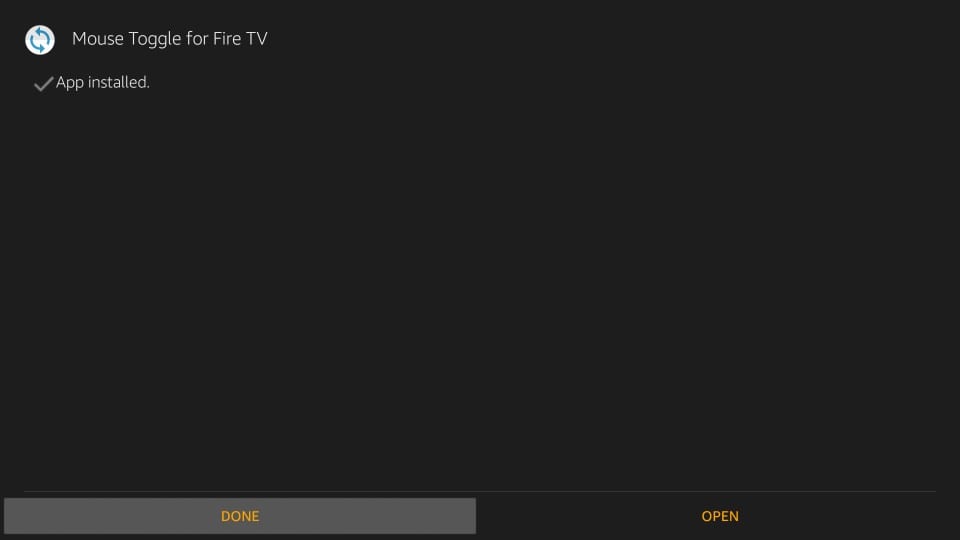
Step 12: You will get the confirmation of installation with the App Installed prompt that shows.
When you click Open here, you launch the Mouse Toggle app right away. But, we will run and use the app later.
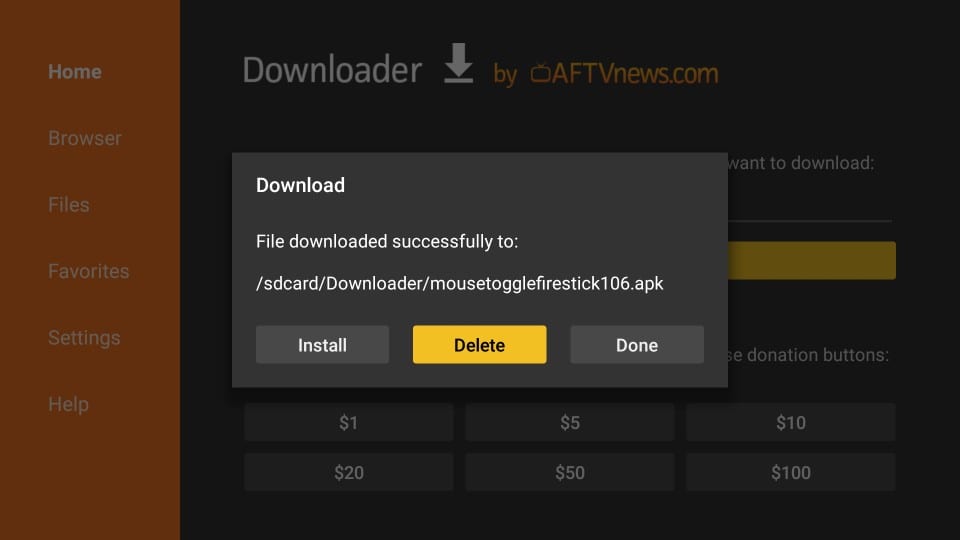
First, click Done and return to the Downloader app. I will show you how to delete the Mouse Toggle APK you just downloaded. The APK files are not required after the installation. Let’s free up some space.
Step 13: Click Delete
Step 14: Click Delete one more time
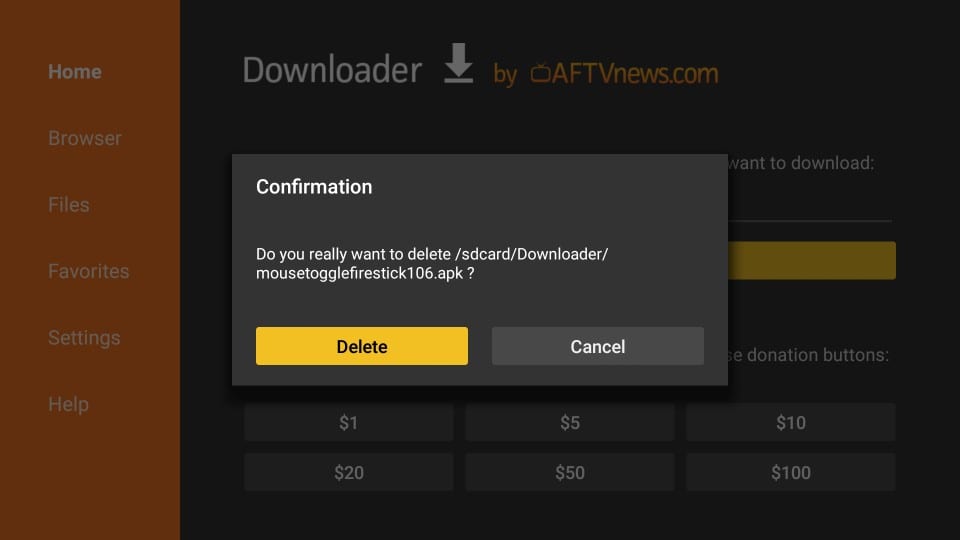
You have successfully removed the APK file from FireStick.
How to Access and Use Mouse Toggle on FireStick
All the apps you install on FireStick can be accessed from the Your Apps & Channels section. Here is how you can get there:
- Press and hold the Home button on your FireStick remote for about 5 seconds
- When the menu screen appears, click Apps
- There you are in Your Apps & Channels
Now scroll down to the bottom using your remote where you will find the Mouse Toggle app. Remember that when you install an app its icon appears on the bottom in Your Apps & Channels. The other thing to note is that the recently installed apps do not appear on your FireStick home-screen.
To move any app to home-screen, select its icon in the Your Apps & Channels section and press the menu key on the remote. Now click Move and move the icon to one of the top rows.
Now I will show you how to use the Mouse Toggle.
First, in order for the Mouse Toggle app to work, ADB Debugging must be ON. Here is how you can turn it ON: FireStick Home screen > Settings > Device > Developer Options > ADB Debugging
Open the app from the Your Apps & Channels section. This is how the app looks like. There is only one screen.
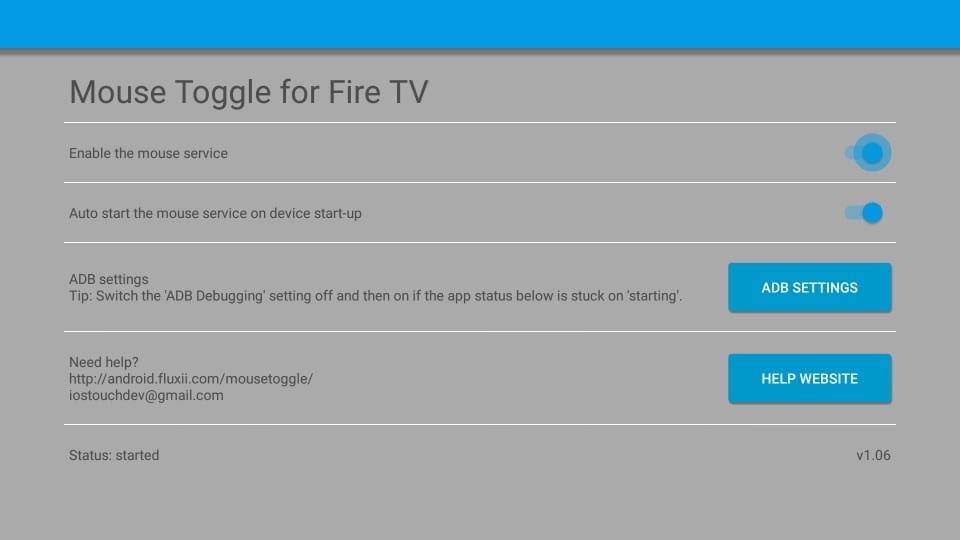
Make sure Enable the mouse service option is on. If you would like the mouse service to run on the FireStick start-up, keep the second option turned on. I recommend keeping it on. Mouse Toggle is just a 2 MB app and keeping it on all the time does not affect the device performance.
When the mouse service is enabled, the Status at the bottom left of the screen should say started.
If the Status is stuck on starting then you may need to turn ADB Debugging OFF and back ON. You may click the ADB SETTINGS button within the application to turn it off and on.
That’s pretty much it about the interface. Let me now show you how to use mouse pointer with any application.
I will use Showbox HD as an example as this app cannot be navigated with the FireStick remote. Here is the Showbox HD home-screen:
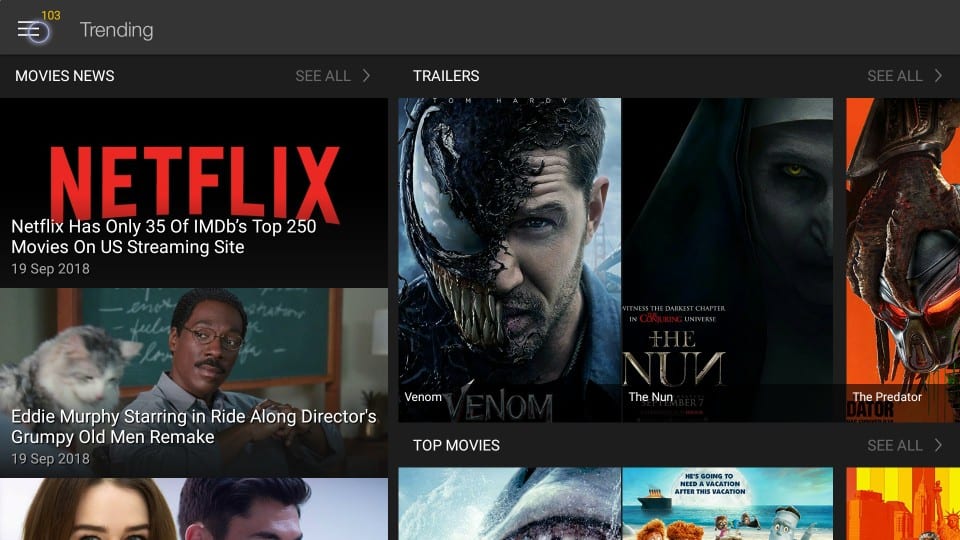
As you see, there is the menu on the top-left corner. I can’t get to it without the mouse toggle. But, there is no mouse pointer on my TV screen yet. So, how do I bring it about?
To display the mouse pointer, all you need to do is quickly press the Play/Pause button on your Amazon FireStick remote twice.
I did that and manoeuvred the mouse pointer over the menu. Now I just need to press the Select button on the remote to click the menu.
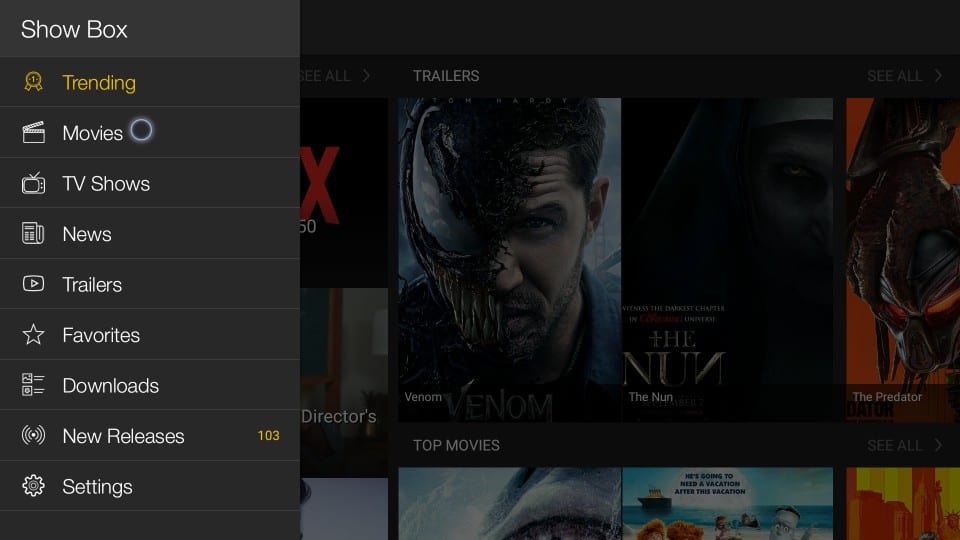
The following menu appears. Now, I can use the mouse pointer to hover over and click any item I want on the menu.
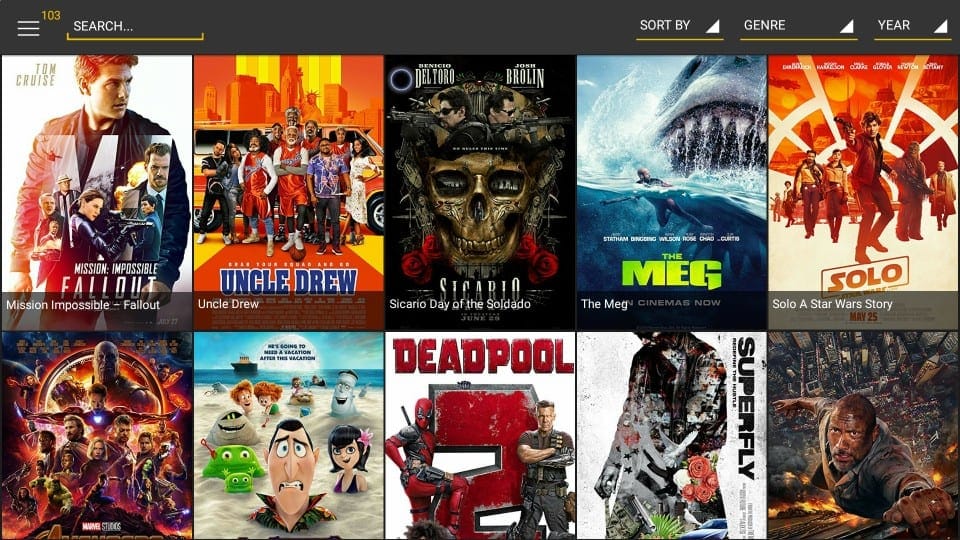
I clicked Movies and I was redirected to the screen containing the list of the movies. Again, I can use the mouse pointer to open any movie I like.
Please also note that the mouse pointer disappears after a few seconds when left idle. Just press the Play/Pause button on the remote twice to bring it back.
How to Scroll Pages with the Mouse Toggle?
The first thing you need to do is bring up the Mouse Toggle cursor on the screen by pressing Play/Pause button on the remote twice.
Now, quickly press the following buttons on your remote one after the other in the same order:
- Play/Pause
- Down Navigation
The cursor will get bigger and faster and it will let you scroll pages.
Wrapping Up
Mouse Toggle allows you to use apps like Showbox on FireStick, which are otherwise incompatible. When the mouse pointer appears on the screen, you can move it around using the navigation button on the remote. You can reach out to the items within an incompatible app that the regular remote function cannot. Mouse Toggle is a lightweight app and I believe every FireStick user must have it.
Related:
How to Jailbreak FireStick
How to Reset Kodi on FireStick
How to install TeaTV on FireStick
How to install Morpheus TV on FireStick
How to install OneBox HD on FireStick
Legal Disclaimer - FireStickTricks.com does not verify the legality or security of any add-ons, apps or services mentioned on this site. Also, we do not promote, host or link to copyright-protected streams. We highly discourage piracy and strictly advise our readers to avoid it at all costs. Any mention of free streaming on our site is purely meant for copyright-free content that is available in the Public domain. Read our full disclaimer.

Sorry but FireStick 4K does not support this procedure for mouse toggle. ADB debugging toggle does nothing. App stays in Starting Status no matter what I do.
Please use the link http://bit.ly/mousefire to install Mouse Toggle on FireStick 4K. It works for me
Hi, how do you scroll down to see all movies. My curser just stops at the bottom of the screen
Hi Tracy, yes, that’s a problem with Mouse Toggle. You will need to switch to Remote Mode to scroll.
Status stuck on starting.
Hi, enable and disable ADB Debugging in Settings > My Fire TV > Developer Options
Hi… the FF button won’t work. Showbox kicks me out sometimes after half an hour or so, and I can’t FF to where I was… Any suggestions? Thanks.
Hi Frances, if by FF you mean Fast Forward button, it doesn’t work with Mouse Toggle. You need to quickly press the Play/Pause button twice to enable mouse toggle. You can guide the mouse pointer with the navigation buttons on the FireStick remote.
Thanks
hi my is not reponding i tryed to hold home baton for 10 sec but no luck i trid every thing
Hi, you need to quickly press the play/pause button on the remote twice to make the mouse toggle appear
Upon downloading the mouse toggle. I keep getting a pop up that reads (Allow USB debugging? ) there is a box for Always allow from this computer. And ok or cancel. I have hit cancel many times, but it keeps popping up.
Hi Frank, allow USB Debugging and hit OK for mouse toggle to work
I can’t get the mouse to go across to the right side of my screen or to the bottom I’ve deleted and reloaded but nothing works what am I doing wrong
Hi Paula, are the Down and Right buttons on your FireStick remote working fine? I don’t see any reason why you couldn’t control the mouse toggle
I just downloaded mouse toggle for Fire TV, version 1.11. The status is started. But when i push the stop/start button twice nothing happens. It dosen’t bring the cursor up. What do i need to do?
Hi Missie, go to FireStick Settings > My Fire TV > Developer Options
Make sure ADB Debugging is turned on. If it is already ON, turn it OFF and switch it back ON. Let me know if that works.
i m not 15 years of age so am not pre programmed to understand this tech.
i somehow installed showbox onto firestick, but the remote doesn,t work. so i ve figured out i need mouse toggle app. the instructions were fine up to step 6 where it says i need to get the downloader app first. on stage 6? really? thats the first step then isn,t it. then it got unfathomable
“Hi Mark, steps 1 through 5 are about setting up FireStick to allow the installation of third-party apps. Step 6 is from where the installation process starts. But, I see your point.
You may simply install Downloader app from the Amazon store. From the FireStick home-screen, select the Search option in the top-left corner and look up for Downloader. Once that’s done, follow the instructions from Step 7 through last.”
Can you use the mouse toggle app with the fire tv remote app? I cannot find my physical remote.