Fetching latest commit…

vlc-subtitle-word-search
Search for words of the current video SRT subtitle files in VLC
Synopsis
With this VLC extension you can search on Internet search engines the words displayed in the SRT subtitles of a video. This way you can look up online dictionaries to get translations, meanings, and others.
Tested with:
- Windows 10: VLC 2.2.2
- Linux Mint 17.3: VLC 2.1.6
The extension is published at addons.videolan.org.
Installation
Copy the subtitle_word_search.lua file in one of the following directories depending upon your OS and the availability you want for other users:
- Windows
- All users:
Program Files\VideoLAN\VLC\lua\extensions\ - Current user:
%APPDATA%\vlc\lua\extensions\
- All users:
- Mac OS X
- All users:
/Applications/VLC.app/Contents/MacOS/share/lua/extensions/ - Current user:
/Users/%your_name%/Library/ApplicationSupport/org.videolan.vlc/lua/extensions/
- All users:
- Linux
- All users:
/usr/lib/vlc/lua/playlist/ or /usr/share/vlc/lua/extensions/ - Current user:
~/.local/share/vlc/lua/extensions/
- All users:
Help
Usage
- Open the extension clicking the View > Subtitle Word Search menu.
- The extension looks for all the external .srt subtitle files located in the same directory of the movie file with the same name as the video file, the same subtitles that VLC detects automatically.
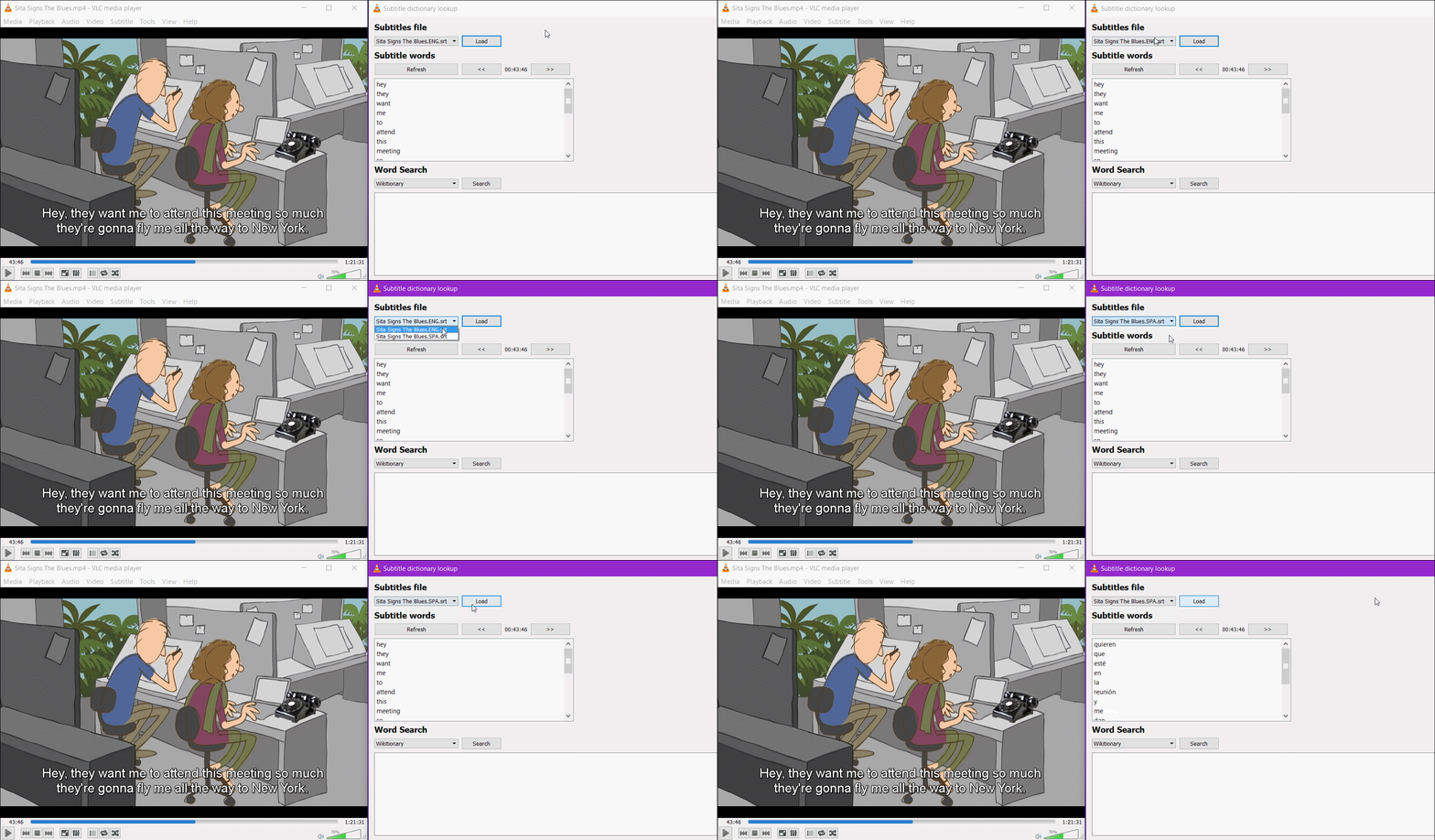
- Select a subtitle file from the dropdown widget and load it clicking the Load button (when the extension is opened, one subtitle file will be loaded by default).
- The splitted words corresponding to the current playing time of the movie are displayed in a list.
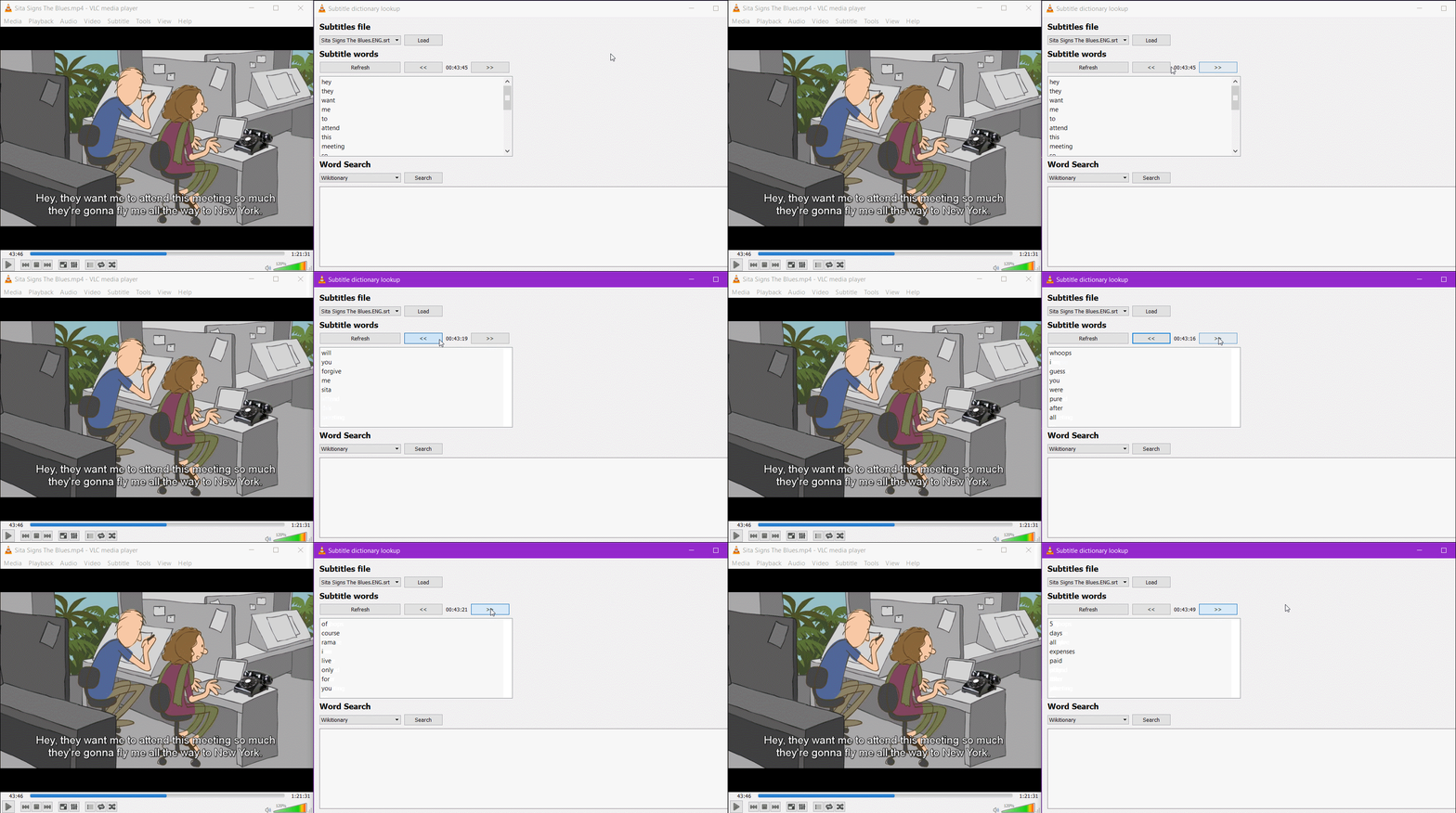
- Navigate through the subtitles behind/ahead of the current time clicking the << and >> buttons.
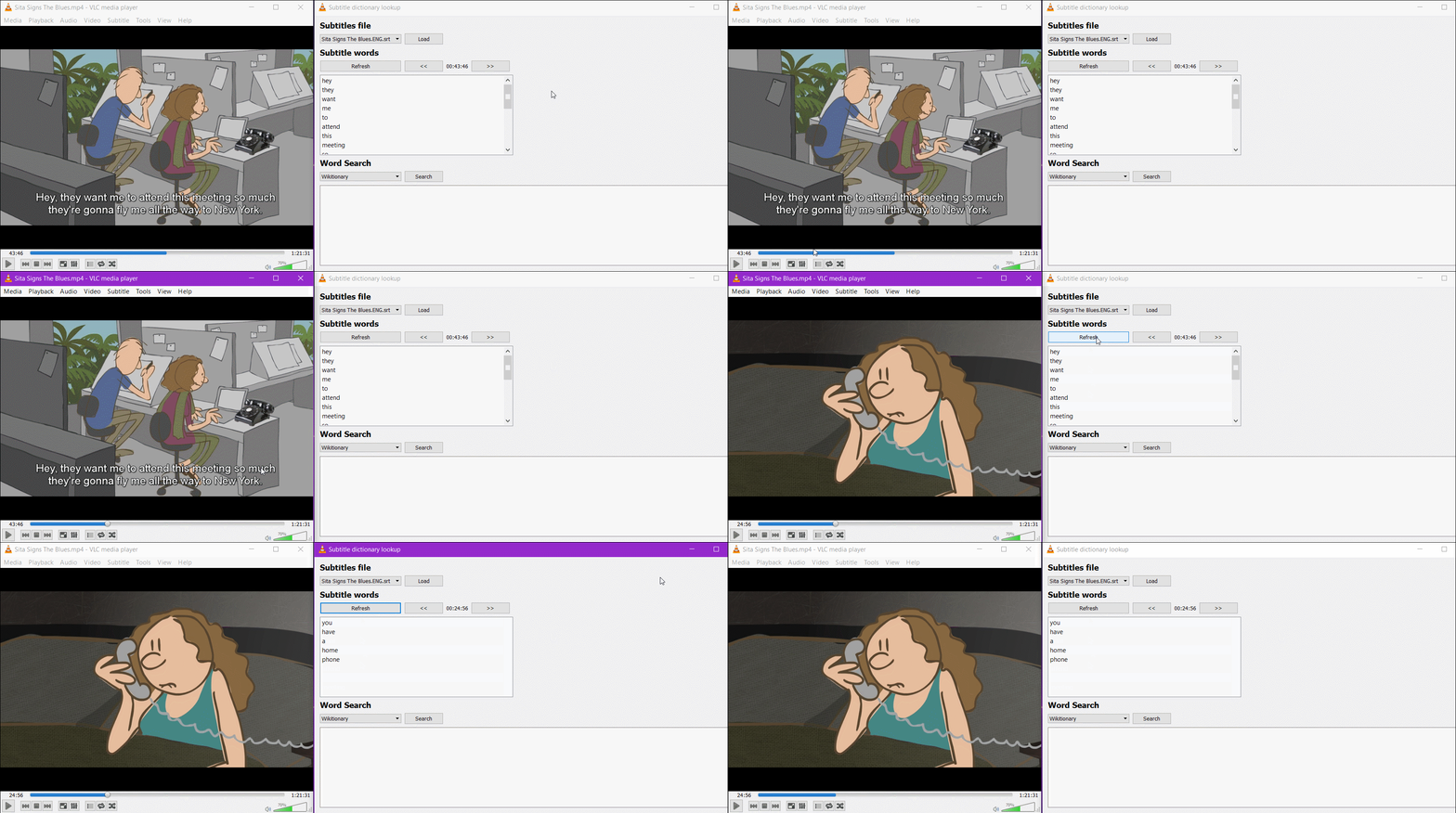
- Forward the playing time, click the Refresh button and see the updated subtitles.
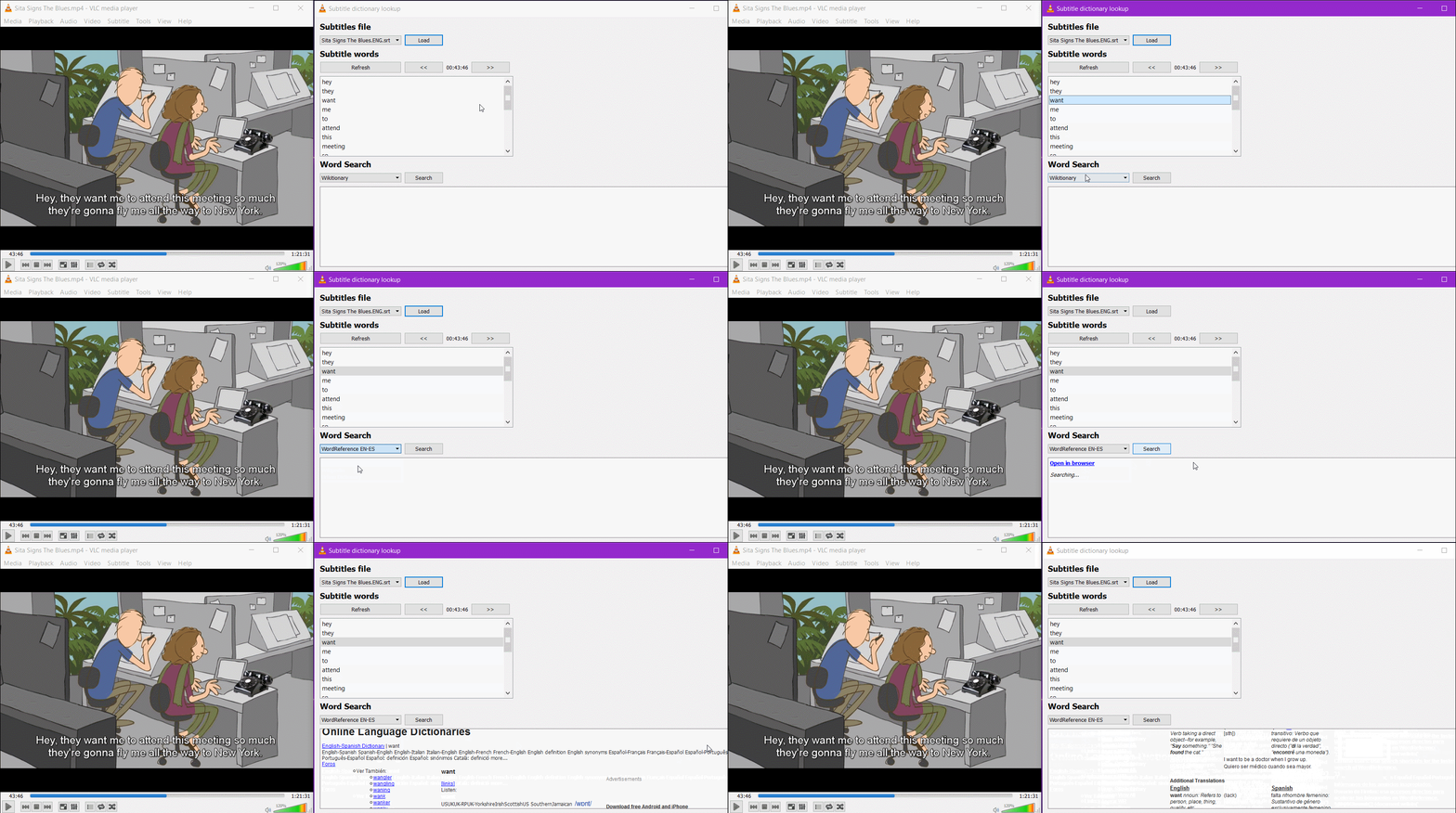
- Select a word, select a search engine, and click the Search button.
- The web content will be displayed in the box at the bottom. You can also open the query link in your browser clicking the generated Open in browser link.
Tips
Encode subtitle files as UTF-8
VLC extensions work better with UTF-8 encoded text. To make sure that most of the special symbols of the file are displayed correctly make sure the subtitle file you load is encoded as UTF-8.
Add your custom search engines
Open the subtitle_word_search.lua with a text editor and modify the variable search_engines adding new entries as in the example below.
search_engines = {
	{name = "Wikitionary", url = "http://en.wiktionary.org/wiki/%s"},
	{name = "Wikipedia", url = "https://en.wikipedia.org/wiki/%s"},
	{name = "My search engine", url = "http://www.mysearchengine.url/%s"} --New search engine!
}
Make sure the search engine URL has the %s text in place of the query text.
Keep the extension opened
While watching a movie, open the extension and keep it opened. Whenever you want to look up a word: pause the video, check the extension, click the refresh button and make your search.
Demonstration GIFs
Load another subtitle file
Navigate through the subtitles
Search for a word
Refresh the current time's subtitle