FEATURED
Google Analytics 360 + Salesforce.
Google Analytics and Salesforce are working together to connect sales, marketing and advertising data, giving you the full view of what’s working across your ads, websites, emails, call centers, and more. Read the post.
Last post , we told you about a way to use Google Analytics to see your Google Checkout transaction data. Today, we'll show you the alternate method of posting Checkout API requests,Method 2 for posting Checkout API requests into Google Analytics In this method, the form that displays the Google Checkout button submits to another URL on the merchant’s website. That URL hosts an application that creates a Checkout API request, executes a server-to-server POST request, and lastly captures Google’s response to that request. The response contains the Google Checkout URL to which the customer should be redirected. To track shoppers while using this method, merchants will need to make the following changes: 1. Add the JavaScript call below to each page that displays a Google Checkout button; HOWEVER, before making this call your page should display all of the forms that display Google Checkout buttons. Your page should also include the standard Google Analytics tracking code before you make this call. <script src="http:/checkout.google.com/files/digital/urchin_post.js" type="text/javascript"></script> 2. Add the following hidden input field to each form on your site that displays a Google Checkout button: <input type="hidden" name="analyticsdata" value=""> 3. For each form that displays a Google Checkout button, add an onsubmit attribute to the <form> element. The onsubmit element should call the setUrchinInputCode JavaScript function as shown in the following example: <form action="..." method="POST" onsubmit="setUrchinInputCode();" > 4. Modify the form handler on your site that executes when a user clicks a Google Checkout button. The form handler needs to extract the value of the analyticsdata field so that the value can be included in the Checkout API request. 5. Add the <analytics-data> element to your Checkout API requests. The element’s value should be the analyticsdata field captured by the previous step. The <analytics-data> element is a subtag of the <merchant-checkout-flow-support> element.ut transactions. The implementation details above will allow your Google Analytics account to track your Google Checkout transactions. If you would like an even more detailed explanation, along with screen shots and specific examples for each situation, we recommend checking out this excellent resource that the Google Checkout API team has put together for you. Posted by Adam Wooley, Google Analytics Team
We occasionally get questions from our new users of Google Checkout. They've read all about how to track e-commerce transactions with Google Analytics; now they would like more specific details for implementing tracking. Merchants can use Google Analytics to track buyers who leave their sites to complete the checkout process with Google Checkout. With the help of Google Analytics, Google Checkout merchants will be able to separately track activity on: 1) the Login page, or the first page to appear after a buyer click the Google Checkout button, 2) the Place Order page, which appears after the buyer logs in to Google Checkout, and 3) the Order Confirmed page, which appears after the buyer places the order. Additionally, Google Analytics will provide a wide range of information on every order placed. Like current Google Analytics e-commerce tracking implementations, this will include the order-ID, total price, tax, shipping charge, city, state/region, and country. It'll also include the item-specific information such as product name, price, and quantity. There are two methods that Google Checkout merchants use to post their Checkout API requests so that Google Analytics can include Checkout data. Each method requires a slightly different Google Analytics implementation. Today we'll give you a technical overview of the first method, and then will include the second method in our next post.Method 1 for posting Checkout API requests into Google Analytics In a standard Checkout API request, a form on the merchant's web page displays a Google Checkout button while containing an encoded version of the customer's shopping cart. When the user clicks the Google Checkout button, the form posts the encoded shopping cart data directly to Google Checkout. To track shoppers while using this method, merchants will need to make the following changes: 1. Once you have Google Analytics set up and tracking your website, add the JavaScript call below to each page that displays a Google Checkout button. HOWEVER, before making this call, your page should display all of the forms that display Google Checkout buttons. Your page should also include the standard Google Analytics tracking code before making this call. <script src="http://checkout.google.com/files/digital/urchin_post.js" type="text/javascript"> </script> 2. Add the following hidden input field to each form on your site that displays a Google Checkout button: <input type="hidden" name="analyticsdata" value=""> 3. For each form that displays a Google Checkout button, add an onsubmit attribute to the <form> element. The onsubmit element should call the setUrchinInputCode JavaScript function as shown in the following example: <form action="..." method="POST" onsubmit="setUrchinInputCode();" > For more information, take a look at help document, Using Google Analytics to Track Google Checkout Orders , and stay tuned for Part 2.Posted by Adam Wooley, Google Analytics Team
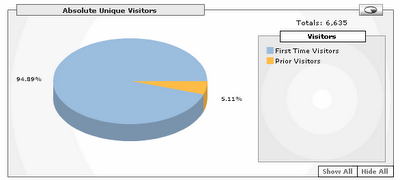
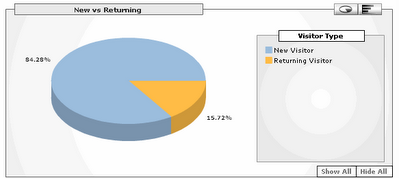
Happy new year! For our first post of 2007, we'd like to add clarity to the difference between two reports that you are probably already using. Among the vast array of reports that Google Analytics provides, “Absolute Unique Visitors” and “New vs. Returning” are two that give information on what percentage of visitors your website retains . If you're trying to explain the difference between these reports to your colleagues, read on.Absolute Unique Visitors This report counts each visitor only once and then classifies the visitor as “First Time” or “Prior Visitor.” The question asked is, “has this visitor visited the website prior to the active (selected) date range?” and the answer is a simple yes or no. If the answer is “yes” the visitor is categorized under “Prior Visitors"; if it is no, the visitor is categorized under “First Time Visitors." Visitors who have returned are still only counted once.New vs. Returning This report classifies visits (sessions) by the visitor type (new or returning). So when somebody visits your site for the first time, the visit is categorized as “Visit from a new visitor.” If this user has browsed your website before, the visit is categorized as “Visit from a returning visitor.” In other words, Absolute Unique Visitors counts visitors, whereas New vs. Returning counts visits. Still wondering? Here’s an example: Assume the date range is May 1-31. User A visits www.domain.com for the 1st time on May 5th and then returns to the website on 12th and 17th of May. User B visits www.domain.com on April 8th and then again on May 5th and 12th. Results: In Absolute Unique Visitors : User A will be counted as a First Time (New) Unique Visitor on May 5th, and User B will be counted as Prior (Returning) Unique Visitor. User A and User B will not be counted as a Unique Visitor (either first time or prior) for any subsequent visits (May 12 and 17th). In New vs. Returning : The visit on May 5th from User A gets counted as a visit from a "New" visitor. Subsequent visits from User A (May 12 and 17th) get counted as visits from a "returning" visitor. All of User B's visits are counted as visits from a returning visitor. To sum it up, Absolute Unique Visitor report counts visitors to your website (counting each visitor only once in the selected date range) whereas New vs. Returning classifies all visits (sessions) in the date range by the visitor type. The new visitor number may seem especially large if you are looking at a large date range, or if you have just recently installed Analytics on your site. For more information about terminology in Google Analytics, take a look at this help article:What's the difference between clicks, visits, unique visits, and unique visitors? and don't forget to browse our glossary of terms .Posted by Gauri Deshmukh, Google Analytics Team