
Madlan Guide
Madlan Website
Homepage

On the top right corner of this section, you have the option to view the properties you can buy (קניה) or rent (הרכשה). You can also receive information about a specific address or area by clicking on the third option: מידע על כתובת.
On the left corner, you will see a button with a plus sign that allows you to list a property on the website for others to buy/ rent.
You also have the option of logging into the website if you have an account or signing up by clicking on the person icon that says: הרשמה/ התחברות
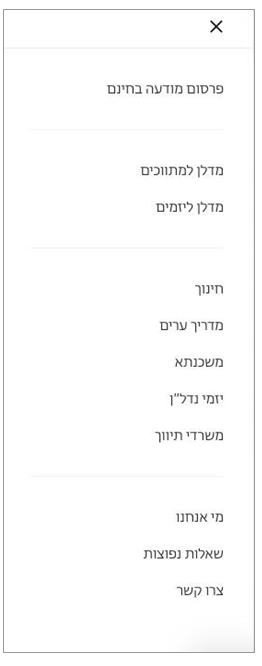
The three lines on the far left corner opens up the following menu:
Upload a property for free
Madlan for Realtors
Madlan for Entrepreneurs
Education
City Guide
Mortgage
Real Estate developers
Real Estate agencies
Who we are
Common questions
Contact us

Here, you can either “Find an apartment” (הריד אוצמל) or “Look into an address” (לבדוק כתובת). Just type in the address or area you’re looking for and click the search icon to the left.

These are some examples of properties that have a lower price than what Madlan thinks is it’s real value. If you press the blue button on the bottom right corner, it will lead you to all the options for more affordable housing.
In each one of the three white boxes, you have the price of the apartment (ex: ₪ 1,480,000), the amount of rooms (ex: 4 ‘דח), square meters (ex: 115 מ”ר), the type of housing (ex: דירה=apartment) and the area/ city in which the apartment is located (ex: רחובות). The purple text underneath is just telling you that you are looking at properties that belong to the category of housing at lower prices.
If you’d like to see other properties in that specific area, all you have to click the blue text under the white box (ex:לכל המודעות ברחובות).
On the top right corner of these images, you will see a small box that indicates how long ago this property was added to the website (ex:םוי 54 ינפל).
On the top left corner of the images you will see a “Save” icon- click this if you see a property you like and would like to save in order to easily access it later.

In this next section they are telling you that when searching for a property on Madlan, they show you it’s price as well as it’s real value in order to help you save money. They have a funny video linked with a song about it. Here’s the link if you’d like to watch it: https://www.youtube.com/watch?v=fs7QXHd0218.

These are some examples of properties “that the whole family would love” (more family-friendly homes). Similar to the section above, the blue bottom on the bottom right corner will lead you to all the options for homes for all the family. On each box, you also have the price, amount of rooms, square meters, type of property and area/city.
The green text underneath is just telling you that you are looking at properties that belong to the category of properties for the whole family.
The blue text under each box will lead you to all the properties in that specific area/ city if you click it.
You will see that on the top right corner of some of the images, there’s a small yellow box. This means that this property was recently added.

These are examples of properties for those who like homes in quieter areas. The format is identical to the previous section.

In this section, you can select what things are important for you to have near your home. Starting from right to left:
- Family- friendly area (ex: parks)
- Good schools in the area
- Quiet and calm
- Dog parks in the area
If any of these interest you, click on the icon and you will see a tick appear where the plus sign is now. Then, click on the blue button underneath which will lead you to all the housing options that apply.

In this last section you will find new apartments and new projects. Under the image in bold blue text, you will find the address. Underneath that you will find the number of rooms (ex: דירות 4 חד‘) and the starting price (ex: 2,850,000 -החל מ). The last line has the address again.
The blue button at the bottom, leads you to see all the new apartments.
Buying
If you click on the Buying option at the top of the homepage (קניה), it will lead you to the following page:

Here, it shows the options for apartments up for sale in Tel Aviv, but you can search for any area on the search bar in the top right corner. These are the 6 tabs that appear at the top of the page (from right to left) and can be used to filter your search:
1. Price
This top part allows you to filter by Property Price. In the box on the left (where it now says 0₪), type in the minimum price and in the box on the right
(where it now says 6,000,000₪+), type in your maximum price.
This next part allows you to filter by Price per Square Meter. Just scroll the circle on the right along the line to fix your max price and the one on the left to fix your min price.
The green box at the bottom tells you what the average price for properties in the area you’ve selected (ex: in Tel Aviv-Yafo, the average price is 40,119₪).
Once you’ve set your filters, click on the green text in the bottom left corner that says “בחר”. If you’d like to remove the filters, click on the grey text on the bottom right corner that says “נקה”.

2. Rooms
Select how many rooms you’d like your apartment to have and then click on “בחר” on the bottom left corner.
3. Property Type
The options are as follows:
- Apartment

- Private house
- Garden Apartment
- Cottage
- Two Family House
- Penthouse
- Rooftop Apartment
- Store
- Agricultural land
- Duplex
- Land lot
Once you have chosen your filters, click on “בחר” on the bottom left corner.
4. Who’s Selling?
The options are as follows:
- Private
- Intermediator
- Developer (New project)
Once you have chosen your filters, click on “בחר” on the bottom left corner.
 5. Property Features
The options are as follows:
- Parking
- Elevator
- Balcony
- Mamad (Safe Room)
- Air conditioning
- Storage room
- Accessible
- Bars on the windows
Once you have chosen your filters, click on “בחר”on the bottom left corner to apply.
6. Additional Filters
The options are as follows
Property Condition
- Completely New
- New (Built in last 5 years
- Renovated (Renovated in past 5 years)
- Well-preserved (not renovated, but in good condition)
- Old (Needs maintenance and renovation)
Surface Area
You can filter by how big you want the surface area of the apartment to be. Select a number from 0 to 40.
Floor
You can filter by which floor you’d like your apartment to be in. Select an option between קרקע(ground floor) and 4.
Once you have chosen your filters, click on “בחר” on the bottom left corner to apply.
THE TABS ARE IDENTICAL TO THE RENTING PAGE
Map
You’ll see that on the left side of the screen, there’s a map of the area/ city you searched for. The black dots represent properties up for sale. The blue circles represent the amount of available properties in that area. If you see a neighborhood/ street you like, hover over any black circle and the property will come up. The white box that appears gives you an image of the property, the address (in bold blue writing), the starting price underneath (ex: 2.85 מ’₪), and the number of rooms (ex: 2 ’דח).

Renting
If you click on the Renting option at the top of the homepage (השכרה), it will lead you to the following page:

The layout of the page is identical to the “Buying” page, however the dots indicating specific properties will only come up on this map if you select a specific area with your mouse (or in the search bar).

Once you have found an option you like, click on it and you will be lead to a page similar to this one, with the map on the left side and details about the property on the right side:

You will see there are 6 tabs at the top of the page that lead you to the 6 sections. The sections are as follows: Main Points, Contact Information, Pricing & Transactions, Building, Area/ Neighborhood, Opinion and New Projects.
THE SECTIONS & LAYOUT ARE IDENTICAL TO THE BUYING PAGE
Main Points:
This first section has some images you can scroll through, the address and the price per month. Under the address, you have the area (ex: לב תל אביב = city center) and the city (ex: תל אביב).
If you keep scrolling down, you will see this section with more details about the apartment. At the top, you have  the more basic details (from right to left): Number of rooms, Floor number, Square meters. Under that is a more detailed description of the apartment.
Contact Information:
If you’re interested in renting out the specific apartment, you can write your phone number in the box on the right. You then have the option of either “Setting up a meeting” with the owner/ agent by clicking on the white button with blue text, or “Learning more” by clicking on the green button with white text.

If you would like to call them, all you have to do is click the blue text underneath that’s next to a phone icon and the phone number will come up.
In this next section, you can learn a bit more about what amenities the apartment has. All those in black writing are the ones that apply to the apartment you are viewing.
These are the possibilities (starting from the right side):
- Elevator

- Parking space
- Bars on the windows
- Storage room
- Doors are Pandoor brand
- Air Conditioning
- Balcony
- Mamad (Safe Room)
- Accessible
This next part gives you a few more important details (starting from the right side):
- Property Condition (ex: משופץ= Renovated)
- Property Tax (Arnona)
- Entry Date
- Furniture (tells you if the apartment is furnished)

Pricing & Transactions:
Here, you can learn about other transactions made in the same building, street and area as the property you are looking at so you can compare prices. You’ll see 2 tabs at the top:
- One that says ברחוב עסקאות בבניין או (transactions in the same building or street)
- One that says עסקאות באזור (transactions in the area)
Once you select the option you are interested in, you’ll see a table similar to this one.
In the following line, you will see 2 tabs- you can filter by number of rooms (םירדח) by picking a number or date of transaction by sliding the two circles.

The columns in the table are as follows (from right to left):
- Address
- Distance from property (the one written in green is the property you are looking at, if it says בניין זה it means “in the same building”, and if it has a number- ex: 851 מ’ it’s the distance in meters from the property)
- Date of transaction
- Price in Shekel
- Surface Area
- Price in Shekel per square meter
- Number of rooms
- Floor
- Year it was built
- Intermediator
Building:

In this next section, you can see the Applications for Building Permit of the building you are viewing by clicking on the first box. A summary of the recent applications will come up, it will look similar to this:

The columns are as follows (from right to left)
- Date it was updated
- Type of application
- Status
- Accepted- ניתן היתר בנייה
- Not yet granted- טרם ניתן היתר
- Construction completed- הבנייה הסתיימה
- Date of submission
You can click on the arrow on the right side for more information.
Area/ Neighborhood:
The second box gives you more details about the building, primarily the Homeowner’s Association Fee (ex: 350₪).
For more information, you can click on the arrow pointing left on the 4th line.

Here, you can learn about the surroundings and what things you have in the neighborhood. The top row of boxes are “Things you should know” and the second row are things you can read to “Learn more”.
Each one of the boxes represents a different category (ex: schools, public parks, community etc…). If you’d like to read more about a specific category, just click on the box that interests you and a page like this will come up:
 This page, for example, tells you about how quiet and calm the street is. In the bottom section, it describes the type of street- there’s no public transportation and it’s a residential area.
If you keep scrolling down, you’ll receive some more information about the area. The categories are the following:
- Apartment Prices (Average price per square meter, Yield)
- Schools (School Name, Ranking ex: בית ספר מעולה= Excellent school)
- Transportation
- New Construction
- Type of Street
- Life in the Neighborhood
- Defects/ Flaws
If you’d like to learn more about any category, simply click on the arrow on the left side.

In this section, you can hear a bit more about what the people in the neighborhood think. The box on the right shows their rating for each category. The categories are as follows:
- Sense of Community
- Cleanliness & Maintenance
- Schools
- Public Transportation
- Shopping & Errands
- Entertainment & Leisure
- The box on the left has testimonials from people who live in the area.
If you’d like to receive more detailed information, you can click on the text in green at the bottom of the boxes. This will lead you to the Address Information page on that specific property.
New Projects

In this last section, you can see what new projects are being built in the area. The text in bold is the address.

The blue text underneath tells you how many rooms the apartments have (ex: חד3-4 דירות) and the starting price (ex: 4,100,000₪ -החל מ’). If you click on any of them, you will be lead to a page similar to this one:
The layout is identical to any Rental page for an apartment, except for 2 differences. One of them is the box at the bottom of this section where you can see at what point of construction this apartment is in. There are four options (from right to left):
- Initial Planning
- Building Permit Issued
- Construction Begun
- Construction Completed
The circles in black are the steps that have already been completed.

The second difference is that you have some information about the project’s developer.
Firstly, you have the name and logo of the company. If you’d like to see more of their projects, click on the blue text underneath.
Below, you have the name of the architect (אדריכל) and the contractor (קבלן).

If you keep scrolling down, you will also see some more information from the developer. The first part is the “Updates” (ex: Building permit was issued, Expected completion date etc…).
The second part is the “Advantages of the Project” (ex: Project has bank’s support, apartments are in the city center etc…).
Address Information
If you click on the Address Information option at the top of the homepage (מידע על הכתובת), it will lead you to the following page:

This section of the website is meant to give you all the necessary information about the neighborhood you’re interested in. All you have to do is type in the address or neighborhood in the search bar and page similar to this will come up:

You will see there are 6 tabs at the top of the page that lead you to the 6 sections. The sections are as follows: Main Points, Apartment Prices, Pricing & Transactions, Opinion, Education and Neighbors.
Main Points

This first part is an Overview of the neighborhood. The categories are as follows (top row first, from right to left side):
- Average price for buying an apartment
- Average price for renting an apartment
- Ranking of schools in the area
- Number of apartments for sale
- Most popular political party (as of the most recent elections)
- Socio-economic index

This part gives you a more detailed description of the apartment prices in the specific neighborhood. You will see above the list 3 figures in bold. Starting from the right hand side, the first one represents the number of apartments sold in the area in the last year. The second one is the average price per square meter in the area. The third figure is the annual return.
Apartment Prices
In the list, you will see 4 columns.
They are as follows (from right to left):
- Number of rooms
- Price for new apartments
- Price for second-hand apartments
- Price for rental

You’ll notice that on the far left side, there’s an arrow. If you click on it, you will be led to all the apartments that apply to the criteria in that row.
This next part shows you the price trends. On the vertical axis of the graph, you have the price starting from 1 million shekel, and up to 5 million. On the horizontal axis, you have the years from 2010 until 2020. You will see there’s a key under the graph, defining what each colour represents. Usually, green will be the specific neighborhood you are viewing, black will be the city you are viewing and grey will be the country (Israel).
You also have the option to filter the graph with the two boxes that appear on the top left corner. The box on the right is the number of rooms- you can select any number from 1 to 4. The box on the left is the type of housing- second hand (יד שניה) or new (חדש).
Pricing and Transactions
Next, you will find a table showing the transactions made in the neighborhood. The layout of the table is exactly the same as the table that appeared under the “Pricing & Transactions” tab of the Renting page.
This section is exactly the same as the one that appears on the “Area/ Neighborhood” tab in the Renting page, describing the community, public transportation in the area etc…

If you keep scrolling down, you’ll see this section with the opinion and rankings of the area given by the people who live in the neighborhood.

At the top, you’ll see a list of items with a check mark beside them- these are the types of people that would find this neighborhood suitable for them. For example, singles, families, secular, Orthodox, retirees etc…
Inside the box, you will see a rating out of 5 on certain categories. The categories are as follows (right side first):
- Cleanliness and Maintenance
- Kindergartens
- Gardens and Parks
- Public Transportation
- Schools
- Transportation by car
- Sense of community
- Parking
- Entertainment and Leisure
- Security
- Shopping and Errands
- Accessibility for pedestrians
Education
 At the top, you will see 3 figures written bold. The one on the right hand side, represents the average ranking of the schools in the neighborhood. The figure in the middle represents the average ranking of the schools in the city. The final figure represents the average ranking of the schools in the country.
In this table you can find out more information about the schools in the area. The columns are as following (right to left):
- Name of School
- Madlan Ranking (out of 100)
- Grades
- Elementary- יסודי
- Middle School-חט”ב
- High School- תיכון
- Religious Affiliation
- Haredi (Ultra Orthodox)- חרדי
- Mamlachti (Secular – Public)- ממלכתי
- Mamlachti-Dati (Religious-Public)- ממלכתי דתי
- Mamlachti–Dati-Torani (Religious – Public – Torani)- ממלכתי דתי תורני
- Chardal (abbreviation for: Haredi Dati-Leumi)-חרד”ל
- Year of Latest Examination
- Percentage of Students who Suffered from Bullying (on the month the examination took place)
- Percentage of Teachers who Reported Burnout
Here’s a list of the Kindergarten in the area. For each one, yo have their names written in bold and underneath you have:
– Religious Affiliation (see above)
– Network
– Address
Neighborhoods
In this section, you can learn more about the type of people in the neighborhood. You’ll see at the top there’s some text under the title in bold; this is the Socio-Economic Index (for example, this neighborhood ranks a 7/10).

Underneath, you’ll see 8 circles, each representing a different category. The categories are as follows (starting from the top row, right to left):
- Residents’ Age (Up to 17/ Between 18 and 64/ 65 and up)
- Immigration (Made Aliyah from the 90’s until now/ Have lived in Israel for a long time)
- Nationality (Israeli/ European or Russian/ Asian or African/ American…)
- Employment (White collar/ Blue collar/ Unemployed)
- Apartment Ownership (Renting/ Buying/ Other)
- Elections of 2013 (Political parties)
- Elections of 2015 (Political parties)
- Number of Rooms (1/2/3/4)
The green figure that appears in the middle of each circle represents the majority, in order to see what represents the remaining percentages, you must hover over the white sections that make up the circle.
This next part tells you which are the leading offices and realtors in the neighborhood.

You can also see what houses are for sale in the same neighborhood, in case you decide you’d like to buy instead of rent.

Lastly, you can see what new projects are being developed in the area and are up for sale.

The layout is identical to the “New Projects” category in the Renting page.
| English | Hebrew | Transliteration |
| Accessible | םיכנל שיגנ | Nagish LeNechim |
| Address | תבותכ | Ktovet |
| Air Conditioning | ריווא גוזימ | Mizug Avir |
| Apartment | הריד | Dira |
| Architect | לכירדא | Adrichal |
| Area | רוזיא | Eizor |
| Balcony | תספרמ | Mirpeset |
| Bars (on windows) | םיגרוס | Sorgim |
| Building (Noun) | ןיינב | Binyan |
| Building (Verb) | הינב | Bniyah |
| Buying | הינק | Kniya |
| Contractor | ןלבק | Kablan |
| Date | ךיראת | Ta’arich |
| Elevator | תילעמ | Ma’alit |
| Floor | המוק | Koma |
| Furniture | טוהיר | Rihut |
| Garden | הניג | Gina |
| Homeowner Association | תיב דעו | Va’ad Bayit |
| House | יטרפ תיב | Bayit Prati |
| Intermediator | ךוותמ /ךווית | Tivuch/ Metavech |
| Kindergarten | םידלי ןג | Gan Yeladim |
| Neighborhood | הנוכש | Shchunah |
| New | שדח | Chadash |
| Parking | היינח | Chanaya |
| Penthouse | זואהטנפ | Penthauz |
| Price | ריחמ | Mechir |
| Property | םכנ | Neches |
| Property Tax | הנונרא | Arnona |
| Renovated | ץפושמ | Meshupatz |
| Rental | הרכשה | Haskarah |
| Roof | גג | Gag |
| Room | רדח | Cheder |
| Safe Room | ד”ממ | Mamad |
| School | רפס תיב | Beit Sefer |
| Second-hand | הינש די | Yad Shniyah |
| Storage Room | ןסחמ | Machsan |
| Surface Area | חטש | Shetach |
| Surroundings/ Environment | הביבס | Svivah |
| Transaction | הקסע | Iskah |

