Create series
Series can be created on the web and on iPhone only.
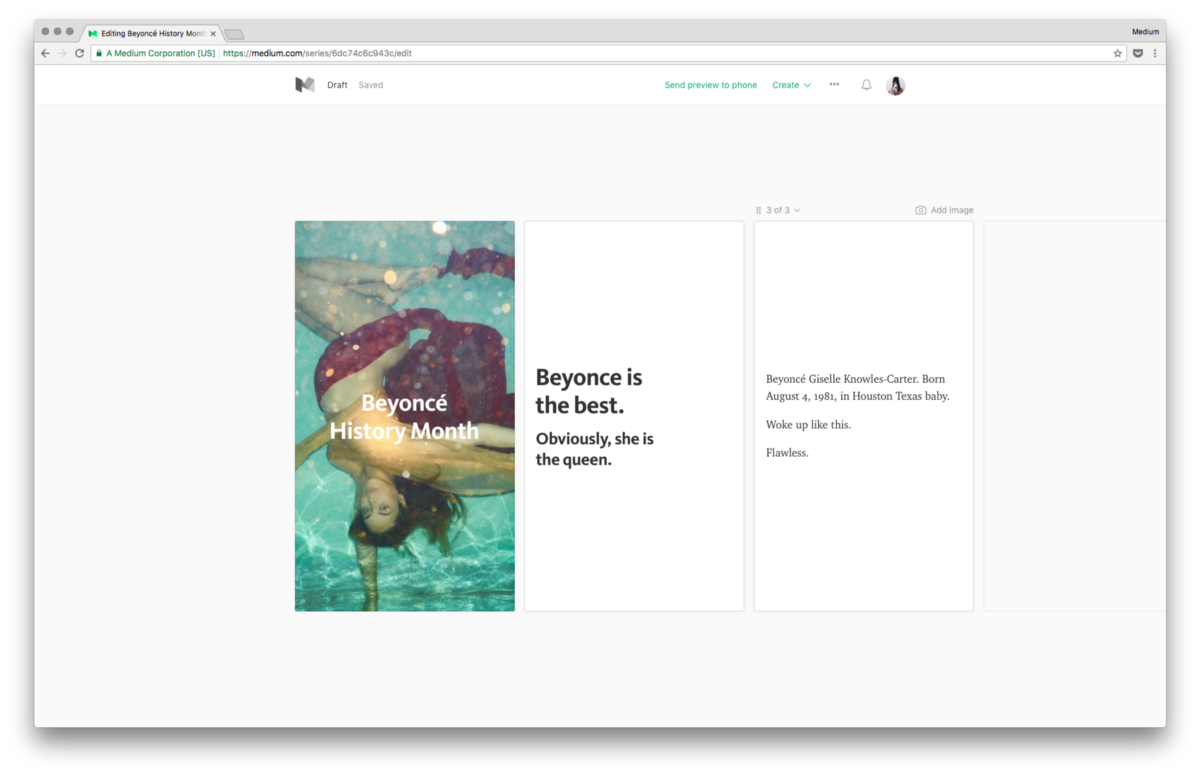
To create a series on web, go to: https://medium.com/new-series or tap the New story button 📝 > Create a series.
To create a series on iOS, open the app > navigate to Series tab > scroll down and tap New.
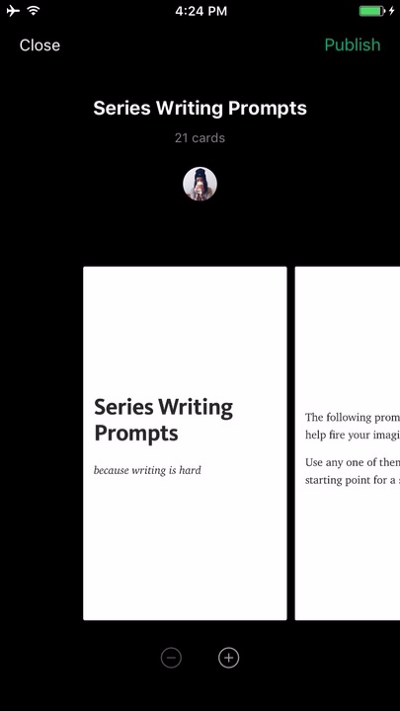
To zoom out while creating a series on iOS, tap the top of the screen.
Formatting
Text entry and formatting works the same as it does on Medium posts.
Cards can be either left-aligned or centered and will apply to all contents.
Embeds are not currently supported.
Drafts & Auto-save
Draft versions of series are saved automatically while you work. Drafts are visible on iOS under Series tab > View all at bottom, and at https://medium.com/me/series/drafts on web.
Add & remove cards
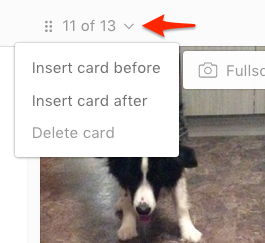
To add a new card on web, select a card and press the down arrow icon above it > choose Insert card before, after or delete:
To add a new card in iOS, click the plus (+) and (-) icons to add or remove cards.
Re-order cards
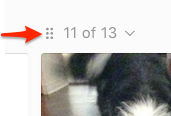
To re-order cards using the web editor, click and drag the drag icon (six dots) to place the selected card where you want it.
Cards cannot currently be re-ordered in the iOS editor.
Images
You can use your phone's camera or photo library to upload images to series. You will need to grant Medium access to your camera and/or photo library.
- Fullscreen - image expands to fill the screen, and will be cropped automatically.
- Tilt - large images (especially landscape format) can be explored by tilting your phone.
- Inline - images will scaled instead of cropped to fit screen, and may be accompanied by tex.
All image formats can accept a caption.
To remove images in iOS, click the X in upper right corner of that card. On web, select the image and press backspace on your keyboard.
Preview & Publish
While working in the web editor, you can click Send preview to phone which will send a push notification to your iOS app.
Press publish.
Share
To share a series, tap the top of the screen (or go to the end) > tap Share this series.
Series are currently only viewable on iPhone and Android, so anyone with a share link on web will be prompted to view it on their phone.
Edit & stats
To edit a series or view its stats, tap the top of the screen > tap the down arrow > tap Edit or Stats. Or access these options from the last page of your series.
Video
iOS users can upload videos to Series, with a maximum of 30 seconds in length.
More info: