 Developers
 Play Console
In this document
You should also read
In addition to the power (stem) button, Android Wear supports extra physical buttons known as multi-function (MF) buttons. The Wearable Support Library provides APIs to determine information about the available MF buttons on a device.
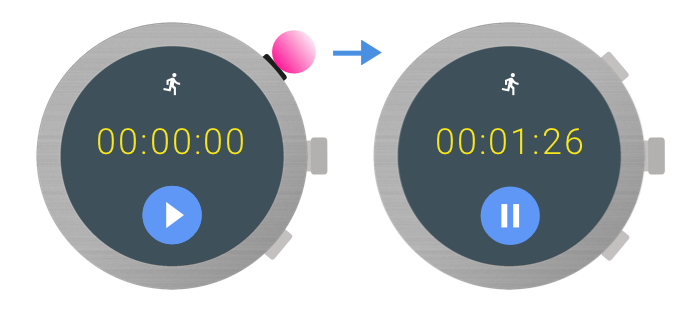
This lesson focuses on how you can retrieve information about the available MF buttons on a device and process KeyEvent objects.
Handling Key Events
If your app needs to handle a multi-function button press, it can do so through the standard key press event codes in the Android framework. Key codes typically correspond one-to-one with individual physical buttons on a device.
The available set of possible button keycodes that your app can handle is:
KEYCODE_STEM_1, KEYCODE_STEM_2, KEYCODE_STEM_3. Your app
can receive these key codes and convert them to specific in-app actions.
To handle a button press, implement the onKeyDown() method.
For example, this implementation responds to some button press to control actions in an app:
@Override
// Activity
public boolean onKeyDown(int keyCode, KeyEvent event){
  if (event.getRepeatCount() == 0) {
    if (keyCode == KeyEvent.KEYCODE_STEM_1) {
      // Do stuff
      return true;
    } else if (keyCode == KeyEvent.KEYCODE_STEM_2) {
      // Do stuff
      return true;
    } else if (keyCode == KeyEvent.KEYCODE_STEM_3) {
      // Do stuff
      return true;
    }
  }
  return super.onKeyDown(keyCode, event);
}
Finding Available Buttons
To find out which buttons are available for use, you can use the
WearableButtons.getButtonInfo() and
WearableButtons.getButtonCount() methods available in the Wearable
Support Library. A simple way to find if there are secondary buttons available
is to check the return value of WearableButtons.getButtonCount().
If it's greater than 1, then there are multi-function buttons available for use.
Keycodes for button presses
Each button is mapped to an int constant from the KeyEvent
class, as shown in the following table:
| Button | KeyEvent |
|---|---|
| MF button 1 | KEYCODE_STEM_1 |
| MF button 2 | KEYCODE_STEM_2 |
| MF button 3 | KEYCODE_STEM_3 |
- If the device has only one MF button, it is always mapped to
KEYCODE_STEM_1. - If the device has two MF buttons, they are always mapped to
KEYCODE_STEM_1andKEYCODE_STEM_2. - If the device has three MF buttons, they are always mapped to
KEYCODE_STEM_1,KEYCODE_STEM_2, andKEYCODE_STEM_3.
The following example code shows how to get the available button count:
int count = WearableButtons.getButtonCount(mContext);

if (count > 1) {
  // There are multi-function buttons available
}

WearableButtons.ButtonInfo buttonInfo =
  WearableButtons.getButtonInfo(mActivity, KeyEvent.KEYCODE_STEM_1);

if (buttonInfo == null) {
  // KEYCODE_STEM_1 is unavailable
} else {
  // KEYCODE_STEM_1 is present on the device
}
Determining the Button Positions
The Wearable Support Library provides two APIs that describes the location of a button:
WearableButtons.getButtonLabel(): returns a localized string describing the general placement of the button on the device.WearableButtons.getButtonIcon(): returns an icon representing the general placement of the button on the device.
Note: We recommend that you refrain from using textual descriptors when describing buttons and their functions and instead use visual indicators. However, there may be some cases where describing a button makes more sense.
The above methods were designed for simple descriptions. If these APIs do not suit your app’s
needs, you can also use the WearableButtons.getButtonInfo() API to get the
location of the button on the screen and handle it in a more cusomized way. For more
information on the APIs, see the
Wear API Reference.