

Do you want to switch from Weebly to WordPress? Yes it is possible to migrate all of your Weebly content to WordPress without hiring a developer or knowing how to code. We built a free Weebly to WordPress importer tool that does it all for you. In this article, we will show you how to properly move from Weebly to WordPress (step by step).

From our experience, most folks don’t choose the best blogging platform when they’re first starting out. Instead you are more likely to go with one of the many hosted solutions like Weebly because you heard how easy it was and that it was free.
Once you get more into blogging, and you learn about SEO, monetization, customization, etc, then you have that oops moment because you realize that you made the wrong choice.
And that’s when you start to panic because you don’t want your hard work to go to waste.
Don’t worry, it won’t. We have helped hundreds of people switch from Weebly to WordPress. No you don’t have to know any code. If you can follow directions and point-and-click, then you can move your Weebly site to WordPress.
Yes, it will take you about an hour to properly migrate from Weebly to WordPress, but it’s completely worth it.
Ready? Let’s get started.
Weebly to WordPress Video Tutorial
If you don’t like video tutorials or want to move at your own pace, then continue reading the instructions below.
Step 1. Getting Started
To start a WordPress blog, you need two things:
- A domain name (this is the name of your blog i.e wpbeginner.com)
- A web hosting account (this is where your website lives on the internet)
While WordPress itself is free, both domain and web hosting comes at a cost ($14.99 / year for domain and $7.99 / month for web hosting).
Thankfully, Bluehost, an official WordPress recommended hosting provider has agreed to offer our users a free domain name and over 60% off on web hosting.
→ Click here to Claim this Exclusive Bluehost offer ←
If for some reason you want other options, then you can look at our list of the best WordPress hosting companies.
Once you have setup your domain and hosting, the next step is to install WordPress. We have step by step guide on how to install WordPress.
After you’re done installing WordPress, you’re ready to move to the next step which is to move your Weebly content to WordPress.
Step 2. Export Content From Your Weebly Website
In the past, it was way too difficult for users to move from Weebly to WordPress because there wasn’t an easy to export data from Weebly.
We decided to solve this problem and developed a free Weebly to WordPress Importer.
It is a free online tool that imports your content from Weebly and converts it into a WordPress compatible import format. It does not make any changes to your existing Weebly site, so it is perfectly safe to use.
Head over to Weebly to WordPress Importer website and enter your Weebly website URL.
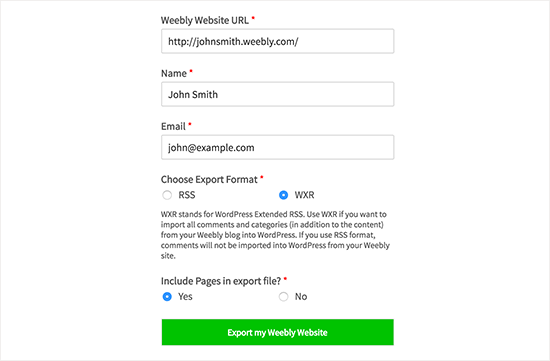
You will be asked to provide your name, email address, and to select an export format.
The default option is WXR format, and you should not change that unless you run into an issue later.
Next, you need to choose whether you want to include pages in your export file. The default option is ‘Yes’, and you don’t need to change that either, unless you really don’t want to export Weebly pages.
After that, you need to click on ‘Export my Weebly Website’ button.
Weebly to WordPress Importer will now fetch content from your Weebly website and convert it into a WordPress compatible export file.
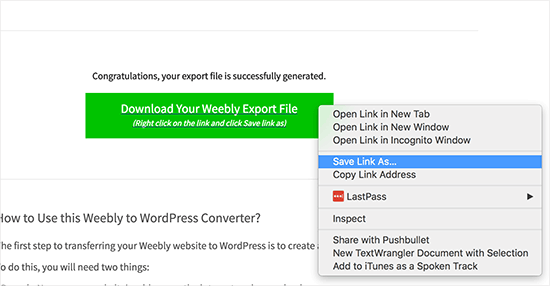
You will see a button to download your Weebly export file. You need to right click on it and select ‘Save link as’ from the menu.
This will download export.xml file to your computer.
Step 3. Import Weebly Content into WordPress
Now that you have your Weebly content in a WordPress compatible format, it is time to import it into WordPress.
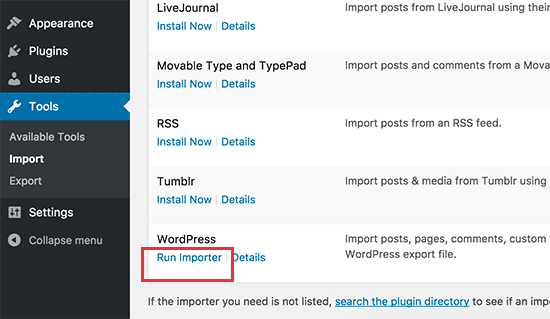
Login to your admin area and head over to Tools » Import page.
You will see a list of importers available for different platforms. You need to scroll down to WordPress and then click on the ‘Install Now’ link.

WordPress will now fetch the importer plugin and install it on your WordPress site without reloading the page. Once it is installed, you need to click on ‘Run Importer’ to launch it.
This will bring you to the WordPress importer page. Go ahead and click on ‘Choose file’ button to select the export.xml file you downloaded earlier.
Next, click on ‘Upload file and import’ button to continue.
WordPress importer will now upload your export file and analyze it. On the next screen, it will ask you to assign authors.
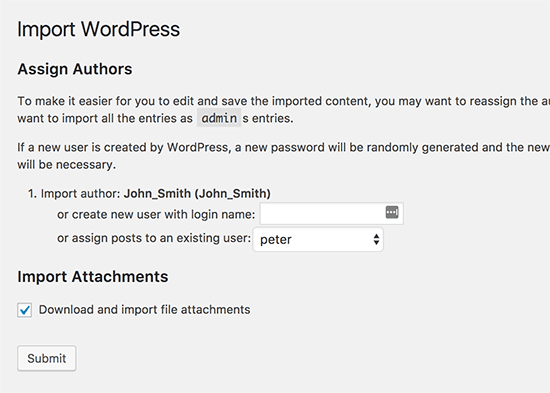
You can import an author from your Weebly website, create a new author, or assign all content to your existing WordPress user.
Don’t forget to check the box next to ‘Download and import file attachments’ option. It will fetch images from your Weebly website into WordPress media library, so you can use them later.
You can now click on the Submit button to run the importer. WordPress will now import content from the export file to your WordPress database. It will also try to fetch images linked in your Weebly blog posts and pages.
Upon completion you will see a success message.
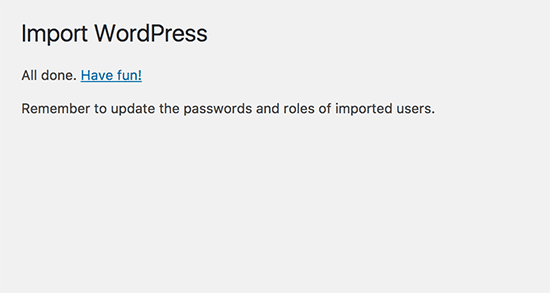
Congratulations, you have successfully imported content from your Weebly blog to WordPress. You can now go to posts, pages, and categories in WordPress admin area to see if all your content is there. Also check the media library to see the images imported from your Weebly site.
If the import process fails in the middle, then you can always run it again. The importer is smart enough to detect duplicate content and skip it. It will only import the content that didn’t import successfully in previous attempt.
Step 4. Setting up Redirects
If you were using a custom domain on your Weebly site (like yoursite.com), then you need to point it to your WordPress hosting provider.
First you need to login to your Weebly account and go to the Domains page. Click on the domain name that you want to edit and then on domain settings page click on the change button next to nameservers option.
On the next screen you need to enter your new WordPress host’s nameservers. For Bluehost, these are ns1.bluehost.com and ns2.bluehost.com.

Click on the save button to store your settings.
Nameserver changes may take a while to propagate across internet. Once the changes take affect visitors will start seeing your WordPress site.
If you were using a subdomain URL on your Weebly site (like http://example.weebly.com), then here is how you would setup redirect.
Login to your Weebly dashboard and edit your website. Next, you need to click on Settings and then SEO tab.

Now, scroll down to header code option and add this line of code:
<meta http-equiv="refresh" content="0;url=http://www.yourdomain.com/">
Replace yourdomain.com with your new WordPress site’s domain name.
Don’t forget to click on the save and publish buttons to save your changes.
You can now visit your Weebly website, and it will refresh and redirect to your WordPress website.
Step 5. Setting up Permalinks
Your Weebly website may have a different URL structure for blog posts and pages. Typically it is something like this:
For blog posts: http://example.com/blog/your-post-title/
For pages: http://example.com/page-title.html
If you were using a custom domain on your Weebly site, then users visiting a post on your old Weebly blog will see 404 error.
Here is how you would make sure that users are redirected to correct post.
You will need to visit Settings » Permalinks page. Scroll down and select ‘Custom structure’ option and then add /blog/%postname% in the text field next to it.

Don’t forget to click on the save changes button to update your permalinks.
Now you need to add .html at the end of URLs for your WordPress pages.
You will need to install and activate the Add Any Extension to Pages plugin. For more details, see our step by step guide on how to install a WordPress plugin.
Upon activation, you need to visit Settings » Add Any Extention to Pages. Simply enter .html in the plugin settings and click on ‘Update Settings’ button.
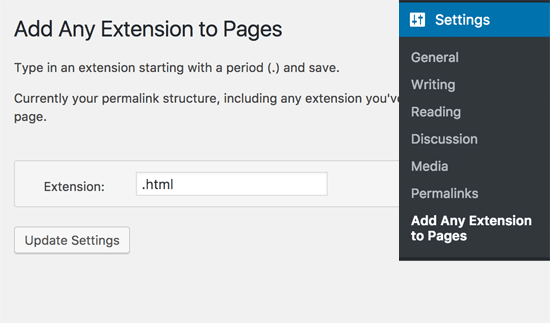
Now you need to visit Settings » Permalinks page and click on the save changes button to update your permalink structure.
Step 6. Troubleshooting
Here are a few things that you may need after transferring your site from Weebly to WordPress.
1. Importing or replacing images
WordPress will try to import images from your Weebly website to WordPress during the import. However, if your images are not downloaded to media library then you will need to import them. See our guide on how to import external images in WordPress for detailed step by step instructions.
2. Fixing errors in WordPress
If you are seeing some errors on your WordPress site after the transfer, then head over to our ultimate guide on common WordPress errors and how to fix them.
3. Things to do After Installing WordPress
If everything goes well, you will be now ready to customize your new website and take advantage of the enormous flexibility of WordPress. See our list of important things to do after installing WordPress.
That’s all, we hope this article helped you properly move from Weebly to WordPress. You may also want to see our list of 24 must have WordPress plugins for business websites.
If you liked this article, then please subscribe to our YouTube Channel for WordPress video tutorials. You can also find us on Twitter and Facebook.


Hi Guys,
I want to move from Weebly to a completely new WordPress install with a different hosting company.
I’m using a “proper” domain name (just like “mysite.com”) on Weebly and I want to continue to use this domain name on my new website.
When I sing up to my new hosting account what domain name should I use until I move my Weebly Content?
Will I be able to enter “mysite.com” as the domain name when I create the hosting account?
If “mysite.com” is pointing to my Weebly website how will I be able to access the WordPress dashboard in my new hosting account?
I know that’s a lot of questions, but I’m a bit confused…
Thanks.
D.
That’s a very useful guide.
However, I am stuck at the stage where I tried to transfer the weebly content to WordPress. I have followed all the steps to the point. I got an error message saying: “Could not find any content in your weebly blog to export”.
How do I go about this?
Hello,
I am trying to export the Weebly content but it keeps on saying there is no content on your weebly blog. Are you entering the right website url.
But everything is correct while requesting to export the file. Can you please help ?
Thank You.
Hi Santosh,
Can you please try again after while. If it still doesn’t work, then please leave another comment here with your Weebly site’s URL and we will check it out.
I am getting the same issue as Santosh. Suggestions?
Hey Case,
Can you please try again, let us know if you continue facing the issue.
Hello,
I am waiting for your response. It seems most of the users getting same error and all were looking for help. Can you please reply back with solution so that we can move forward over to the next step ?
Thank you.
I currently am using the same domain name for my weebly site as I’m trying to set up with bluehost. How do I set up my wordpress website before cancelling my weebly site?
I tried numerous times to use the tool, but it constantly errors out
This page isn’t working
weeblytowp.com is currently unable to handle this request.
HTTP ERROR 500
Weebly site has 235 pages, I paid a contracter to move this a year ago, and they failed to move anything but the blog post. So far your tool is not doing anything but crashing.
Hey Mike,
It is working fine at our end at the moment. Can you please retry and let us know if you still see the error?
Hello,
It seems your importer only imported blog pages. M
But nmajority of my site is in html pages and are not imported.
Your import file is only around 5 MB and ny zip archive file taken from Weebly 121 MB.
So, it seems that your importer do not import regular html pages. Pity.
Maybe HTML Import 2 plugin can help? But this plugin do not import th content, i think.
Hopeless matter in case, only weebly html pages to import.
Regards,
Dariusz
Is the importer still working? I just get an error message every time
Hey Mallory,
What error message do you see?
“This page isn’t working
weeblytowp.com is currently unable to handle this request.
HTTP ERROR 500”
Hi Mallory,
It is working fine at our end, please give it another try.
I have gotten nothing but error messages for months. “Internal Server Error”
I’m at a loss
Hello,
Thanks for the walkthrough.
One question, i have a custom domain name through GoDaddy, that url is where my weebly site was, now i have built a wordpress site. I want to point my domain to my new wordpress site thats hosted on bluehost (like you suggested). My question is, when i put in the header code on the weebly settings, is the domain going to be the domain that i used for weebly, or is it going to be the one i used to build the new wordpress site, i would like the weebly domain to now be my wordpress site’s domain.
thanks for your help.
/C
Hey Clayton,
If you already have a custom domain, then you can point to Bluehost and use the same domain on your Bluehost site.
Hi!
Will Facebook “likes” on posts transfer?
If you are using a custom domain name, then yes.
If you were using a custom domain name on Weebly, then yes.
Okay so I tried to do this and I ran into a problem.
The problem is on my Weebly site, most of my content wasn’t posted in “blog” form. In other words, I posted the vast majority of my blog-like content as its own page. This was a creative choice I made at the time that I still think I kind of prefer, but none of this content migrated from Weebly to WordPress, I assume because it’s not technically in “blog form.”
To illustrate what I’m talking about, you can see that all of the articles listed here didn’t make it, when you look at my current version of the WordPress site.
I do have some content that crossed over that is in blog form as you can see on the WordPress site, but not only is that all that has crossed over, but WordPress combined two separate blogs from my Weebly site.
I’m just not sure where to go from here. Do I have to copy and paste everything else?
Thanks in advance for any help you can provide.
Hey Will,
The plugin can import your pages too. Please click on the pages in WordPress admin area to see if the missing content is already there.
If it isn’t, then we will advise you to get a new export file from Weebly2WP and then run the importer again. It is smart enough not import duplicate content so you can safely run it again on the same WordPress install.
Hey Will,
We can now confirm that the import was successful and your pages are there. Now you would need to follow the instructions mentioned at Step 5 in the article to add .html extension to your pages.
Forgive me if this gets mentioned and I didn’t see it, but my question is this: Once this is done, it doesn’t remove your content from Weebly, right? I’d like to give this a shot, but don’t want to risk losing my site as it currently is to do so.
Hey Will,
No, it does not delete anything from Weebly.
Thanks for this step-by-step guide! I’m trying to use your tool to transfer everything, but I’m getting an error message:
“The weeblytowp.com page isn’t working
weeblytowp.com is currently unable to handle this request.
HTTP ERROR 500”
Hi Mallory,
Please try again in a few minutes. Let us know if you still the error.
Thank you for this detailed tutorial. I have a question though. I have a weebly site that uses weebly’s membership feature. Members have to log in to assess certain pages of my site. Will I be able to move this over to wordpress? How does it work? Will members still be able to log in to the new wordpress pages using their current login username and password?
Hey Sarah,
Unfortunately this will not work. The tool can only import content using the sitemap and can import users it finds as authors for the content. It will import all publicly accessible posts, pages, and comments.
My posts from my Weebly site imported okay, but is there a way to make sure that if say someone clicked on the post from a Facebook page, that it would redirect to the new post on WordPress? Also, I had different pagelinks at the top of my Weebly site, how do I reconnect them on WordPress? Any help would be appreciated, thanks!
Hey Matt,
If you were using a custom domain then all users will be redirected to your new WordPress site. For links you will need to setup navigation menus.
With the first step being getting a domain name, I’d like to keep the one I use on Weebly, which is myname.com. Can I use that? Or in the transfer process, will I get an error message about that one not being available? And my Weebly site includes a drop-down portfolio where I created strings of samples by company name. Will those transfer just fine? Thank you!
Hi Barb you can keep your domain name and point it to your WordPress website. You will be able to import content like post and pages, images, comments, etc.
Hi This looks really useful – not seen this question asked so will ask now – can you use this tool to export a weebly site – posts and pages plus media and then import those pages into an already existing WordPress site with its own pages and Posts?
Will the existing WordPress pages and posts be left intact and will the timestamp of the Weebly posts and pages be preserved so that they are slotted into the existing WordPress site correctly?
Scenario is a school has two seperate websites one on WordPress and one on Weebly and they want to merge to two on the WP one.
Hi Cliff,
Yes, it will do that. However, you should always backup your existing WordPress site just to be safe.
This looks really doable! I’m wanting to switch my blog from Weebly to WordPress. Will the comments on my blog transfer too? I can’t tell from this post.
Hi Marcie,
Yes, it will import comments as well.
I just used this tool and it’s fantastic ! I’m a WordPress beginner and it was pretty easy ! One question though – my Weebly websdite had many YouTube videos and when they transferred over, the size of the video screen was a lot smaller. I made a new post to the WordPress version with a new YouTube video and that one is a lot bigger. Is there a way of making the imported ones larger ? Thanks again for this great tool !
With this free tool (which sounds like a great idea) to make migrating a weebly site to WP easy, how can I be certain that nobody else can use the url for my weebly site and steal the content and integrate it’s contents to their own WP site?
I currently run about 5 Weebly websites. It’s getting expensive to pay the renewal costs. I also have several WP websites that were built for me. I’m a WP beginner, so will this work for me ? Can a beginner do it ? Also, all of my Weebly websites have a page with an Amazon store and other pages with ads from Commission Junction and several YouTube videos along with past blog posts. Will all of these items also transfer to the new WP site ? Thanks for any help you can give me !
Hi Enrich,
Yes, as a beginner you can do it on your own. All your Weebly pages will transfer and your YouTube videos should work too.
Thanks for the quick reply ! Appreciate that. So sll of my CJ ad code will transfer over as well ? I just wwnt to make sure. This is a free tool ?
I get this message during using the importer:
“Could not find any content in your weebly blog to export. Did you enter the correct URL?”
The url was correct. How can I import my blog?
Thank you
Finally I could use the tool with Firefox, but I could not with Chrome. Thank you
Glad to hear that
Hi Szilvia,
Can you please share your Weebly site’s URL?
Thank you very much, It is really big help for me!
If I use your code in weebly seo settings to redirect my free mydomain.weebly.com subdomain to my new wp domain, than what will happen to the previous seo work, Google rankings, backlinks, pagerank, etc? Will my rankings change? Thank you
Since you are transferring from Weebly subdomain, your SEO rankings will not transfer. However, since your content is not available on your old site, search engines may eventually start ranking your new site for those keywords.
Thank you very much.
I was quite pleased to discover this post and tool as I have a client who has asked me to move their weebly site to WordPress.
However I tried it just now and it says:
“Could not find any content in your weebly blog to export. Did you enter the correct URL?…”
Which is very odd because the weebly site really is there.
Am I doing something wrong? I have googled the problem but haven’t found anyone with a similar issue. Is there a support forum in which I could post this?
Any help appreciated. Thanks.
Hi Norine,
This error could appear if your Weebly site’s sitemap is empty. Please use our contact form to send your Weebly site’s URL so that we can take a look.
On its way. Thanks very much!
I’m having the same problem, how to fix it?
Hello! Thank you so much for this tutorial it was really helpful! But on my website I have a page called “Blog” and that is where I want to post all of my old blog posts from Weebly. How should I manage to place the content there?
WOW!!! Thanks so much for providing this tutorial. I had been stressing about making this move complete. I had NO idea that it would be this EASY to do and for the last month I’ve had both my weebly (with the bulk of my content) and my newly created wordpress (with very little content) blogs going. Thanks to you as of today they are officially MERGED :-). I did it i less than 30 minutes since I already had some of the steps completed. Anyway needless to say – I am ecstatic about all of this. THANKS again!!!
Hi Carla,
We are glad you found it helpful
Ah, I wish this had been around a year or so ago when I moved my site from Weebly to WordPress. I lost all my comments as I was told there was no way to move them across, and I had to copy and paste all my blog posts and backdate them. It’s good to see that the hole’s been filled for others now though.
Hey Guys,
Firstly, thank you for weebly-to-wp tool. This will definitely expedite the process of exporting WXR File now.
Those new to such kind of migration, please know that there are less/no free tools available to export your Weebly site and convert it into WordPress (WXR). So, once again thanks to folks at WPBeginner.
Just 2 days back I did the Weebly to WP migration for one of my client. Lucky she was not interested in Comments & Pages but Posts & Images.
I did that thru RSS Format. By the way, Weebly feeds use the ATOM format rather than RSS. I have used one Tool to convert that to RSS Format.
Finally, have managed to migrate Posts. But…for Images, I have exported entire Weebly Blog & Uploaded the “uploads” folder into Root Directory as the Images were getting fetched via domainname.com/uploads/… in Weebly & can be set easily on Self-hosted WP w/o altering the internal links (if domain is same; Find-Replace, otherwise) or Need any plugin to import external links!
–
Raj
Hi Rajendra,
Thanks for your sharing your Weebly to WordPress migration story. It was quite difficult even for experienced users to safely transfer their content to WordPress. Now with our free Weebly to WordPress Importer this process will become a lot easier.
Amazing Work, thank you once again
Thanks