

Are you looking to move your WordPress site to a new host or different server? The biggest risk when migrating a website to a new server is data loss and potential downtime. In this step by step guide, we will show you how to properly migrate your WordPress site to a new host with no downtime.

Important: Before we start, we want to remind you that most WordPress hosting companies offer free migration services. If they don’t publicly state that, then all you have to do is ask. Usually it’s free, but some may charge a small fee.
Step 1: Choose Your New WordPress Host
If you’re stuck with a slow web host even after optimizing your WordPress site for speed, it’s time to move your WordPress site to a new host that can handle your growing traffic.
When looking for a new WordPress hosting provider, it’s important to choose carefully, so you don’t have to move again any time soon.
Here’s who we recommend:
- For reliable shared hosting, we recommend going with Bluehost. They’re officially recommended by WordPress.org. And with our Bluehost coupon, WPBeginner users get 60% off and a free domain name.
- If you’re looking for cloud hosting or location-specific providers, then we recommend you check out Siteground. They have data centers across 3 different continents.
- If you’re looking for dedicated servers, then we recommend you check out InMotion Hosting. Their commercial class servers and support are amazing.
After buying your new hosting, do NOT install WordPress. We’ll do that in a later step. For now, your new web host account should be completely empty, with no files or folders in your main directory.
Step 2: Set Up Duplicator for Easy Migration
The first thing you need to do is install and activate the free Duplicator plugin on the website that you want to move.
Duplicator is a free plugin that we highly recommend. We’ve written in the past about how to use Duplicator to move your WordPress site to a new domain name without losing your SEO rankings.
However, in this article we will walk you through how to use it to migrate your WordPress site with zero downtime. The process is similar, but this guide will focus on moving your hosting, while the other guide focuses on switching to a new domain (such as from www.oldsite.com to www.newsite.com).
Once you have installed and activated Duplicator, go to the Duplicator » Packages section in your WordPress admin area.
Next, you need to click the Create New button in the top right corner.

After that, click the Next button and follow the steps to create your package.
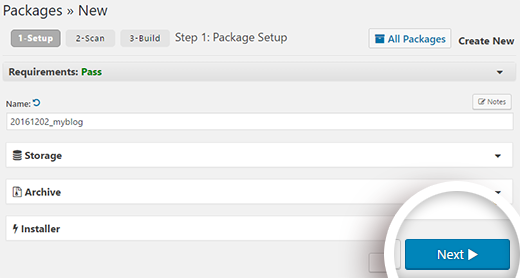
Make sure that your scan results check out (everything should say “Good”), and then click the Build button. The process may take several minutes to complete, so leave the tab open as it works.

Once the process is complete, you need to click on both the Installer and then the Archive buttons to download the package. You will need both files.
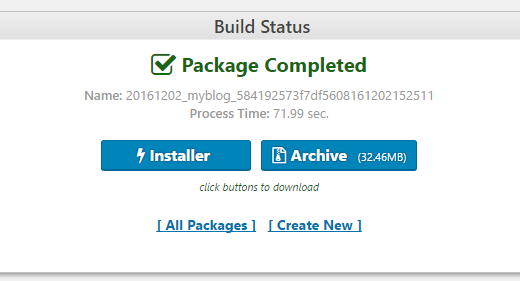
The archive file is a copy of your site, and the installer file will automate the installation process for you.
Step 3: Import Your WordPress Site to Your New Host
Now that you have downloaded both the archive and installer files, the next step is to upload them to your new web host.
You can do this by connecting to your new web host using FTP. If you’ve never done this before, check out our beginner’s guide to uploading files via FTP to WordPress.
Note: When setting up your FTP client to connect to your new web host, keep in mind that your domain name still points to your old web host. That means you’ll need to enter the IP address of your new host instead of your domain. This is to ensure that these files go to the new host rather than the old host.
Using your FTP client, upload both installer.php file and your archive .zip file to the root directory of your website. This is usually /username/public_html/ or /username/public_html/example.com where example.com is your domain name.
If you’re not sure, just ask your web hosting company.
Make sure that your root directory is completely empty. If you have WordPress installed in your root directory, then you need to delete WordPress first.
Step 4: Change The Hosts File to Prevent Downtime
Once you’ve uploaded both files to your new host, you need to access the installer.php file in a browser.
The file can be accessed using a URL like this:
http://www.example.com/installer.php
However, the problem is this URL will take you to your old web host, and you will get a 404 error. This is because your domain name is still pointing to your old web host.
Normally, folks will tell you to change your domain nameservers and point to your new host. However, that will result in your users seeing a broken website as you migrate it.
We’ll show you how you can access your new site temporarily on your computer, without affecting your old site.
This is done with a hosts file on your computer.
The hosts file maps domain names to specific IP addresses. In this step, we will show you how to add an entry for your domain name in the hosts file so that it points to your new host, but only when using your computer.
Making these changes will allow you to access the files on your new host using your own domain name, while the rest of the world will still be accessing your site from the old host. This ensures 100% uptime.
The first thing you need to do is find the IP address of your new web hosting server. To find this, you need to log into your cPanel dashboard and click on expand stats link in the left-hand sidebar. This will expand the sidebar showing you information about the status of your server. The information you need to copy is the Shared IP Address.

In the next step, Windows users need to go to Programs » All Programs » Accessories, right click on Notepad and select Run as Administrator. A Windows UAC prompt will appear, and you need to click on Yes to launch Notepad with administrator privileges.
On the Notepad screen, go to File » Open and then go to C:\Windows\System32\drivers\etc. Select hosts file and open it.
Mac users will need to open the Terminal app and enter this command to edit hosts file:
sudo nano /private/etc/hosts
For both Windows and Mac users, at the bottom of the hosts file, you need to enter the IP address you copied and then enter your domain name. Like this:
192.168.1.22 www.example.com
Make sure that you replace the IP address with the one you copied from cPanel, and example.com with your own domain name. Save your changes, and you can now access your files on the new host using your domain name on your computer.
Important: Don’t forget to undo the changes you made to hosts file after you have finished the migration (step 5).
Step 5: Begin the Duplicator Migration Process
Now we’re ready to run the installer. Navigate to this address in your browser window, replacing example.com with your domain name:
http://www.example.com/installer.php
If you have not already created a database on your new host, then it is time for you to create a database in cPanel. Be sure to make note of the database username and password.
Once you have created the database, you will need to enter the database information in the fields below and then click on the Test Connection button.

If the installer fails to connect to your database, then check the values you entered above and make sure they are correct.
Once you have successfully connected to your database, scroll down to read the warnings and notices and check the box confirming you’ve read them. Then click the Run Deployment button.

The installer will now import your database. The process may take several minutes, so keep the tab open as it works.
In step 2 of the installer, you’ll be asked to verify your old and new URL paths. Make sure it’s accurate and click Run Update to update your URLs.
In the final step, you can complete the process and verify that everything is working correctly by clicking the buttons in order.

Important: Now you can remove the changes you made to your hosts file in step 4.
Step 6: Update Your Domain
At this point, you’ve created a complete copy of your WordPress database and files on your new hosting server. But your domain still points to your old web hosting account.
To update your domain, you need to switch your DNS nameservers. This ensures that your users are taken to the new location of your website when they type your domain into their browsers.
If you registered your domain with your hosting provider, then it’s best to transfer the domain to the new host. If you used a domain registrar like Godaddy, Namecheap, etc, then you need to update your nameservers.
You will need the nameserver information from your new web host. This is usually a couple of URLs that look like this:
ns1.hostname.com
ns2.hostname.com
For the sake of this guide, we will be showing you how to change DNS nameservers with GoDaddy. Depending on your domain registrar or web host, the screenshots may not reflect the setup on your registrar or web host. However the basic concept is the same.
Just look for domain management area and then look for nameservers. If you need assistance with updating your nameservers, you can ask your web hosting company.
First you need to login to your Godaddy account and then click on the launch button next to domains.

On the next screen, click on your domain name. You will see your domain details, along with your nameservers. You need to click on the manage link under the nameservers.

On the next screen, you will see a link to enter custom nameservers. Clicking on the link will open a form where you can enter your custom DNS nameservers.

Save your changes and you’re done.
You have successfully changed the nameservers. DNS changes can take 4 – 48 hours to propagate for all users.
Now since you have the same content on your old host and the new host, your users wouldn’t see any difference. Your WordPress migration will be seamless with absolutely no downtime.
To be on the safe side, you can wait to cancel your old hosting account until 7 days after your migration.
We hope that this step by step guide helped you move WordPress to your new host with no downtime whatsoever. If you come across any issues with your WordPress migration, then check out our guide on the most common WordPress errors and how to fix them.
If you liked this article, then subscribe to our YouTube Channel for our WordPress video tutorials. You can also follow us on Twitter and Facebook.


i had to move a client’s site off our subdomain into their own hosting overnight and this REALLY REALLY saved my life! Especially as the domain needed to be repointed seamlessly! I only had trouble with the FTP, i dunno what was wrong with all the logins but i couldn’t get it working. Thankfully my hoster always has an awesome file manager on cpanel.
So yes, very nearly seamless, i’m just testing out the contact forms now which seems to need the DNS switchover time in order to function properly…
And one thing to add, Duplicator has changed the SQL database setup to Step 2 in their latest version, which really made me freak out a bit there.
Thanks very much for the detailed and extremely godsent tutorial!
I’m getting ready to follow this tutorial. One question: I am switching servers but also am switching domain names. Should I change my website address in the WP admin settings before running duplicator or after? (Does the order matter?) Thanks!
This tutorial worked out perfectly by April, 2017. ¡Thank you so much!
Hey,
I used this plugin so many times. even, once i used it for too. I really like this plugin but, the problem is it do not extract the big package. We’ve to manually unzip it or need to upload unzipped data to the new hosting.
Any fix for that? Reply as soon as possible.
Duplicator doesn’t work properly with GoDaddy’s cPanel Linux Hosting service. Script gets terminated even if the settings in php.ini are changed. Please suggest what to do to make Duplicator work there? If not possible, what would be the best alternative?
This GREAT tutorial successfully guided me through my very first migration of a WordPress site to a different host! Especially life saving was the instruction about changing “sudo nano /private/etc/hosts” in Terminal – worked like a charm. wpbeginner.com has the most succinct, articulate and smart tutorials, which I have come to depend on.
Thank you!!!!
Susan
hi, pls have been having issues uploading my site to s new server using FTP client, my hosting company tried to give tutorials on how to transfer with no result.
the tutorials am getting from your site is abt using a duplicate plugin. my site is down, i can’t access my wp-admin to install the plugin.
i use a backup plugin when my site is up so i have a backup file from the plugin i used n also i did a cpanel backup from my old server.
pls, i need a tutorial hoe to upload my backup files to my new server, which one is best to upload?
the plugin backup or the cpanel backup…
pls help!
What backup plugin did you use?
Hi Sir,
I am stuck up with 3rd part which is verification part. I have changed the permalinks and I can see the dashboard as usual but the site is not running. Whenever I am clicking on “TEST SITE” it returns error 404: File Not Found. I tried their help documents. Made changes as usual but no luck. Can you please help me out?
Hello Sir. I am saurabh from India. I love your website. I have a blog about software review. And I saw your posts and observe that you edited image in microscope effect. This is really fantastic. Can you please tell me how you do this or please make tuts for this please.
Thank you.
Hi Saurabh,
Thanks for the kind words. There are actually tons of tutorials already. Try searching for how to add magnifying glass effect in Photoshop.
Hello,
I have a situation where it would be ideal to have the database on separate hosting. Just because the host of the current site does not offer mysql. I cannot move the site (for a company)
Can I install wordpress on current hosting in a sub domain and have the database on another host? I have never used anything except “localhost” in the wp-config file? Thank you!
php not supported they are giving reason?? what to do??
Does it work on addon domain?
Because there is this step
“Make sure that your root directory is completely empty. If you have WordPress installed in your root directory, then you need to delete WordPress first”
While my primary domain is already up and running
This is a well put together article, nice job guys!
Just as an FYI for users reading through the comments, any comment pre-dated 12-6-2016 does not pertain to the article above or the Duplicator plugin specifically.
This article was originally written using the Backup Buddy plugin and has since been updated and rewritten using the Duplicator plugin. This should help clear-up any confusion should some of the comments not really make sense or refer to topics not covered in the article.
This is an excellent tutorial.
I also believe this is the easiest and fastest way to to migrate a site.
Migrating DB files and tables with phpMyAdmin is the long way around.
Using Duplicator or BackupBuddy is way less work and you are less prone to mistakes that way.
You need to change DNS no matter what method you choose, so that aspect can’t be counted as far as which method is best.
Changing TTL settings to 1 hour (3600 seconds) as Dave Porter pointed out is the only missing piece of the puzzle. (even though that is not essential to success)
Nice article, guys!
I feel that the most critical point migrating a site to another host is the email service. If the default email solution provided by host need to be replaced, a lot of work will came.
Anyone want to share your workflow to do this kind of thing?
Thanks!
hello,
Would this procedure also work for sub domains?
I have an add on domain to transfer with about 10 related sub domains.
Thank you
A few days before I move a domain, I go into the DNS settings and change the TTL settings to 1 hour (3600 seconds), so that the site will move quickly (and do it overnight – so the new location will show for everyone in the morning)
(I was expecting this to be mentioned in the article when I saw the title!)
And to answer Dave’s question you can have as many entries in your Hosts file as you want – I have a reseller account with my hosting company and I’m often working on 2 or more sites I am working on that are located on a different server. You can’t specify a sub-directory in the entry – the one entry will point to all locations for that domain – to do what you want to do you are better using sub-domains – so for example example.com is the main location, then you can have play1.example.com as a sub domains that will have it’s own hosts entry.
I think you should make a video or attach screenshots
Another article – directly related to this one, but sufficiently different to warrant its own separate article – would be “Replacing A Legacy Website with a Fully-Developed WordPress Website.”
This has happened to me several times already. I have clients with older, legacy-type (non-WordPress) websites, and they ask me to convert their site to WordPress.
I have two methods I use to do this, and one of them involves building the brand new WordPress site on a temporary development URL. When it is done, I then need to transfer it to the existing URL for the client.
In other words, I develop it at DevelopmentSite, and when it is done, I then move it to ExistingLegacySite
I should think it would be easier to do this than the procedure outlined in your article above, but it would still be helpful for you to do an article on this type of migration.
Thanks.
Correct me if I’m missing something, but this ‘hosts file change’ will only work if you have a just one site on your plan at that new IP address. I have several low-usage sites I’m hosting on one plan. They are in subdirectories under phulic_html.
So doing this:
192.168.1.22 http://www.example.com
in the hosts file will not specify which of your 5 sites to point to. And it seems the only thing you can specify in the hosts file is an IP address and a URL.
You can’t do something like this:
192.168.1.22/sitea http://www.example.com
Am I wrong?
I think this is correct, it won’t work for shared domains.
It is better explained here: the voted answer says “If you have shared hosting, this will make your site inaccessible by direct IP. In a shared hosting environment, the host (GoDaddy) will have multiple websites living at the same IP address. When a browser requests a website, the server relies on the domain name to determine which of the many websites to serve. Without a domain name, the server has no way to tell what the browser actually wants so you don’t get your website. To avoid this situation, you will need a host to give you exclusive use of an IP address.”
I think this should be highlighted in the article.
Once you have added your domain name to your new host, your webserver knows that it is hosting domain name example.com and it’s root directory (Doesn’t matter if it is also hosting other domains as well). However, DNS servers take time to propagate so instead of sending your request to your new webserver, they will be sending users to old location for a while. The hosts file allows you to send your request directly to the new server. Hope this clears the confusion.
hello. good article but what about wp multisite?
I’ve tried for four hours to make these instructions work. The result? Now I can’t access my site at my old host. I tried following the directions on this 2-year-old article (will there be an update, since BackupBuddy has evolved?) and now everything is messed up.
I used FTP to upload the files, and edited the host file as instructed, but the ImportBuddy PHP script won’t run. It just shows me the code. I tried contacting Bluehost for assistance, and they were no help. So I tried setting all my other settings back to where they were before I started this odyssey, and now I can’t see my site at all. Not the Admin panel, nothing.
Tanisia, please refer to our guide on what to do when you are locked out of WordPress admin area.
I’m back in at my old host – my servers needed to re-propagage from Bluehost, and it took longer than I had anticipated. I’m still left with BackupBuddy not working the way it’s supposed to. Again, do you have updated instructions from 2014, since there have been several updates to BackupBuddy since this was written? When I did the Notepad update in Windows 10, it looked different from what was described here, so I couldn’t be sure if that trick worked.
Thank you for answering back.
If it was a primary domain , can i follow this Process? I need to move and that domain is Main/primary domain, how can i move,will u plz help me?
Just stuck i step 4, can i just simply addon domain and change dns in new host, ? Following that, C:\Windows\System32\drivers\etc. , there is nothing in my etc, nothing like hosts file, btw great tutorial easy to fallow, thanks
I was hoping there would be an easier way to do it with a third party service, but I’m not about to shell out 80 bucks just to do that.
The backupbuddy steps in the new version have changed quite a bit. Nothing to be afraid of though. I was able successfully migrate from t1.micro on aws to t2.small instance. So far so good.
A few questions for you:
1. Isn’t there a SIMPLE way to back up one site (themes, child themes, plugins, and post data), then restore it to another site?
It truly should be as simple as (a) Backup To (dropbox mysite.zip), then (b) Restore From (dropbox mysite.zip).
2. Is it possible, perhaps even EASY, to develop a client’s WP site on your development server, then use Backup Buddy (or some other backup/restore program) to migrate it to the client’s site?
3. Does Backup Buddy, or any other backup/restore program you know of, give you the ability to restore to an existing WP installation? In other words, can you set it to restore everything except the WP core files?
Thanks for this article.
David in Mississippi
Actually, in the article we have shown how BackupBuddy does exactly what you are asking for. You simply backup your site, download an archive file and an importer file. Upload these files to the new location and run the script. Hope this helps.
@David, with backupbuddy you can choose which files to leave out while backing up. So you can leave out the core WP files.
hi guys,
A friend just make me a new wordpress website and uploaded it to my hosting account. Now, I want to change the domain and hosting account and want to upload the website to the new hosting account.
My friend sent me the archive with all files of the website including database. How is possible to upload the website to my new host?
I appreciate your answer.
thank you
I actually just went through this process yesterday and need to transfer another site today. This is hands down the most thorough walkthrough I’ve seen. The 4 to 48 timeframe really helped ’cause I thought something went wrong, but the transfer just needed time to propagate across the interwebs.
As soon as you figure out that your new domain has regained the search positions for your old site. We hope that you have setup 301 redireccts on old domain otherwise search engines wouldn’t know that your old content has moved to the new domain permanently.
What’s the shorter way of doing this?
Hi there, thanks for your tutorial, here’s an other way of doing it… free.
1. Tools > export posts and pages from admin panel. If you also need the DB phpMyAdmin export tables from the db. Import them in the new db. Check for the extension of the tables to be the same (_wp for instance)
2. edit your virtual host config file, add what follows between your server {}
allow your_public_ip;
deny all;
3. Access the site by its ip. (make sure you set the ip of your new server instead of the url in phpmyadmin > wp_options > siteurl and home options)
4. Tools > import posts and pages
5. Change your DNS records at the old host.
6. Done. Use another plugin like UpdraftPlus to backup for free.
Tried UpdraftPlus. Didn’t do anything at all.
Clean and modern and Easy to modify!
Great guide. I can confirm these steps work brilliantly as I recently moved a 5 year old WP site from one domain to another domain and swapped web hosts as well.
The only difference I did was redirect the old site to the new site via the .htaccess as I wasn’t migrating the old domain name over at the time.
Out of curiosity how long would you leave it before deleting all the old content from the old domain and setting up a permanent URL redirect via your registrar?
I really hate Backup Buddy. In 80% of cases I got errors and their support is not that good. I’d rather move a site with Duplicator free WordPress plugin
Zimbrul, Duplicator is a nice plugin too. However, we have moved many WordPress sites using BackupBuddy and it has always worked flawlessly for us. That’s why we recommend it.
Fully agree. Duplicator has never let me down and I have backed up and installed to many websites to count. No need for a paid plugin.
That’s a ridiculously long winded way of doing it.
I was looking for this. This already assumes knowledge of FTP etc. so why not just:
1. Copy over all files (download locally, upload to new server).
2. Export the DB (you can use Migrate DB free version if you can’t access the old hosts phpmyadmin or such). Also, if you’re moving from a different domain it replaces the urls etc.
3. Create a new DB on your new host, import the DB.
4. Transfer the domain.
Same result, no fiddling with installer scripts and such.