
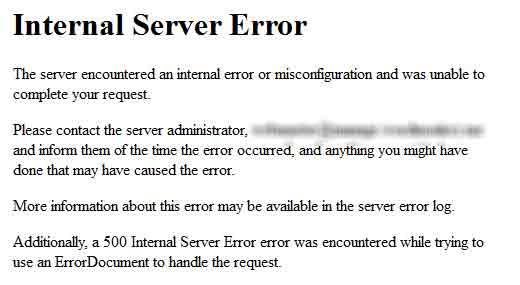
If you have been surfing the web for more than a year, then you probably have seen the HTTP 500 Internal Server Error at least a few times. Internal Server Error is one of the common WordPress errors that can put a WordPress beginner in panic mode. Panic is the worst reaction you can have. Take a deep breath and know that others before you have had this issue as well. We have fixed errors like the internal server error, error establishing database connection, white screen of death, and others many times for our users. We can assure you that they are all fixable. It just requires a little bit of patience. In this article, we will show you how to fix the internal server error in WordPress by compiling a list of all possible solutions in one place.
Why do you get Internal Server Error in WordPress?
Internal server error is not specific to WordPress, and it can happen with anything else running on your server as well. Due to the generic nature of this error, it does not tell the developer anything. Asking how to fix an internal server error is like asking your doctor how to fix the pain without telling them where the pain is. Having that said, internal server error in WordPress is often caused by plugin and/or theme functions. Other possible causes of internal server error in WordPress that we know of are: corrupted .htaccess file and PHP memory limit. We have also heard internal server error only showing up when you are trying to access the administrator area while the rest of the site works fine.
Lets take a look at how to go about troubleshooting the internal server error in WordPress.
Video Tutorial
If you don’t like the video or need more instructions, then continue reading.
Checking for Corrupt .htaccess File
The first thing you should do when troubleshooting the internal server error in WordPress is check for the corrupted .htaccess file. You can do so by renaming your main .htaccess file to something like .htaccess_old. To rename the .htaccess file, you will need to login to your site using the FTP. Once you are in, the .htaccess file will be located in the same directory where you will see folders like wp-content, wp-admin, and wp-includes.
Once you have renamed the .htaccess file, try loading your site to see if this solved the problem. If it did, then give yourself a pat on the back because you fixed the internal server error. Before you move on with other things, make sure that you go to Settings » Permalinks and click the save button. This will generate a new .htaccess file for you with proper rewrite rules to ensure that your post pages do not return a 404.
If checking for the corrupt .htaccess file solution did not work for you, then you need to continue reading this article.
Increasing the PHP Memory Limit
Sometimes this error can happen if you are exhausting your PHP memory limit. Use our tutorial on how to increase PHP memory limit in WordPress to fix that.
If you are seeing the internal server error only when you try to login to your WordPress admin or uploading an image in your wp-admin, then you should increase the memory limit by following these steps:
- Create a blank text file called php.ini
- Paste this code in there: memory=64MB
- Save the file
- Upload it into your /wp-admin/ folder using FTP
Several users have said that doing the above fixed the admin side problem for them.
If increasing the memory limit fix the problem for you, then you have fixed the problem temporarily. The reason why we say this is because there has to be something that is exhausting your memory limit. This could be a poorly coded plugin or even a theme function. We strongly recommend that you ask your WordPress web hosting company to look into the server logs to help you find the exact diagnostics.
If increasing the PHP memory limit did not fix the issue for you, then you are in for some hard-core trouble shooting.
Deactivate all Plugins
If none of the above solutions worked for you, then this error is most likely being caused by a specific plugin. It is also possible that it is a combination of plugins that are not playing nice with each other. Sadly, there is no easy way to find this out. You have to deactivate all WordPress plugins at once.
Follow the following tutorial on how to deactivate all WordPress plugins without WP-Admin.
If disabling all plugins fixed the error, then you know it is one of the plugins that is causing the error. Simply go through and reactivate one plugin at a time until you find the one that caused the issue. Get rid of that plugin, and report the error to the plugin author.
Re-uploading Core Files
If the plugin option didn’t fix the internal server error, then it is worth re-uploading the wp-admin and wp-includes folder from a fresh WordPress install. This will NOT remove any of your information, but it may solve the problem in case any file was corrupted.
Ask your Hosting Provider
If nothing works, then you need to get in touch with your hosting provider. By looking at the server logs, they should be able to get to the bottom of things.
These are all the possible solutions that may fix the internal server error problem in WordPress. Did any of the above solutions fixed the problem for you? If so, then please let us know in the comments. Did you encounter the internal server error issue in the past? how did you fix it? If you know of a fix that is not listed in the article above, then please contribute in the comments below. We will make sure to keep the article up to date with any new advice from the users.


It’s working thank you
I migrated to a VPS.
I got an issue when I want to change the setting on any plugins, end up with error 500. But if I checked at htop, the server resources is not reach the limit, I’m using 4GB VPS 2core Linode, so it’s more that enough for small site like mine.
The php.ini trick works well, now I never got any error 500 anymore
hi, thank you for your useful tips, this is the best site ever
It works for my site.
Thanks. It was a corrupted .htaccess file.
nothing but “Re-uploading Core Files” solved it!
I used a copy of a similar page that had no problems!
Thanks!
Your article did help me solve the issue. The problem seem to start when I tried to add new pages and/or post. After reading your article I first went into my file manager in my hosting control panel and tired to change the name of htaccess file but file manager would not allow me to do this so I went back into wordpress and deactivated ALL my plugins and then I could add pages and post with no error messages so I then reactivated one plugin at a time and each would add post/page until I found the plugin that was causing the problem so WP is running great again thanks to you, I am very new to WP as I always develop my websites in Dreamweaver.
Hi Jaffery,
Glad to hear that you find WPBeginner helpful. Don’t forget to follow us on Facebook for more WordPress tips and tutorials.
I was having trouble with this and i tried every solution here.
Nothing worked , then i looked in the folder where wp-config , wp-mail is and i found a file named erro_log.
I looked and found two of my pages inside the theme was giving error i just upload again via ftp the files and Boom!
All working again.
Thanks for posting this. Your reply solved my problem as well. I had forgotten a ‘,’ in php file.
Thank you for saving me the time of deactivating all of my plugins!
inre: Re-uploading the core files includes/admin… am I overwriting the existing files or do I have do something first like re-name the old files before ftp’ing the new core files in. I’ve searched everywhere, but I don’t think I’ve seen an answer stated definitively on that.
Thanks.
I went through every step and I couldn’t fix the error. So, I deleted the child theme and re-set the permalinks to Post name – It worked. Thanks for the tutorial…
Deactivating all plugins worked for me..
thank you
thanks wpbeginner
you really made my day
changging .httaccess to the basic help my site up and run again
basic wordpress .httacess
# BEGIN WordPress
RewriteEngine On
RewriteBase /
RewriteRule ^index\.php$ – [L]
RewriteCond %{REQUEST_FILENAME} !-f
RewriteCond %{REQUEST_FILENAME} !-d
RewriteRule . /index.php [L]
# END WordPress
I renamed the Plugins folder to Plugins.de
i logged into my site, it listed all my plugins but said they were not present.
I logged out of my site.
I then renamed the folder back to Plugins. I logged into my site, all the plugins were there but not activated. i activated the plugins 1 at a time until i found the corrupted plugin. i then deleted that plugin, reloaded it, activated it and now all works perfectly.
Hello, I am new to a company and they had a third party create and run their wordpress, now ive somehow accidentally managed to change the URL of the site to something else rather that what was purchased and added to the business website using the url from a host, I think they use Fast host, but I get a 500 internal error now and I cannot log into the account and when you go to the web page it come up without a theme or anythning. Please Advise as I need this sitem up and running again asap!
You saved my life! Thanks.
I renamed my htacces and it worked but my problem is it toke back the Maximum upload file size which increased before to its default plz help
I had an issue where none of these things worked for me. For some reason, whenever I clicked “save” in the general settings or when clicking “save” in the permalinks settings, it would send me into a 500 server error loop. The only way to fix this was to upload a new “clean” version of an .htaccess file I had from another site running a similar setup. Same host, etc. Clicking save would trigger a change in the .htaccess file and basically corrupt it. In speaking with Bluehost tech support (like the 7th or 8th time) I finally found a stud tech support and he addressed the issue by disabling something called the “endurance cache plugin.” If you are on Bluehost and face the same issue, have your support try this. It could save you both hours!
Thanks a lot, it solved my problem.
Deactivating plugins and then Activating them solved it for me thanks. One tip for you video is to slow down on each item I had to pause and rewind like 3 times lol
Thank you so much for posting this help tutorial. It was a corrupt plugin that caused the problem. I changed the plugin folder name and managed to get back in and turn them back on one-by-one.
Re-uploading Core Files solved my issues
I was updating a plugin and then I got the 500 internal server error. I watched the video above and I am a internet technology moron. In the video the author is on a screen I have no idea how to get to or what it even is. Please help.
Maurice
Useful but since I’m such a newbie and still learning WordPress, I am stuck. I can’t even seem to log in because of the 500 internal server error. Do you know what I should do?
you save my life
Thanks a lot for this. It helped me solve the issue.
Deactivating the plugins worked for me, thanks
i tried all the above solutions but none worked correctly .
Here is my situtation;
1. frontend not working (I need solution for this)
2. backend login works fine
Same problem here. Clean WP installation works fine. Restoring DB and files from local server to hosting – front page’s blank screen, admin panel is available.
Have you already solved your problem, Atin?
Have you tried resaving the Permalink structure under Settings? This can help restore a corrupted .htaccess file, which I’ve found causes a lot of those broken-front-end, working-back-end problems.
I’m the opposite, front end working, haven’t even been able to get back end working at all since making it live through wp-admin! Tried everything!!
GREAT! Thanks x all, your save my day!
Thanks! you re the hero of the day and saved me! have an awesome day just for that!
Thanks a lot it works for me. You save my day! Cheers!
Thank you for this article! It helped me resolve issues with my site quickly rather than having to rely on tech support that takes days!
Thank you,
In my case, I found the theme is causing the error. After deleting, it works.
How to fix this, This is a premium theme which can’t be downloaded from wordpress directly.
This theme is perfectly working on my another site which is controlled by vestacp.
But, This server is managed by CWP. So, Centos web panel security may be the reason for this http 500 error??
Please help
Thanks
Thanks you very much for theses advices, it worked perfectly !
After updating WordPress to 4.7.2, I’m getting the 404 error (“The requested URL / was not found on this server”). My host said to go to the settings tab and saved them – no luck. I’ve deactivated the plug-ins – no luck. This hasn’t happened in 7 years. Any thoughts?
Hi Larry,
Please follow the steps in WordPress troubleshooting guide.
Just to say thanks for this information, concise and fortunately for me the first step fixed it!
Ignore my last comment. I figured out what I did. I now just am unsure on how to figure out which plugin it was that messed me up. lol
I just followed these steps as I had an Error 500. I can now get back into WordPress admin (thank you), but none of my plug-ins are back. I could add them all again, but I have NO IDEA what I had. Any advice on how to get them back? This happened once before and it all came back fine when I deactivated. I’m a complete novice, so I’m guessing I hit something wrong. Thanks.
I encountered this error while restoring via a backupbuddy zip file. I uploaded the zip and importbuddy.php script in the root directory via FileZilla and ran the script. However, during the process, i got this error. Any idea how to fix this issue?
Thanks.
Thank you ! Thank you ! Thank you ! Thank you !
My hosting company was not helpful. I am just a simple guy who was happy with WordPress. The tech support on the phone was annoyed, and rude.
Finally got this to work … it was the htaccess thing.
I need to find new hosting company … any recommendations ?
Please take a look at our guide on how to choose the best WordPress hosting.
Thanks a lot for this TIP, I did as suggested and wordked as a charm. I renamed the .htacces file, just wondering if that file is needed or the server generates a new one?
WordPress regenerates it automatically if it doesn’t find one. You can also regenerate it by visit Settings » Permalinks page in your WordPress admin area. Simply click on the save changes button without making any changes.
Thank you very much for this video. It helped when my hosting company was not available.
I am getting the HTTP 500 error when I try to access the admin site. The site itself seems to be working as normal though. This has happened after I updated to WP 4.7. Any suggestions?
I just had this exact issue and here is how I solved it.
1. Rename the plugin folder via ftp. i.e. plugin-test.
2. Visit the website’s admin page
2.a. When prompted, update the database
3. Make sure you can go in and out of the sites admin page like normal.
4. Rename the plugin folder back to original name.
That fixed the issue for me.
Thanks! Its unbelievable post about fixing internal server error. I was frustrated about this error and finally fixed it by this post and i like all The posts written here.
Thank you so much for such a simple and useful explanation!
I am getting the http error 500 message when I try to log into the admin site and am unable to access it. The site itself works fine though. I was upgrading the site to the latest version of WP. Can anyone help?
I’m unable to access the dashboard for my site so I don’t know how I can perform the above checks.
Hi Suzanne,
Please see our guide on what to do when you are locked out of WordPress admin area.
Life saver thank you. Mine was caused by a plugin which I deleted from the hosting control panel and all was well again.
Thanks so much for this article (and for all your great articles!) As a new wordpress developer, you just saved me hours of stressing!!
I run several sites and have run into a strange problem. I can access one site, but not the admin. On another I can’t access the site or admin. Another site is unaffected.For the problem sites I get error 500.
When I spoke to my service provider, the weird thing is that the CAN access the login screen that I can’t.
I’ve tried your suggestions to no avail and am still unable to get to my dashboard
Try our step by step WordPress troubleshooting guide to figure out what’s causing this issue.
i was add zipfile theme from my pc and insall……after loading its shows internal error …..please help me thank you
It fixed my problem. Thank you so much
This would be helpful if I could get into the site to begin with, but that’s the problem I’m having. Unable to log in and getting a INTERNAL SERVER ERROR 500