 Subscribe to RSS
 Follow me on Twitter
 Join me on Facebook

A decade ago, if a desktop computer got infected with malware the chief symptom probably was an intrusive browser toolbar of some kind. Five years ago you were more likely to get whacked by a banking trojan that stole all your passwords and credit card numbers. These days if your mobile or desktop computer is infected what gets installed is likely to be “ransomware” — malicious software that locks your most prized documents, songs and pictures with strong encryption and then requires you to pay for a key to unlock the files.
Here’s some basic advice about where to go, what to do — and what not to do — when you or someone you know gets hit with ransomware.

Image: nomoreransom.org
First off — breathe deep and try not to panic. And don’t pay the ransom.
True, this may be easier said than done: In many cases the ransom note that hijacks the victim’s screen is accompanied by a digital clock ominously ticking down the minutes and seconds from 72 hours. When the timer expires, the ransom demand usually goes up or even doubles. Continue to ignore the demands and your files will be gone, kaput, nil, nyet, zilch, done forever, warns the extortion message.
See, the key objective of ransomware is a psychological one — to instill fear, uncertainty and dread in the victim — and to sow the conclusion in the victim’s mind that any solution for restoring full access to all his files involves paying up. Indeed, paying the ransom is often the easiest, fastest and most complete way of reversing a security mistake, such as failing to patch, opening a random emailed document e.g., or clicking a link that showed up unbidden in instant message. Some of the more advanced and professional ransomware operations have included helpful 24/7 web-based tech support.
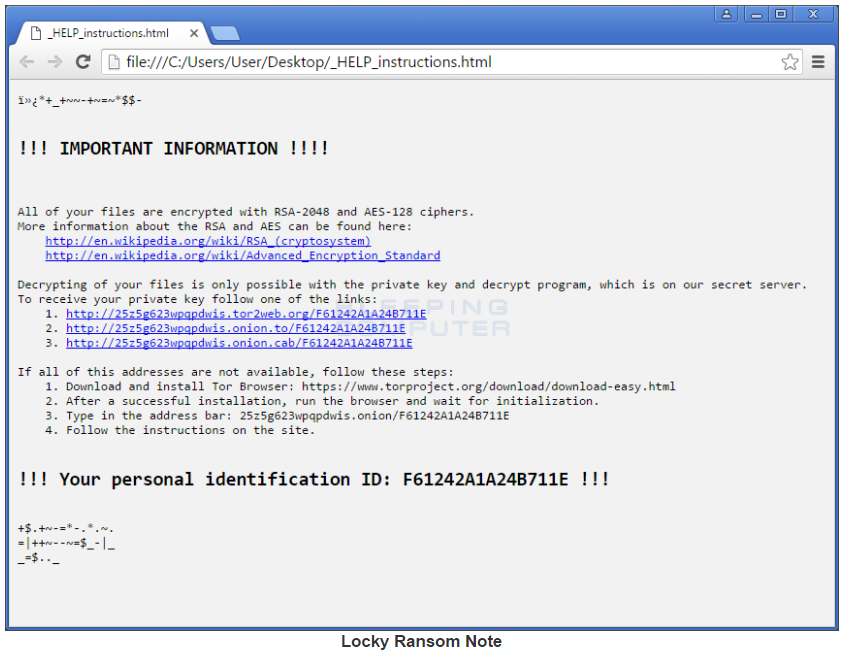
The ransom note from a recent version of the “Locky” ransomware variant. Image: Bleepingcomputer.com.
Paying up is certainly not the cheapest option. The average ransom demanded is approximately $722, according to an analysis published in September by Trend Micro. Interestingly, Trend found the majority of organizations that get infected by ransomware end up paying the ransom. They also found three-quarters of companies which had not suffered a ransomware infection reported they would not pay up when presented with a data ransom demand. Clearly, people tend to see things differently when they’re the ones in the hot seat.
And for those not yet quite confident in the ways of Bitcoin (i.e. most victims), paying up means a crash course in acquiring the virtual currency known as Bitcoin. Some ransomware attackers are friendlier than others in helping victims wade through the process of setting up an account to handle Bitcoin, getting it funded, and figuring out how to pay other people with it. Others just let you figure it all out. The entire ordeal is a trial by fire for sure, but it can also be a very expensive, humbling and aggravating experience.
In the end the extortionist may bargain with you if they’re in a good mood, or if you have a great sob story. But they still want you to know that your choice is a binary one: Pay up, or kiss your sweet files goodbye forever.
This scenario reminds me of the classic short play/silent movie about the villainous landlord and the poor young lady who can’t pay the rent. I imagine the modern version of this play might go something like…
 Villain: You MUST pay the ransom!
Victim: I CAN’T pay the ransom!
Villain: You MUST pay the ransom!
Victim: I CAN’T pay the ransom!
Hero: I’ll pay the ransom!
Victim: Oh! My hero!
Villain: Curses! Foiled again!
Okay, nobody’s going to pay the ransomware demand for you (that’s only in Hollywood!). But just like the hero in the silent movie, there are quite a few people out there who are in fact working hard to help victims avoid paying the ransom (AND get their files back to boot).
Assuming you don’t have a recent backup you can restore, fear not: With at least some strains of ransomware, the good guys have already worked out a way to break or sidestep the encryption, and they’ve posted the keys needed to unlock these malware variants free of charge online.
But is the strain that hit your device one that experts already know how to crack?
WHERE TO GO?
The first place victims should look to find out is nomoreransom.org, a site backed by security firms and cybersecurity organizations in 22 countries. Since its launch on July 25, 2016, nomoreransom.org estimates that it has been able to save 6,000 victims of ransomware more than $2 million USD to date. Last week the group announced the site is now available in Dutch, French, Italian, Portuguese and Russian.

Visit the Crypto Sheriff page at nomoreransom.org, upload one of the files encrypted by the ransomware, and the site will let you know if there is a solution available to unlock all of your files for free.
Another destination that may be useful for ransomware victims is bleepingcomputer.com, which has an excellent Ransomware Help and Tech Support section that is quite useful and may save you a great deal of time and money. But please don’t just create an account here and cry for help. Your best bet is to read the “pinned” notes at the top of that section and follow the instructions carefully.
Chances are, whoever responds to your request will want you to have run a few tools to help identify which strain of ransomware hit your system before agreeing to help. So please be patient and be kind, and remember that if someone decides to help you here they are likely doing so out of their own time and energy.

Bleepingcomputer.com’s ransomware guide.
HOW NOT TO BE THE NEXT RANSOMWARE VICTIM
Regularly backup your data, and make sure the backups are not connected to the computers and networks they are backing up. Most ransomware variants can encrypt files on any attached drives or network files that are also accessible to the host machine (including cloud hosting and cloud-based backups if those passwords are stored on the machine). Bleepingcomputer’s Lawrence Abrams just published this a nice primer called How to Protect and Harden a Computer Against Ransomware.
Many companies are now selling products that claim to block ransomware attacks. Those claims are beyond the scope of this article, but don’t be lulled into thinking these products will always protect you.
Even products that could somehow block all ransomware attacks can’t prevent the biggest reason that ransomware attacks succeed: They trick victims into taking an action that inadvertently undermines the security of their device — be it a smart phone, tablet or desktop computer.
This usually involves clicking a link or downloading and opening a file that arrives in an email or instant message. In either case, it is an action that opens the door to the attacker to download and install malware.
Remember my Three Rules of Online Security:

…For Online Safety.
1: If you didn’t go looking for it, don’t install it.
2: If you installed it, update it.
3: If you no longer need it (or, if it’s become too big of a security risk) get rid of it.
These rules apply no matter what device you use to get online, but I’ll add a few recommendations here that are more device-specific. For desktop users, some of the biggest risks come from insecure browser plugins, as well as malicious Microsoft Office documents and “macros” sent via email and disguised as invoices or other seemingly important, time-sensitive documents.
Microsoft has macros turned off by default in most modern Office versions because they allow attackers to take advantage of resources on the target’s computer that could result in running code on the system. So understand that responding affirmatively to an “Enable Macros?” prompt in an Office document you received externally and were not expecting is extremely risky behavior.
Enterprises can use a variety of group policy changes to harden their defenses against ransomware attacks, such as this one which blocks macros from opening and automatically running in Office programs on Windows 10. Other ransomware-specific group policy guides are here, here and here (happy to add more “here’s” here if they are worthy, let me know).
Also, get rid of or hobble notoriously insecure, oft-targeted browser plugins that require frequent security updates — like Java and Flash. If you’re not good about updating these programs frequently, you may fall victim to an exploit kit that delivers ransomware. Exploit kits are malicious programs made to be stitched into hacked or malicious Web sites. People who visit these sites or who are redirected to them and who are browsing the Web with an outdated version of Flash or Java can have malware automatically and quietly installed.
Mobile users in general need to spend just a tiny fraction more time discerning the origin and reputation of the applications they wish to install, as mobile ransomware variants tend to mimic or even piggyback on popular games and applications found in app stores and other places. Don’t just download the first app that matches your search. And always download from the original source whenever possible to ensure you’re not getting a copycat, counterfeit or malicious version of the game or application that you’re seeking.
For more tips on how not to become the next ransomware victim, check out the bottom half of the FBI’s most recent advisory on the topic.
Tags: bleepingcomputer.com, Lawrence Abrams, nomoreansom.org, office macros, ransomware, ransomware what to do, trend micro





One thing that confuses me about ransomware is it seems to me to be an easy fix IF you properly back up the files on your computer. I do this weekly using an external hard drive that is never connected to my PC unless I AM backing things up.
So, and I’m guessing I will get some feedback on this… Why not just ignore the warning, accept the fact some of my new files are gone forever (some I can probably get back via the internet if it was my original source, or have to recreate), and do a simple format and reinstall my operating system? I know this would be a lot of work, but since I do have a back up routine, and i faithfully follow it, I don’t see the big deal about ransomware.
Someone please explain to me the problems with my logic. I am sure there are many you will find and any comments are appreciated.
Two cents…
1) If on Windows, create a non-administrator account and ALWAYS operate out of that. Don’t use the Windows administrator account for anything other than administration.
2) If there is a built-in delay between infection and execution then with a week delay between backups the ransom-ware infestation may also get backed up.
3) Connecting the backup drive to the computer may be a trigger… A script connecting to a non-local or intermittently connected machine (NAS) is better.
4) I would recommend that a business do daily, at minimum, incremental backups, with a weekly full backup. Keep at least a month’s worth of backups available off-line/off-site. Insure those backups are non-volatile or fail-safe write protected. An incremental backup may allow the ransom-ware to be more easily found.
Imagine you have paperwork that needs to be kept on hand for X number of years. Tax returns, for instance. If your computer goes belly up, kaput, the government won’t accept that as an answer during the audit. You are expected to maintain those records. You could print them out and stick them in a drawer, sure, but you could lose paper records to floods, fire, etc.
Another instance is if you’re using your computer as your source of income. For instance, working on video or art projects under commission. If you don’t give them the finished product at the end of the project they’re going to expect you to return all funds advanced, if not fees to cover expenses for someone else to do the work on short notice.
When you come to a full scale business, there’s far more data than can be reasonably expected to just download it off the internet someplace again. I’ve heard of police departments who were hit with ransomware who paid up because records about who was being held on what charges and similar data was kept in electronic-only form. They can’t exactly walk from cell to cell asking the people what charges they’re being held on.
What you should do is have a media rotation. Hook up a drive to your computer during the backup. Perform the backup. Disconnect the drive. Next time you run a backup hook up a different drive. Perform the backup. Disconnect the drive. And so on. After you have a month or two of backups you’re undoubtedly going to have a backup of your system from before the infection took hold.
I am With you Joe,
I totally agree with the idea of running a backup system that is designed for the possibility of a total loss scenario.
By working on the presumption that it is virtually impossible to protect anything digital that has an internet connection the user can get used to the idea of losing then restoring the original files/programs/operating system, and work accordingly.
The quoted example of $750 USD for an average ransom would be better spent only once on a quality total back up and restore system. IMO
Joe you are correct that proper backup is the simple defense against ransomeware extortion. However as developers of low cost backup software and appliances we find it difficult to convince users to make backups that are vaulted, versioned and verified. There seems to be a belief that anti-virus is essential, but backup is boring and optional. Then even when we sell our products to users, too many just don’t get around to installing and using them till we remind them. Maybe users want to add a bit of excitement into their lives and live dangerously!
First, your external hard drive can be possibly be encrypted during your weekly backup. You didn’t say how many external drives you have but you should have at least three. If you have three, and the one you just used just got encrypted, you should have the one from a week ago to use for restoring your system.
Second, before you format your drive and restore your operating system, do a backup. This way, if you find that after you’ve formatted your drive that you can’t restore from your backup, you will at least have a copy of your encrypted files that you may be able to decrypt.
Sure, these two things are overkill but I like overkill when it comes to backups and restoring.
One thing that hasn’t been mentioned in these comments is that you need to test restoring from backups periodically to ensure that the backups are working properly. If there is a problem, you don’t want to find out when you try to recover from the ransomware.
Most people (not all) just don’t care about internet security until it’s to late. People just don’t want to be educated on protecting themselves from internet threats like ransomware.
As I stated in a past article, doing regular backup’s to a encrypted hard-drive that’s not permanently connected to the computer is the way to go.
As usual an excellent helpful article that I will pass along to my clients/friends. I’ve had one that was hit twice, but thankfully had offsite backups of critical QuickBooks, document, and database files. All it took was one office employee opening an email with an attachment on Windows 7, and it propagated through the intranet, causing here thousands of dollars, but still less than the miscreants wanted…
Happy Holidays, and thanks for your efforts!
I just installed: Cybereason. https://www.cybereason.com/
I have no idea whether it works or not. I found an article singing its praises so I took a chance. What does everyone else think?
We just hope you didn’t install malware…
Another useful site that I didn’t see listed is ID ransomware, which tells you what ransomware has infected your computer.
(Some ransomwares lie about their names because they can’t get the file encryption right and therefore pretend to be some other ransomware that does work.)
I also rather like ID Ransomware. I tend to send users there when they report ransomware infections, especially if I wasn’t able to identify anything obvious in the logs. Michael Gillespie (aka. demonslay335) does a pretty good job with the site.
CyberReason is a legit program. From what I understand, it works by setting up honeypot folders using characters like $ and !, which are scanned early on by many ransomware. If it detects one of its honeypot files is encrypted, it will alert the user and pause the process.
Though this definitely works, it has two disadvantages that I can see:
1. There are ransomware infections that are now being a bit more random in what files and folders they encrypt first.
2. Files may be encrypted before a honeypot folder is touched.
I also agree about ID Ransomware. Great tool and updated daily by Michael, who is a very dedicated ransomware researcher.
Hi, I agree with Joe to prep with backups. However, I used to have too many versions of backup which made my decision to choose which backup that is reliable and good is rather a challenging task.
I always try to defense it from the source, ie its the malware that triggers the file encryption issue, thus I invested quite some money in anti-virus, anti-malware software. I always believe freeware comes with ‘hidden’ danger.
Hope the above helps,
Does anyone know if storing my data files/documents in Dropbox protects me from ransomware? Or at least protects me from losing the data. From what I have read Dropbox would have the files in backup and could recover them for me.
It should also be noted that a few of the ransomware versions claim to have 3DES or AES encrypted all your files, replacing them with .crypted extensions, and demanding payment via Bitcoin. In fact, they have just XOR’d the first 1024 bytes of the file with a string from the ransomware package itself. The same ransomware package contains flag which reverses the encryption when you have “paid”.
These typically come in as Javascript/WScript email attachments claiming to be “Invoice_xxx” or “Delivery_Confirmation_xxx”. I have deobfuscated and extracted the encryption key from a number of these.