

Recently one of our users asked for our help in moving their WordPress site to a new domain. We thought it would be nice to share this process on WPBeginner, so it helps others who are looking to do the same. In this article, we will show you how to properly move your WordPress site to a new domain name without losing your SEO rankings.
Before You Start
Before you start, we want to emphasize a few things. The process of switching to a new domain will temporarily affect your search engine rankings as Google and other search engines adjusts to the changes. Yes, this will also temporarily affect your search traffic as well. Please keep in mind that this is normal, and it happens to all sites that switch to a new domain.
However, the best part is that you can dramatically decrease the negative SEO effects that migration can have by following this guide. We will show you the right way of moving your WordPress site to a new domain name, setting up proper 301 redirects, and notifying search engines.
Please note that this guide is not for moving your WordPress site to a new web host. This is for switching a domain name. Yes, while the process is similar, there are more things involved in this process as you set 301 redirects and more.
Pre-Steps
In this guide, we are assuming that you have your WordPress site setup on oldsite.com, and you are trying to migrate it to newsite.com. We are also assuming that you have a web hosting account, and you are familiar with your web hosting control panel.
You will also need to know how to use FTP.
Step 1: Create a Full Backup
Before you do anything, it is very important that you create a full backup of your WordPress site. There are tons of plugins and solutions out there that allows you to create a backup. You can use VaultPress, BackupBuddy, BackWPup, or WordPress backup to Dropbox.
Step 2: Moving your WordPress Site
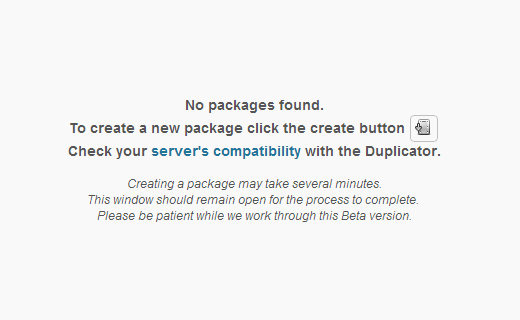
Once you have created a complete backup of your old site, it is time to start the domain migration process. First thing you need to do is install and activate the Duplicator plugin in your WordPress installation on your old site. Once activated, the plugin adds Duplicator menu item in your WordPress admin. Click on the Duplicator manu, and you will see a screen like the one below. Simply click on the create button to create a new package.
Clicking on the create button will start the duplication process, and the plugin will ask you to give your package a name. By default, it will use your website’s name with a date prefix, but you can give it any name you want. The plugin will start creating a zip package of your WordPress database and all your files. This may take some time depending on how much content you have. Once the process is complete, then you will be taken to Duplicator packages screen. Download both the package and installer files on your computer.
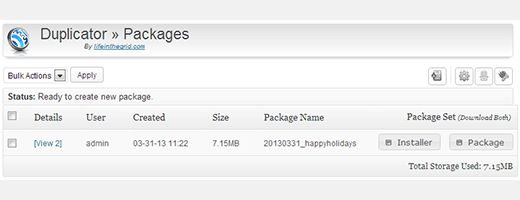
Next, you need to open your FTP program and connect to your new site. Make sure that the root directory, or the directory where you want to copy your website is completely empty. Upload the installer.php file and your package zip file to the new site. After uploading the files, simply launch the installer.php in a web browser. You can access it by going to http://www.newsite.com/installer.php
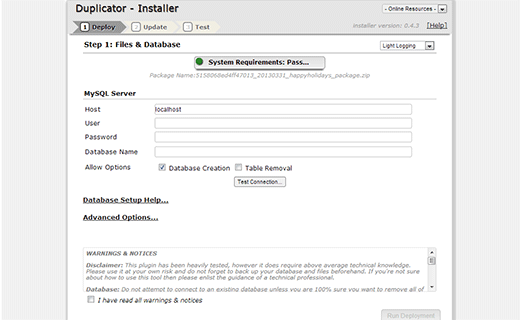
The installer will ask you to provide database information for the new site and check the box for Table removal. Make sure that the database you are using is empty, and does not contain any data that you would need later.
Read the Warning and Notices section and check the box that says “I have read warning and notices”. Next click on the “Run Deployment” button. The duplicator installer script will extract the zip package, install your database from old site, and install WordPress with your themes and plugins. This process may take some time depending on how big your site is. Once the installation is finished, the plugin will show you the update page.
On the update page, you will need to update your URLs. The duplicator will try to guess your old and new URLs on its own, but you can also enter URLs manually and click on the Update button. The plugin will then replace all instances of oldsite domain name with newsite domain name.
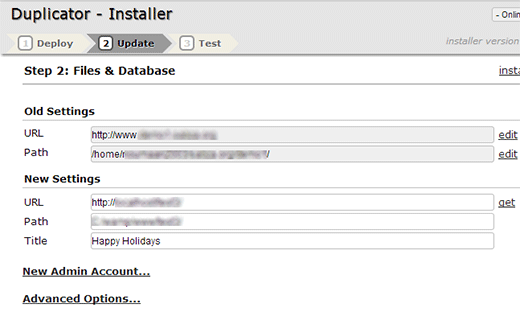
Once the entire process is complete, the Duplicator plugin will remind you to take the post installation steps. The first step is to re-save your WordPress permalinks. Login to your new site’s WordPress admin using the same username and password that you had on the old site. Go to Settings » Permalinks in your new site’s WordPress admin and click on the save button.
After that delete the installer.php, installer-data.sql and the installer-log.txt files from your root directory using FTP.
Lastly, check your new website for broken links, missing images, posts and pages. Please make sure that everything is working and all the functionality is there.
Now you have successfully moved WordPress to a different domain name, but the process is not done. We still have to add the proper 301 redirects and notify the search engines to keep all your SEO rankings.
Step 3: Setting up Permanent 301 Redirects
Setting up a permanent 301 redirect is very important for both SEO and user experience. This allows you to redirect users and search engines to your new site. In other words, whenever someone lands on one of your old posts or pages, then they will be automatically redirected to your new site.
To setup a permanent 301 redirect, you need to connect to your old site using FTP and edit the .htaccess file. This will be located in the same directory as your wp-includes or wp-admin folder. Open the .htaccess file and paste the following code at the very top:
#Options +FollowSymLinks
RewriteEngine on
RewriteRule ^(.*)$ http://www.newsite.COM/$1 [R=301,L]
Note: Replace newsite.com with your domain in the above code.
Once you have applied these changes, then visit your old site. It should automatically redirect you to the new site. If it doesn’t, then it means the redirection is not setup properly.
Step 4: Notifying Google About the Change
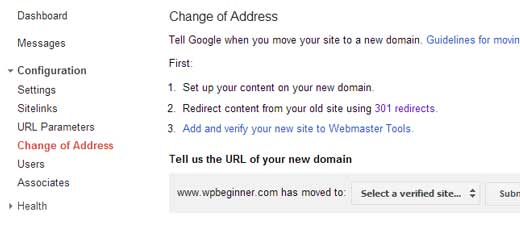
Login to your Google Webmaster Tools account to submit a change of address. Basically click on your site and look at the left menu under configuration. This allows you to notify Google about your new site and the transfer. Yes, you have to verify your new site, so go ahead and do it.
Step 5: Notify Users
While the 301 redirects do the job, it is always good to make a public announcement about the migration. You can do this by simply writing a blog post on your new site. This can be helpful in a lot of ways. First and foremost, your users are more likely to remember the new domain once they read about it. Second, you can ask your users to let you know if they see any bugs. This can be very helpful because you alone cannot test your site in all different type of browsers and system environments. Besides it always help to have a fresh pair of eyes looking at it.
We hope that this tutorial helped you move your WordPress to a new domain name. If this tutorial helped you, then please don’t forget to share it. We appreciate all retweets, likes, and +1s. Lastly, let us know about your experience and/or questions by leaving a comment below.

Hi.
I am moving a site from a dummy/test subdomain to the definitive domain (something like moving from temporary.example.com to example.com.)
While i kept the site mostly offline during developement i forgot for a brief period the site open.
This was enough for googlebot to snuck in and i find many pages indexed already, with the addresses starting with temporary.example.com/whatever instead of example.com/whatever.
Now i am going to put online the site on the real address and i fear that the fact that the same pages are indexed twice will damage SEO.
I have no previous traffic or seo score to save from the test subdomain, can i just delete the old site?
Hi Alessandro,
Once your site is live, you can set up a 301 redirect from temporary url to your current URL. Take a look at our guide on how to set up redirects in WordPress.
Hi, thanks for the answer.
As i said the site i want to move has no SEO to save… i am only worried of google thinking less of it because of the (temp and no more existing) duplicate pages.
The redirect would be just for the search bots.
Is a 301 redirect a better solution instead of just removing the site?
Even if you remove the site, you would still need to tell search engines where it has gone. This way search engines won’t penalize the new and live site for duplicate content. 301 is the HTTP code which tells search engines that the content they are trying to access has moved to this new location.
I simply made my site secure, changing the url. I have used a 301 redirect from the root, will that redirect all pages? This is a wordpress site.
i just move the old domain to new domain. The process was something like that, just install wp to new domain and import all files and database on it. Then old domain made an permanent redirection to new domain. I shared sitemap to web master and other search engine also. Also old domain web master admin i said to change domain name by using domain name changer tools in web master. But still not remove any files from old domain directory, so is that will be problem for me??? lease let me know.
Thank You!
Hello,
I have a old site but I want to redirect that to new domain without losting my any permanent SEO juice. But I need to know that should I redirect all the urls of old domain to new site similar urls or I just need to redirect the domain Name.
It’s very important for me to know.
Thanks
I have properly 301 redirected my site to new domain. Do i need to add sitemap of new domain after redirection and address change at webmaster tools? Also my site traffic has significantly gone down. Around 70% drop within 10 days. Is this normal? And how much time will it take to go up.
Please answer and help.
I want ask you one question. I have two website. One is old and one is new. so i want transfer my old website 5 post to my new website. Like on my old website have 5 smartphones post and i want publish these post on my new domain with old website content that already publish so what i do now.
Hi, thank you for the great explanation! I am wondering, Does putting the code in the htacces file mean That i don’t need to redirect all individual links? I was looking at the plug-in 301 simple redirects, but there I need to fill in every single link.
My old site is live for a while so I would like to keep the page values for Google.
BR!
What should be done with the content on the original site after the duplicate content, all 301 redirects. and change of address in the search console are complete? Is it best to remove the original content? Any chance it will get penalized as duplicate content?
You don’t need to have the content live to set up a redirect from one WordPress install to another. But if you do, then that’s alright too, because your users and search engines won’t stay on the old content and they will be redirected. If your content was hosted on a platform like WordPress.com or Blogger, then we would recommend you to keep your content in private mode for at least six months.
Hi there,
We’re migrating our blog from a blog.domain.com to domin.com/blog. Out site is currently live on our main domain, will migrate the blog to the same database mean we need to access it differently?
In other words, will it affect our process for creating blog content in the wordpress dashboard?
Thanks!
No, it wouldn’t affect blog creation. However, you may need to update URLs in database to make sure that they are pointing to the new location.
Thanks WPBEGINNER team for writing such an awesome and helpful article. I have followed all steps carefully and migrated my old domain to new domain, everything is working fine except one, that is; my old home url is not redirecting to new one while all internal pages are redirectd to new pages.
THX for the best article in a long time that really works!
I want to move my https enabled site to a new https enabled domain for rebranding purpose. For example,
From https olddomain.com
To https newdomain.com
To put 301 code to the .htaccess file of old domain. I need to keep the installation of old domain untouched.
The problem is here I will need two SSLs, IPs (in some cases, servers) which is a bit costly for me.
What can be the best solution here?
Or
Can I follow the below mention method!!!
If I switch back to my https olddomain TO http olddomain
and then from olddomain TO newdomain.
Will I lose ranking or be penalized by Google here?
Hi.,
This is article exactly something I was looking today but a bit confused now. My blog was hacked and was injected with a conditional redirect malware. Since my hosting provider allows two managed WordPress installs, I migrated the ‘uploads’ folder and database to the other one. Now I wish to change the domain name too as the current one have many external spam websites indexed by Google as subdomains. I want to keep the old domain name but delete the old site with malwares. But this article is suggesting to keep the old website with the .htaccess edit. Can I use the old domain along with new one by deleting the old website?
Nice, thanks. It was very helpfull!
Hello
If I just move my content wordpress to newsite as the same domain I am using, Is it neccessary to do 301 redirect?
In new Google Webmaster Tools there is not any option of changes of address option. please tell me now how can i notify google.
Great tutorial, thank you
Does this work to specific posts or it will automatically redirect everything to the new domain.
I’m planning to move some of my posts to another domain, not entirely the whole blog. Thanks!
Hi WPBeginner – Your step-by-step guide is great…but, I just have a quick question to confirm before moving forward with changing my wordpress domain…
Unfortunately, the Duplicator Plugin is not working for me….so, can I manually copy & paste a backup of the my ‘old’ site into a new directory for the ‘new domain?…and follow the rest of the steps above.
Also, I am using the same hosting for my old & new domain — So, do I create a new directory folder for the ‘new’ domain — and keep the ‘old’ domain folder on my hosting?…basically, my hosting would have (2) site folders?…the old & new.
I’ve read various places say I only need to point to the new domain on wordpress…however, im extremely concerned with losing my SEO rankings from my old domain, so i’ve been kindda hesitant with the process..
Any reply would be greatly appreciated…Thanks!
You should create a new directory on your hosting server. Download all your WordPress files and then upload them to the new directory. You will also need to export your old database. Create a new database in your hosting cPanel. Open phpmyAdmin and then import your old database. Rest of the steps would be the same.
Thanks for the reply!…I will make sure to follow your detailed instructions.
Hey,
I created the package with Duplicator plugin and also, uploaded installer and archive package to new domain but unable to launch installer.php using example.com/installer.php and the browser showing server not found!
Help please:-(
Success!
I was afraid to take up transfer of my domain from .in to .com since 6 months or more. This guide is so easy to follow, I was up and running in the new domain within an hour. Thank you wpbeginner for this helpful post.
One question though… My old domain didnt have such a great SEO characteristics to pass on. I no more want to use that old domain. Can I set a 301 direct in .htaccess of old site and leave it WITHOUT RENEWING THE DOMAIN WHEN IT EXPIRES OVER THE PERIOD?
Please let me know!
Yes, you can do that. However, it is recommended that you keep the domain up with redirects for at least 90 days. You should also submit a change of address request to Google from Google webmaster tools.
Another question: if I delete all the old images in the old site folder, google webmaster will tell me there`s 100,000 dead paths and I will have to delete them one by one. Should I just leave the image folder untouched? I don`t want to see all those missing file notifications in my webmasters account.
I will be keeping the same .com domain but the images in the old pages will have a different name. ( e.g. from 0429_lg.jpg to ocean_home.lg.jpg so I am changing the name of 10 images ( now will have twice that number ) on each listing with different name. Does that affect SEO? I guess having the new seo friendly name in images might even be better.
Hi there !
Recently I tried migrating my wp website to new domain ( shared server) but the Duplicator plugin didnt work . Then I opted for manual migration, everything is working well but I can’t aceess my wp-login.php page for my new website in new domain.
Can you please help me on this matter ? I shall provide more details of both my websites too .
Thanks .
Thank you! Followed instructions and worked perfectly.
I’m busy migrating a clients domain and a relatively old post on MOZ.com states one should redirect each URL independently. While MOZ is an industry leader in SEO, I’m questioning this since their post is from 2009. Is this overkill or the best way to proceed?
If you have a static site with less than 10 pages, then this makes sense. But if you are moving a site with hundereds of posts, then it will be quite difficult to setup each redirect manually.
Thank You – Clients WordPress site had 36 pages/posts, which I redirecting manually using the Redirect Plugin. I then updated the sitemap and re-submitted this to both Google & Bing.
I didn’t redirect image or tag URLs.
After 48-hours, of doing the page/post redirects, I submitted the URL Address Change to both Google and Bing Webmaster Tools. I decided to give both Search Engine time to detect the Page/Post Redirects and will do a Domain Redirect (using .htaccess file) at the end of the week.
Based on my Google Analytics & Google Webmaster Tools for the new Domain I’m pretty happy with the results so far.
Hi, I don’t have an FTP provider. When I loaded one, it lit up my anti-virus software. I am trying to create a website for a friend based on my site. Is there an easy, non-FTP solution, to clone to my friend’s domain. Once that’s there, I can then update with her content.
Thanks,
Is it a good idea to delete my old site (except for the .htaccess file), on my old host so I don’t have 2 exact sites on two hosts?
Can your created a tutorial moving a wordpress site to a new doman wihout a plugin, like for example moving subcategory to the main site or subdoman to the mina site wihtout a plugin.
Hi, very useful article but i have a doubt . What if i download my backup manually by making zip, also download the database from Mysql from cpanel.
And then manually upload to the new host filemanager. Do i need to change the URL in database from old-domain.com to new-domain.com before uploading the database to mysql?
Hope you understand, what i’m saying!
Question on the redirects – I’m currently running two sites (two TLD’s, two hosts) and would like to consolidate into a single site, retiring the “old” site host. Can I redirect the “old” TLD to the new at the DNS and then add rewrite rules to my “new” site’s .htaccess for the migrated posts?
Thank you!
-Daniel
This has worked well – question on the redirect. I changed my domain AND hosting. So I’d like to close out my old hosting account.
How long should I have the redirect for my old domain? I’m planning on keeping the old domain for some time.
Would a forward on the old domain accomplish the same thing as the 301 redirect?
I’d keep the old domain name redirected as long as you’re able.
If I used BackupBuddy to move my site to a new domain and then followed the directions to do the 301 redirect, shouldn’t I get the same result
What about typing in the old and new url that Duplicator has you do – how is that step done with BackupBuddy?
Thanks for an interesting post.
Yes, you can use BackupBuddy too.
So if I transfer my site with these exact instructions, with Google analytics automatically keep working? Or do I need to re-install the tracking code on my new site, and take it off the old one?
Google Analytics will still work as long as you use the same UA code as before. That said, it may be worthwhile to setup a new view in your Google Analytics dashboard after you make the change