
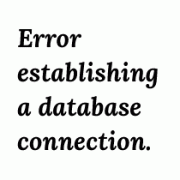
If you have been surfing the web for a while, you have at least seen this error a few times. Error Establishing a Database Connection is one of those curses that could be caused by many reasons. As a WordPress beginner, this could be awfully frustrating specially when it happened on its own without you changing anything. We ran into this issue yesterday on our own site. It took a little over 20 minutes to detect and fix the problem. While doing the research to find possible causes, we realized that there was no good article that covered everything. In this article, we will show you how to fix the error establishing a database connection in WordPress by compiling a list of solutions all in one place.
Note: Before you make any database changes, make sure you have sufficient backups.
Why do you get this error?
Well in short, you are getting this error because WordPress is unable to establish a database connection. Now the reason why WordPress is unable to establish a database connection can vary. It could be that your database login credentials are wrong or have been changed. It could be that your database server is unresponsive. It could be that your database has been corrupted. In our experience, majority of the times this error happens because of some sort of server error however there could be other factors as well. Lets take a look at how to go about troubleshooting this problem.
Does the problem occur for /wp-admin/ as well?
First thing you should do is to make sure that you are getting the same error on both the front-end of the site, and the back-end of the site (wp-admin). If the error message is the same on both pages “Error establishing a database connection”, then proceed onto the next step. If you are getting a different error on the wp-admin for instance something like “One or more database tables are unavailable. The database may need to be repaired”, then you need to repair your database.
You can do this by adding the following line in your wp-config.php file. Add it just before ‘That’s all, stop editing! Happy blogging’ line wp-config.php.
define('WP_ALLOW_REPAIR', true);
Once you have done that, you can see the settings by visiting this page: http://www.yoursite.com/wp-admin/maint/repair.php

Remember, the user does not need to be logged in to access this functionality when this define is set. This is because its main intent is to repair a corrupted database, Users can often not login when the database is corrupt. So once you are done repairing and optimizing your database, make sure to remove this from your wp-config.php.
If this repair did not fix the problem, or you are having trouble running the repair then continue reading this article as you might find another solution to work.
Checking the WP-Config file
WP-Config.php is probably the single most important file in your entire WordPress installation. This is where you specify the details for WordPress to connect your database. If you changed your root password, or the database user password, then you will need to change this file as well. First thing you should always check is if everything in your wp-config.php file is the same.
define('DB_NAME', 'database-name');
define('DB_USER', 'database-username');
define('DB_PASSWORD', 'database-password');
define('DB_HOST', 'localhost');
Remember your DB_Host value might not always be localhost. Depending on the host, it will be different. For popular hosts like HostGator, BlueHost, Site5, it is localhost. You can find other host values here.
Some folks suggested that they fixed their problem by replacing localhost with the IP. It is common to see this sort of issue when running WordPress on a local server environment. For example on MAMP, the DB_Host value when changed to the IP may seem to work.
define('DB_HOST', '127.0.0.1:8889');
IP’s will vary for online web hosting services.
If everything in this file is correct (make sure you check for typos), then it is fair to say that there is something wrong on the server end.
Check your Web Host (MySQL Server)
Often you will notice this Error establishing database connection when your site gets swarmed with a lot of traffic. Basically, your host server just cannot handle the load (specially when you are on shared hosting). Your site will get really slow and for some users even output the error. So the best thing you should do is get on the phone or livechat with your hosting provider and ask them if your MySQL server is responsive.
For those users who want to test if MySQL server is running yourself, you can do a few things. Test other sites on the same server to see if they are having the issue. If they are also getting the same error, then most definitely there is something wrong with your MySQL server. If you do not have any other site on this same hosting account simply go to your cPanel and try to access phpMyAdmin and connect the database. If you can connect, then we need to verify if your database user has sufficient permission. Create a new file called testconnection.php and paste the following code in it:
<?php
$link = mysql_connect('localhost', 'root', 'password');
if (!$link) {
die('Could not connect: ' . mysql_error());
}
echo 'Connected successfully';
mysql_close($link);
?>
Make sure to replace the username and password. If the connected successfully, then it means that your user has sufficient permission, and there is something else that is wrong. Go back to your wp-config file to make sure that everything there is correct (re-scan for typos).
If you cannot connect to the database by going to phpMyAdmin, then you know it is something with your server. It does not necessarily means that your MySQL server is down. It could mean that your user does not have sufficient permission.
In our case, our MySQL server was running. All other sites on the servers were working fine except for WPBeginner. When we tried going to our phpMyAdmin, we ended up getting the error:
#1045 – Access denied for user ‘foo’@’%’ (using password: YES)
We got on the phone with HostGator and their support quickly found the problem. Somehow our user’s permissions were reset. Not sure how that happened, but apparently that was the reason. They went back in and restore the permissions and we were able to get the site back live.
So if you get the access denied error in either connecting to your phpMyAdmin or through testconnection.php results, then you should contact your host right away to get them to fix it.
Solutions that Worked for Others
It is important to note, that these may not work for you. Use at your own risk and make sure that you have sufficient backups if anything goes wrong.
Deepak Mittal said that his client was getting the error that database needs to be repaired. Even after repairing the database, the error did not go away. He tried various things and at the end, the issue was the site url. Apparently that was changed which caused the error to persist. He ran the SQL query by going to phpMyAdmin:
UPDATE wp_options SET option_value='YOUR_SITE_URL' WHERE option_name='siteurl'
Make sure to replace YOUR_SITE_URL with the actual url example: http://www.wpbeginner.com. The wp_options will be different if you have changed the default WordPress database prefix.
This seemed to fix the issue for him and few others that commented on his post as well.
Sachinum suggested that he was able to connect the database with testconnection.php, so he changed the wp-config.php user to the root user. WordPress started to work perfectly fine. Then he reverted the settings back to the database-user, and it continued to work. He could not figure out what was wrong, but concluded that it was a typo.
Cutewonders suggested that they removed the content of active_plugins in wp_options table and edited the contents of recently_edited. Basically that seemed to fix the problem. Please their full response here.
We read on numerous sources that users simply uploaded a fresh copy of WordPress and it fixed the error.
This is a really frustrating error. What have you tried that seemed to work for you? We would be happy to expand on this resource, so others do not have to waste as much time finding a solution.


i dont get it
[SOLVED] My databases were all working fine – turns out the problem was the password itself. The password contained three symbols &(= which I guess was messing with PHP. I’m not the best in PHP but I suspect the problem was with the symbol “=”. So once I changed the password, it worked just fine. Good luck, hope this helps.
Thanks guys, you’ve saved me from having a melt down
You’re welcome
Thanks. Solved my problem.
What exactly helped? I checked everything – still doesn’t work. In the section “Check your Web Host (MySQL Server)” they are talking about testconnection.php file, what should I do after I created it and put on WP dir? how can i run this code? (sorry, i’m a beginner in this area)
What also can be really handy! Especially if you use WordPress on IIS6/7/8 on Windows Server.. Check if the MySQL service is running.. And also if it is running on the correct user account! Normally this should be just the Local System!
Even those who are not exactly absolute beginners to WordPress get often stumped by this error! Thanks to your systematic approach, I managed to track down the ‘error’ in my installation — a corrupt MySQL database, which was anything but apparent, since all tables seem to be in the right place, and checking/optimizing them would give no errors… but clearly there was something very, very wrong.
Dumping the database and re-importing it from a backup did the trick!
Thank you so much
Thank you so much for writing this and all of the comments. My site was fixed by replacing the line
/** MySQL database password */
define(‘DB_PASSWORD’, ‘[some random numbers and letters]’);
with
/** MySQL database password */
define(‘DB_PASSWORD’, [my usual wp-admin login password]’);
Not sure if this is correct way to fix it but it did work.
I went back into my cpanel and re-inputted the same passwords for my 2 of 4 sites that weren’t working and that got them back up and running.
I am glad I was able to fix this issue on my site after 4 days. In my own case it said the wp-option table crashed. And I ran the repair, the result showed it was not successful but in actual sense, it was repaired.
After I got that unsuccessful repair message, I initiated a like chat with my service provider but they checked the site and informed me that that my site was alive and I was happy.
Thanks
I did tried all the above solution . But nothing worked out for me .
Then I tried looking @apache logs . It was brute force attacks against xmlrpc.php from crashing my WordPress server.
The simple solution that worked for me was to block the IP’s
I found out here
My wordpress website is running but after some time it shows an error “Establishing database error” then i have to start “service mysqld start” please help me so that this type of error not come again. thanks
Thanks, i tried some things, but in the end, i found out, that my config file, generated random password, when i actually changed it to specific password.
This was so helpful. This along with people’s comments/experiences would be quite a handy resource or guide. I’ve noticed a few job posts for WordPress error testers and started researching and found this page.
Hello guys. Just because this is the first page of google on this subject I’m complementing the information. In my case i downloaded my wp-config from my prod website. At the end of the file right after “define(‘WP_DEBUG’, false);” i had the following configuration.
define( ‘WP_ALLOW_MULTISITE’, true );
define(‘MULTISITE’, true);
define(‘SUBDOMAIN_INSTALL’, false);
define(‘DOMAIN_CURRENT_SITE’, ‘MYDOMAIN.com’);
define(‘PATH_CURRENT_SITE’, ‘/’);
define(‘SITE_ID_CURRENT_SITE’, 1);
define(‘BLOG_ID_CURRENT_SITE’, 1);
I tried to keep everything as it was but I replaced the mydomain.com with my ip + port.
An hour later I realize that commenting the lines below fixed the problem:
//define(‘MULTISITE’, true);
//define(‘SUBDOMAIN_INSTALL’, false);
//define(‘DOMAIN_CURRENT_SITE’, ‘MYDOMAIN.com’);
I tried logging in to maintain site but I get this error “Error establishing a database connection”. I also get that error when trying to access wp-admin. Nothing has been changed on our end. Help!
Help!
We get an error message on our wordpress for “Error establishing a database connection:
This either means that the username and password information in your wp-config.php file is incorrect or we can’t contact the database server at localhost. This could mean your host’s database server is down.
Are you sure you have the correct username and password?
Are you sure that you have typed the correct hostname?
Are you sure that the database server is running?
We’re puzzled how this happened. If you can help, that would be great. Thank you.
Thanks a lot. you really helped me get my website back to work
Please, am having problems operating my wordpress dashboard. I have been updating my website through my dashboard for some days now. But just yesterday i began to receive this message…… Fatal error: Cannot call overloaded function for non-object in /home/content/n3pnexwpnas01_data02/34/3566434/html/wp-includes/capabilities.php on line 448……..can anyone tell me what to do or what was the cause of this plssssss.
Sam.
Most likely this issue is caused by a WordPress plugin. Try these WordPress troubleshooting tips to find out the culprit.
It is also possible that the error is caused due to incompatibility with the PHP version. Ask your WordPress hosting provider about the PHP version they are using and see if they can upgrade it. The minimum requirement is PHP version is 5.6 or greater for WordPress.
thanks a lot, i only change the theme and that fix it, i so much appreciate.
Hey Samuel, we are glad you found it helpful Don’t forget to join us on Twitter for more WordPress tips and tutorials.
I’m also having the same problem but mine is so terrible because I can’t access my cpanel. Please what should I do?
After looking at this page and thinking “I have no idea what I’m doing”, I just rebooted the server and now everything’s hunky-dory again. Any idea why that was the case?
The only thing I can think of that may have caused it is that I lost my internet connection whilst logging in, but why should it?
THANK YOU VERY VERY MUCH. Had a corrupt db user, would have had no clue without this article.
Life saver.
Davo
When I cloned my MySQL database for setting up a staging site I received the same error. I found out that the MySQL user setup for the WP to access the database needs to be given permission to access the database through the CPanel -> Mysql databases -> add a user to the database option. Otherwise, you will get “Error Establishing a Database Connection” issue when trying to access the admin page through the URL.
Error establishing database connection .
I did not work after trying few steps. I thought let’s wipe out all the information. S o reset MySQL deta base . Uploaded new WordPress. Now still it days error establishing database connection .any help and suggestions
The second fix worked.
Thank you so much.
This worked for me, thanks. I moved a five domain multisite with very little trouble. The only tweak was to the table_prefix of the database tables. For some reason mine weren’t prefixed with wpcc- . This was easily edited in wp-config.php. After that I had to do some wrangling with tech support to point the subdomains at the directory where wp was installed. They couldn’t understand why I’d want all of them pointing at the same place. Once they had given in and done as I asked it all worked fine.
Thank you for providing this useful informatrion
Thanks a whole bunch, You really saved my day
You are welcome, don’t forget to follow us on Twitter to get more WordPress tips and tricks.
I had the same problem,
i also got after a restore from backup an error: Error establishing a database connection
i checked the database with phpmyadmin under the database for wordpress and then wp_options. And there was no sign of something called siteurl
So i pressed insert -> option_id = 1
Option_name = siteurl
Option_value = http://www.example.com
and added it. Then went back to the website http://www.example.com/wp-admin and i could restore it
hopefully it helps.
Greetz J
*Update to my earlier comment*
I tried generating & applying new passwords via cPanel. On 3rd pw change I still got the can’t load the DB error but it allowed me to run the WP Repair.php !
Everything showed as OK.
Now the site is back.
Highly irritating & weird.
Glad you found a solution on your own.
I just started seeing this error. None of the above works
Also tried renaming the DB, & running the ‘check’ & ‘repair’ options in cPanel = ‘OK’ on all elements.
I can access & edit the DB via phpmyadmin.
wpconfig is byte for byte identical to my original (then working) backup.
The testconnection.php has revealed this –
‘Could not connect: Connection using old (pre-4.1.1) authentication protocol refused (client option ‘secure_auth’ enabled)’
Any ideas appreciated.
I seem to encounter the error on all other the pages except the main page. The main page loads fine but when i click a link to open another page that’s when I get the database connection error.
Has anyone encountered this? Aren’t all the pages including the main page use the same database connection?
May be you are seeing a cached version of your main page? If not, then contact your web hosting service provider.
Error 404 error403 same prob,how do repairinp this prob?
it works inmediately after put the ip i’m receiving from the router 192.168.5.8 in my particular case.
localhost, 127.0.0.1 weren’t working.
I copied a PHP script I found online called testconnection.php. The script captures and echos the connection error. I ran the script from the command line using ‘php -f testconnection.php’. The error told me that there was a problem reading the mysql.sock file. When I checked the indicated location, there was no mysql.sock file. I created an empty file called mysql.sock in the indicated location using touch and ‘Voila!’ everything has worked fine since.
I had the same problem on my site too, i only changed the line for DN Host to
define(‘DB_HOST’, ‘localhost’);
in the config file, it was pointing to an IP address which happened to be the one for the cpanel.
Please fix my issue. I am trying to restore a database backup from mysql server, But restore fails the following error32 will persists.
TITLE: Microsoft SQL Server Management Studio
——————————
Restore of database ‘PROD_SALES_DATABASE’ failed. (Microsoft.SqlServer.Management.RelationalEngineTasks)
——————————
ADDITIONAL INFORMATION:
System.Data.SqlClient.SqlError: The operating system returned the error ’32(The process cannot access the file because it is being used by another process.)’ while attempting ‘RestoreContainer::ValidateTargetForCreation’ on ‘C:\Program Files (x86)\Microsoft SQL Server\MSSQL12.MSSQLSERVER\MSSQL\DATA\PROD_SALES_DATABASE.mdf’. (Microsoft.SqlServer.SmoExtended)
For help, click:
——————————
BUTTONS:
Thank you so much : it worked instantly !!!
Cheers
Barbara