Showing posts with label jQuery UI. Show all posts

Tuesday, December 17, 2013

jQuery UI vs Ajax Control ToolKit

Ajax is heart of web application these days as it provides capabilities to create asynchronous web applications which in turn returns better user experience as users these days are quite impatient. To implement Ajax and ajax enabled controls, there are many libraries available. Out of these many libraries, two are jQuery UI and Ajax Control Tool Kit. So in this post, we will see what are these two libraries, how they are similar and different from each other and which one is better. So let's dive in!!!!!!

Also Read:

First What are they?


The Ajax Control Toolkit contains a rich set of controls that you can use to build highly responsive and interactive Ajax-enabled Web applications. The Ajax Control Toolkit contains more than 40 controls. The Ajax Toolkit has some great stuff that is very easy to use. It's from Microsoft so you can be pretty comfortable adding it to a project.

On the other side, jQuery UI is a curated set of user interface interactions, effects, widgets, and themes built on top of the jQuery JavaScript Library. jQuery UI is built for designers and developers alike. They've designed all of their plugins to get you up and running quickly while being flexible enough to evolve with your needs and solve a plethora of use cases.

Similarity


  • Both are open source library.
  • Both has rich set of controls which are quite useful and makes developer life easy.
  • Both are easy to integrate and work without any hassle.

Differences


  • To use jQuery UI, you need to include jQuery library reference. Without jQuery library, jQuery UI will not work. Where Ajax Control Tool Kit doesn't have any such dependency.
  • jQuery UI is light weight and smaller in size. Which allows page to load faster.
  • jQuery can run on any HTML page as well as can be used with any server side scripting language like ASP.NET, PHP, JSP etc. On the other side, Ajax Control Tool Kit runs only on ASP.NET web page.
  • Caching is an very important element of web application as it reduces load on server for all subsequent calls. Both jQuery and jQuery UI scripts are cache-able. Which means that it is downloaded only once for the first request and gets cached as all modern browsers support caching.
  • jQuery provides more control on the code and gives better performance.
  • Ajax Control Tool Kit is useful to build apps quickly without much concern for performance or the need for precise AJAX functionality. You don't need to have in-depth knowledge of Ajax.
  • Ajax Control Tool Kit is easy to start but on later stage of development becomes quite complex where jQuery is complex to start with but you end up writing better client side code which is a huge advantage for long run.
  • Ajax Control Tool Kit is used specifically for Ajax enabled controls and calls, where jQuery is not only used for Ajax, but it can be used all client side scripting things like validations, animations, enabling/disabling controls, Css support etc..

Conclusion


After reading the differences section of these 2 libraries, jQuery UI seems to be clear winner as there is more control on the code, it is suitable for larger and more complex applications where performance is key and it is good for long run. Where, Ajax Control Toolkit & ASP.NET AJAX relies heavily on server-side functionality, and works well with ASP.NET WebForms. This is better for developers who need to build apps quickly without much concern for performance or the need for precise AJAX functionality. Ajax Control Tool Kit can be used for rapid development for ajax functionality.

jQuery/jQueryUI are a better choice in most cases.

Feel free to contact me for any help related to jQuery, I will gladly help you.
Read more...

Monday, April 29, 2013

Show only Month and Year in only one jQuery UI DatePicker in case of Multiple DatePicker

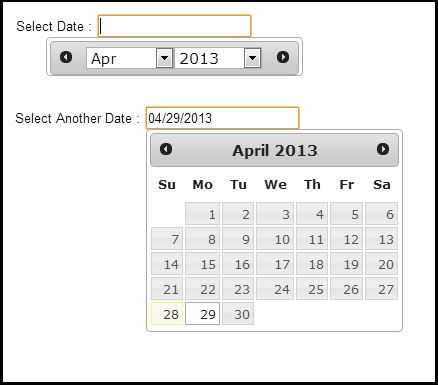
In one of my previous post, I had posted about Show only Month and Year in jQuery UI DatePicker, but there was an issue with the code explained in that particular post. The issue was that it was applicable for all the datepickers present on the page and it is quite possible to have such behavior for one datepicker and rest of the datepickers control should work their default functionality.


Related Post:

How to do it?


To implement this, follow below steps only for that control for which you want to show Month and Year appear as Dropdown.
  • Set changeMonth and changeYear to true.
  • Set date format to "MM yy".
  • jQuery DatePicker has "onClose" event, which is called when Datepicker gets closed. So using this event, fetch the selected Month and Year and setDate of Datepicker.
  • jQuery DatePicker also has "beforeShow" event, which is called before the datepicker is displayed. So this event will be used to Show the previously selected Month and Year as selected. If you don't use this event, then datepicker will always show the current month and current year, irrespective of your previous selection.
  • Now, here is tricky part. Use focus() and blur() event of the textbox control to hide default behavior of the datepicker. And in focus() event, set the position of "ui-datepicker-div" which is created by datepicker control itself and this holds UI for having month and year dropdown.
$(document).ready(function () {
   $('#txtDate').datepicker({
    changeMonth: true,
    changeYear: true,
    dateFormat: 'MM yy',

    onClose: function () {
      var iMonth = $("#ui-datepicker-div .ui-datepicker-month :selected").val();

      var iYear = $("#ui-datepicker-div .ui-datepicker-year :selected").val();

      $(this).datepicker('setDate', new Date(iYear, iMonth, 1));
      $(this).datepicker('refresh');
    },

    beforeShow: function () {
      if ((selDate = $(this).val()).length > 0) 
      {
        iYear = selDate.substring(selDate.length - 4, selDate.length);

        iMonth = jQuery.inArray(selDate.substring(0, selDate.length - 5), $(this).datepicker('option', 'monthNames'));

        $(this).datepicker('option', 'defaultDate', new Date(iYear, iMonth, 1));
        $(this).datepicker('setDate', new Date(iYear, iMonth, 1));
      }
    }
  });

   $("#txtDate").focus(function () {
      $(".ui-datepicker-calendar").hide();
      $("#ui-datepicker-div").position({
          my: "center top",
          at: "center bottom",
          of: $(this)
      });
   });

   $("#txtDate").blur(function () {
     $(".ui-datepicker-calendar").hide();
   });
});
See result below
See Complete Code
Feel free to contact me for any help related to jQuery, I will gladly help you.

Read more...

Wednesday, April 10, 2013

Restrict Date Range in jQuery UI DatePicker for two dates

In this post, you will learn how to implement validation to "Restrict Date Range in jQuery UI DatePicker" or "End Date should be greater than Start Date by few days using jQuery Date Picker". When I say few days, which means end date must be at least StartDate + 4 or StartDate + 2.. The number can be anything depending on your requirement.

Related Post:

Following things needs to be taken care.
  1. When Start Date is selected, then need to disable all the dates before selected start date + 4 days in end date datepicker. "minDate" option is our choice here.
  2. If end date is selected first, then disable all the dates after selected end date - 4 days in Start date datepicker. "maxDate" option is our choice here.
To implement this, write code in jQuery UI Datepicker "onSelect" event which gets called when date is selected.
$(document).ready(function () {
   var daysToAdd = 4;
   $("#txtFromDate").datepicker({
      onSelect: function (selected) {
         var dtMax = new Date(selectedDate);
         dtMax.setDate(dtMax.getDate() + daysToAdd); 
         var dd = dtMax.getDate();
         var mm = dtMax.getMonth() + 1;
         var y = dtMax.getFullYear();
         var dtFormatted = mm + '/'+ dd + '/'+ y;
         $("#txtToDate").datepicker("option", "minDate", dtFormatted);
      }
   });

   $("#txtToDate").datepicker({
      onSelect: function (selected) {
         var dtMax = new Date(selected);
         dtMax.setDate(dtMax.getDate() - daysToAdd); 
         var dd = dtMax.getDate();
         var mm = dtMax.getMonth() + 1;
         var y = dtMax.getFullYear();
         var dtFormatted= mm + '/'+ dd + '/'+ y;
         $("#txtFromDate").datepicker("option", "maxDate", dtFormatted)
      }
   });
});
The above jQuery code,
  • First, takes the selected date and converts it in Date Object.
  • And then adds/subtracts "daysToAdd" variable.
  • And it sets formatted date to Datepciker.
If you also want to make sure that Start Date should be greater than end Date then set "minDate : 0" for from date datepicker.
Feel free to contact me for any help related to jQuery, I will gladly help you.
Read more...

Thursday, March 21, 2013

Hide/ Disable Dates in jQuery UI Datepicker

In this post, find jQuery code to hide or disable specific dates in jQuery UI Datepicker. This is small but useful features. Consider a scenario, where hide all the dates for public holidays or workplace is closed.

Related Post:

First, create an array of dates which should be disabled. In the below jQuery code, you will see the array index value is also a date object and the value is also a date object.
  var arrDisabledDates = {};
  arrDisabledDates[new Date('03/22/2013')] = new Date('03/22/2013');
  arrDisabledDates[new Date('04/04/2013')] = new Date('04/04/2013');
  arrDisabledDates[new Date('05/16/2013')] = new Date('05/16/2013');
  arrDisabledDates[new Date('06/30/2013')] = new Date('06/30/2013');
Now, the DatePicker control provide "beforeShowDay" event, which gets called before building the control. So use this event to disable the date. If the calendar date is found in our defined array then disable it otherwise don't do anything.
$('#txtDate').datepicker({
   beforeShowDay: function (dt) {
       var bDisable = arrDisabledDates[dt];
       if (bDisable) 
          return [false, '', ''];
       else 
          return [true, '', ''];
   }
});
So the complete jQuery code is,
$(document).ready(function () {
    var arrDisabledDates = {};
    arrDisabledDates[new Date('03/22/2013')] = new Date('03/22/2013');
    arrDisabledDates[new Date('04/04/2013')] = new Date('04/04/2013');
    arrDisabledDates[new Date('05/16/2013')] = new Date('05/16/2013');
    arrDisabledDates[new Date('06/30/2013')] = new Date('06/30/2013');

    $('#txtDate').datepicker({
        beforeShowDay: function (dt) {
            var bDisable = arrDisabledDates[dt];
            if (bDisable) 
               return [false, '', ''];
            else 
               return [true, '', ''];
        }
    });
});
Live Demo
Feel free to contact me for any help related to jQuery, I will gladly help you.
Read more...

Thursday, December 27, 2012

Drag ‘n’ Drop Shopping Cart With jQuery UI Tutorial

Found a wonderful tutorial for creating "Drag ‘n’ Drop Shopping Cart With jQuery UI" so thought of sharing with you. It is totally client side and covers basic functionality of shopping cart. Worth reading..


Feel free to contact me for any help related to jQuery, I will gladly help you.
Read more...

Wednesday, December 5, 2012

Few Interesting things with jQuery UI DatePicker setDate()

Earlier today, I posted about "How to Set Current Date in jQuery UI Datepicker" using setDate() method provided by jQuery UI Datepicker library. But there are few interesting things which you can also do with setDate() method which you might not be knowing.

setDate() method takes 'date' as argument but this argument either can be date object or string object.
$('#txtDate').datepicker().datepicker('setDate', new Date());
//OR
$('#txtDate').datepicker().datepicker('setDate', '12/31/2000');
But you can also pass number of days from today which you want to set as date. Consider below jQuery code,
$('#txtDate').datepicker().datepicker('setDate', '+7');
This code will set the date as "12-Dec-2012", considering today is "5-Dec-2012". Interesting?? Wait, there is more. You can also pass this in weeks, month, years or combination of any of these. Default is days.

Use "y" for years, "m" for months, "w" for weeks, "d" for days.

For 1 month from current date,
$('#txtDate').datepicker().datepicker('setDate', '+1m');
For 1 year from current date,
$('#txtDate').datepicker().datepicker('setDate', '+1y');
For 1 month and 7 days from current date,
$('#txtDate').datepicker().datepicker('setDate', '+1m +7d');
So next time, while using setDate() method remember these little but useful things.

Feel free to contact me for any help related to jQuery, I will gladly help you.
Read more...

jQuery UI Datepicker : Set Current Date

To set current date in control to which jQuery UI datepicker bind, use setDate() method. Pass date object which needs to be set as an argument to setDate() method. If you want to set it to current date then you can pass 'today' as argument.

So, jQuery code to set current date may look like something similar,
$(document).ready(function() {
    $('#txtDate').datepicker('setDate', 'today');
});​
But Wait!!! Above jQuery code will not work. It will not set the current date. Wondering why?

Well, as I told you that setDate() is a method, not an option. And to call the any object, object must be initialized. And in this case, datepicker is not even initialized. So correct way is,
$(document).ready(function() {
    $('#txtDate').datepicker();
    $('#txtDate').datepicker('setDate', 'today');
});​
OR
$(document).ready(function() {
    $('#txtDate').datepicker().datepicker('setDate', 'today');
});​
See result below


Other method is,
$(document).ready(function() {
    $('#txtDate').datepicker();
    $('#txtDate').datepicker('setDate', new Date());
});​
Note: Please set the date format as per your need, otherwise it will use date format of client machine.
$(document).ready(function() {
    $('#txtDate').datepicker({ dateFormat: 'yy/mm/dd' });
    $('#txtDate').datepicker('setDate', new Date());
});​
As mentioned earlier, the setDate() method takes date object as argument so you can also set any specific date as well. For example, to set 31-Dec-2000 as date
$(document).ready(function() {
    var myDate = new Date(2000,11,31);
    $('#txtDate').datepicker();
    $('#txtDate').datepicker('setDate', myDate);
});​
You can also pass the date as string.
$(document).ready(function() {
    $('#txtDate').datepicker();
    $('#txtDate').datepicker('setDate', '12/31/2000');
});​
Feel free to contact me for any help related to jQuery, I will gladly help you.
Read more...

Friday, November 23, 2012

jQuery UI icon name map

If you've ever wanted to use a specific icon from the default jQuery UI iconset, you have no doubt spent a lot of time glancing over the icons in your theme's example page trying to find the one you need.

Good news!!! Now all the jQuery UI icons are at one place and download the PDF version and find the icon that you need.


Feel free to contact me for any help related to jQuery, I will gladly help you.
Read more...

Friday, October 26, 2012

All you need to know about jQuery UI Tooltip

jQuery UI 1.90 library tooltip is an awesome widget and I had already posted many articles on jQuery UI Tooltip. In today's post find out "All you need to know about jQuery UI Tooltip".


1. Create Tooltip using jQuery UI library


2. Move jQuery UI Tooltip with Mouse


3. Show and Hide jQuery UI Tooltip with Animation


4. How to change jQuery UI Tooltip Font Style


Feel free to contact me for any help related to jQuery, I will gladly help you.
Read more...

Monday, October 22, 2012

How to change jQuery UI Tooltip font style

When you download jQuery UI, all the widgets comes with predefined theme or style. But sometimes, it is required to override or change default font style to match up with your current webpage style or css. For example, assume that all the controls on your page are having font-size of "8pt" and jQuery UI tooltip widget is having "12pt", which is not desired.

In this post, you will learn how to change the default font-style of jQuery UI Tooltip widget. Below demo shows the default font style of jQuery UI Tooltip. Note, this is using "Sunny" theme.


To change or override the default font style, update the ".ui-tooltip" class and add your desired font and font-size.
.ui-tooltip
{
    font-size:10pt;
    font-family:Calibri;
}
See result below


Feel free to contact me for any help related to jQuery, I will gladly help you.

Read more...

Thursday, October 18, 2012

Show and Hide jQuery UI Tooltip with Animation

jQuery UI 1.90 library tooltip is an awesome widget. By default, the jQuery UI Tooltip is displayed without any animation. But do you know that you can animate the tooltip while showing and on hiding? Yes, It's Possible. In this post, You will see that how that can be done.

Related Post:

jQuery UI Tooltip widget provides 2 options to animate the tooltip while showing and hiding.
  • show: When set to false, no animation and the tooltip will be shown immediately. When set to true, the tooltip will fade in with the default duration and the default easing.

  • hide: When set to false, no animation and the tooltip will be hidden immediately. When set to true, the tooltip will fade out with the default duration and the default easing.

So, below jQuery code will show the tooltip using "slidedown" effect with the delay of 250 ms.
$("#aSlideDown").tooltip({
    show: {
        effect: "slideDown",
        delay: 250
    }
});
As I mentioned earlier, different animation effect can be provided while showing and hiding the tooltip. So below jQuery code will show tooltip using "fold" effect and hide using "shake" effect.
$("#aFoldandShake").tooltip({
    show: {
         effect: "fold",
         delay: 250
    },
    hide: {
        effect: "shake",
        delay: 250
   }
});
See result below


You can use any of the below value for effect property.
  • blind
  • bounce
  • clip
  • drop
  • explode
  • fade
  • fold
  • highlight
  • puff
  • pulsate
  • scale
  • shake
  • size
  • slideDown
See Complete Code

Feel free to contact me for any help related to jQuery, I will gladly help you.
Read more...

Monday, October 15, 2012

Move jQuery UI Tooltip with mouse

In my previous post, I had explained how to "create Tooltip using jQuery UI library". By Default, the tooltip appears next to the element and it doesn't move. Today, I will show you how can you make jQuery UI Tooltip follow the mouse. In short, the tooltip will move with the mouse.

jQuery UI Tooltip widget has a property called "track", which is when set to true then tooltip follows the mouse. By default it is false.

Below jQuery code, will set this property to true which makes tooltip to follow the mouse.
$(function() {
    $(document).tooltip({
        track:true
    });
});​
See result below


See Complete Code
Feel free to contact me for any help related to jQuery, I will gladly help you.
Read more...

Friday, October 12, 2012

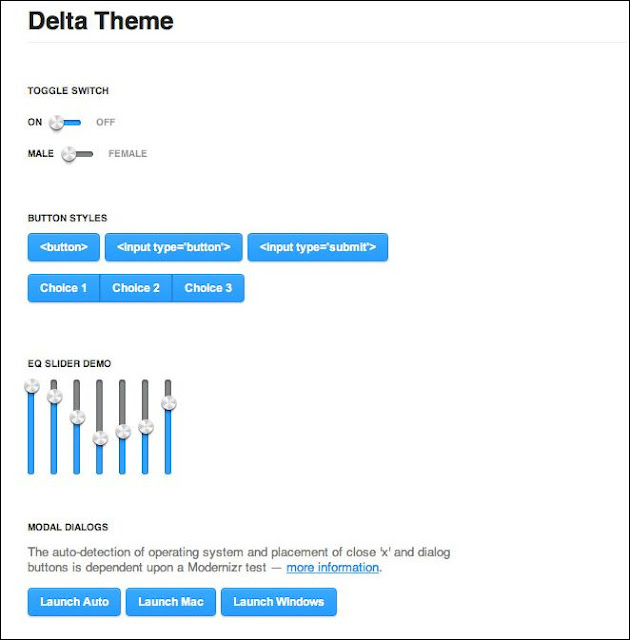
Delta - A Free jQuery UI Theme

Well, if you don't like predefined themes provided by jQuery UI library then there is a good news for you. Delta is a free, gorgeous jQuery UI theme. It’s free for commercial, personal and educational use as part of the MIT or GPL license.


Features:


  • Open source – Free for commercial and personal use alike under an MIT license.
  • Retina ready – The theme makes use of CSS3 gradients and some @2x images to ensure it’s retina display friendly.
  • Dark and light friendly – The vibrant colour scheme means “Delta” works on both light and dark backgrounds. Change the toggle in the top right hand corner of the demo to see it in action.
  • OS dependent modals – Close ‘x’ and button placement inherits from your operating system, using an extra Modernizr test.


Support & Testing:


  • IE7, IE8 & IE9 : But rounded corners and drop shadows will degrade depending on support
  • Chrome
  • Firefox
  • Safari
  • Opera
Official Website
Feel free to contact me for any help related to jQuery, I will gladly help you.
Read more...

Create Tooltip using jQuery UI library

I had already posted that jQuery UI 1.90 is released and there are some widgets which are introduced with jQuery UI 1.90. One of the new widget is Tooltip. In this post, you will learn how to create tooltip using jQuery UI library.


Related Post:

Before we begin let me just remind you that to create tooltip we need to use jQuery UI 1.90 version and you can download it from here.

Tooltips can be attached to any element. To display tooltips, one need to add title attribute to input elements and title attribute value will be used as tooltip. When you hover the element with your mouse, the title attribute is displayed in a little box next to the element.

To display tooltip, jQuery UI library provide tooltip() which should be called on element on which you want to display tooltip. So if you want to display tooltip for all elements of the page, then you can call tooltip() on document object.
$(function() {
    $(document).tooltip();
});​
Above code will display tooltip for all the input elements which have title attributes.

See result below

If you are interested to display tooltip to any specific element then all you need to do is to change your selector. For example, below code will associate tooltip with input element with ID "txtName".
$(function() {
    $('#txtName').tooltip();
});​
See Complete Code
There are many more things which can be done with tooltip widget. So keep visiting as I will be posting about them as well.

Feel free to contact me for any help related to jQuery, I will gladly help you.
Read more...

Tuesday, October 9, 2012

What's new in jQuery UI 1.9.0

The jQuery UI team has been pretty busy for the past two and a half years. With more than 500 bug fixes spread over two dozen releases, they’ve been working hard to make jQuery UI as stable and flexible as possible.


jQuery UI 1.9.0 is now available with hundreds of bug fixes, a bigger and better test suite, and improved APIs. Team has updated API of some of the widgets and also introduced some new widget. You can find the complete list of what's new with this release here.

Feel free to contact me for any help related to jQuery, I will gladly help you.
Read more...

Wednesday, October 3, 2012

How to enable/disable jQuery UI Button

In this post, find out way to enable or disable jQuery UI button. The jQuery UI Button provides enable and disable methods which change the status of the jQuery UI button.

To enable the button,
$("#btnDemo").button("enable");
To disable the button,
$("#btnDemo").button("disable");
See result below


See Complete Code
Feel free to contact me for any help related to jQuery, I will gladly help you.
Read more...

Monday, September 24, 2012

How to assign custom image to jQuery UI Button

You have already seen, How to use jQuery UI Icons in jQuery UI Button, but what if you are not fan of these icons and you want to have your own/custom image on the jQuery UI button, instead of these built-in icons. This can be done but it is not a straight forward thing but not difficult also.

As there is no property/attribute supported by jQuery UI Button to assign a custom image so one need to use a different path.

All is required to add an image around the button and set the text to empty string. And then attach jQuery UI Button to the HTML button.
$(document).ready(function() {
    $("#btnClose")
        .text("")
        .append("<img height="100" src="logo.png" width="100" />")
        .button();
});​
See result below


See Complete Code
Feel free to contact me for any help related to jQuery, I will gladly help you.
Read more...

Friday, September 21, 2012

Use jQuery UI Icons in jQuery UI Button

The jQuery UI themes provides many icons which you can use for any purpose. You can display them in jQuery UI buttons as well. To use them, all you need to provide is the class name.

The jQuery UI Button widget has icons settings to display icons. You can display 2 different icons.
The primary icon is displayed by default on the left of the label text. And the secondary by default is on the right. Value for the primary and secondary properties must be a classname (String), eg. "ui-icon-gear".

For using only one icon: icons: {primary:'ui-icon-locked'}.
And for using two icons: icons: {primary:'ui-icon-gear',secondary:'ui-icon-triangle-1-s'}
$("#btnDemo").button({
        icons: {
            primary: "ui-icon-locked",
            secondary: "ui-icon-unlocked"
        }
    });
See result below


See Complete Code
Now the question is that how do you remember these icons class name? And for your information, the jQuery UI theme provides more than 150+ icons which I can't list here and it is difficult to remember.

The way to figure out the name of the icon is to visit jQuery UI ThemeRollar. And you can find the all of the icons listed in a grid at bottom of the page. Take your mouse on the icon to see the class name.


Take a note that the class name starts with a dot(.). For example, if you take mouse on the heart icon then the class name is ".ui-icon-heart", but while using it in code remove the starting dot(.) and use it like "ui-icon-heart". See the code in demo.

Feel free to contact me for any help related to jQuery, I will gladly help you.
Read more...

Thursday, September 20, 2012

Change Position of Current month in multi month jQuery UI Calendar

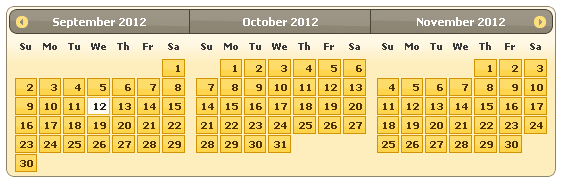
Today I needed to show a 3 months(multi month) jQuery UI Calendar and need to show current month in the middle. Read "Show multiple months in jQuery datepicker". By default, the current month is always displayed at first place. See the image.

But I need to display the current month (which is September) in the middle. So the order was August -> September -> October.

jQuery UI Datepicker provides a property "showCurrentAtPos" which "specify where in a multi-month display the current month shows, starting from 0 at the top/left." So to show the calendar in middle, set "showCurrentAtPos" to 1.
$('#inline').datepicker({
        numberOfMonths: 3,
        showCurrentAtPos:1
});
And to show in the last, set "showCurrentAtPos" to 2.
$('#inline').datepicker({
        numberOfMonths: 3,
        showCurrentAtPos:2
});
See result below


See Complete Code
Feel free to contact me for any help related to jQuery, I will gladly help you.
Read more...

Friday, September 14, 2012

Detailed guide of how to setup jQuery UI - Part 2

Yesterday I had posted about Detailed guide of how to setup jQuery UI and once you download the jQuery UI library, you'll get a customized zip file containing everything you selected.


Once you've downloaded jQuery UI, you'll get a zip containing the following files:
  • /css/
  • /development-bundle/
  • /js/
  • index.html
Out of these files, there are 3 folders and 1 file.
  • css: The css folder contains custom css file and also the images required by the theme.
  • development-bundle: This folder contains all the development files that include the uncompressed source code. This is quite helpful at the time of development as if there is any problem than you can change the code as per requirement. This folder contains demos, documents and seperate .js file for every selected component before downloading.
  • js: This folder contains the minified version of both jQuery and jQuery UI library.

Development version is useful at the time of development because you can easily debug the code. And as jQuery is open source so you can easily make changes in the jQuery library as per your requirement. But after making changes in jQuery library ensure that you minify it.

While production version is useful when your website goes on production or final release as file size is small so it can save some amount of bandwidth.

jQuery UI depends on jQuery. You must add jQuery to a document in order to use jQuery UI. jQuery UI is not a stand-alone library.

This is the last article of this series and I hope you find these articles useful. If you have anything to add, share or any question let us know.

Feel free to contact me for any help related to jQuery, I will gladly help you.
Read more...