Showing posts with label jQuery DatePicker. Show all posts

Wednesday, June 19, 2013

Remove Weekends From jQuery UI Datepicker

In this post, find jQuery code to remove weekends rather than disabling them from jQuery UI Datepicker. This is quite useful when you don't want to allow users to select weekends.


To disable weekends, all you need to do is to override ".ui-datepicker-week-end" css class and set display to none.
.ui-datepicker-week-end {
    display:none
}
Related Post:

There is a small problem which you may face when you override this css class. Which is that it applies to all the datepickers present on the page. If you want the same behavior for all the datepickers then you don't have to worry but when this behavior is required only for specific datepicker, then above solution will not work.

To remove weekends for specific datepicker, you need to hide the ".ui-datepicker-week-end" on focus and blur event.
$('#txtNoWeekend').datepicker();

$("#txtNoWeekend").focus(function () {
   $(".ui-datepicker-week-end").hide();
});

$("#txtNoWeekend").blur(function () {
   $(".ui-datepicker-week-end").hide();
});
Feel free to contact me for any help related to jQuery, I will gladly help you.
Read more...

Thursday, May 16, 2013

Highlight first day of every month in jQuery UI Datepicker

With continuation of jQuery UI Datepicker series articles, here is another post which gives solution to highlight very first day of each month in jQuery UI Datepicker control.

First, define a CSS class to show highlighted effect.
.firstDay a{
   background-color : #00FF00 !important;
   background-image :none !important;
   color: #000 !important;
}
And use "beforeShowDay" event provided with jQuery UI Datepicker control which gets called before building the control. This event can be used to assign specific class to specific dates.
$(document).ready(function () {
    $("#txtDate").datepicker({
        beforeShowDay: function (date) {
            return [true, date.getDate() == 1 ? "firstDay" : ""];
        }
    });
});
See Complete Code
Feel free to contact me for any help related to jQuery, I will gladly help you.
Read more...

Monday, April 29, 2013

Show only Month and Year in only one jQuery UI DatePicker in case of Multiple DatePicker

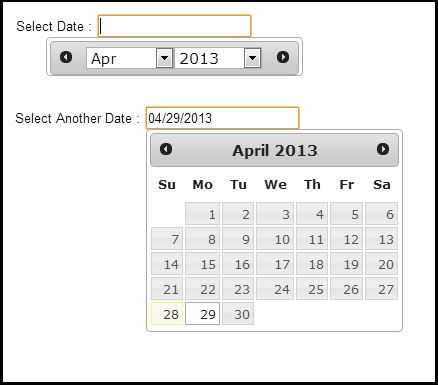
In one of my previous post, I had posted about Show only Month and Year in jQuery UI DatePicker, but there was an issue with the code explained in that particular post. The issue was that it was applicable for all the datepickers present on the page and it is quite possible to have such behavior for one datepicker and rest of the datepickers control should work their default functionality.


Related Post:

How to do it?


To implement this, follow below steps only for that control for which you want to show Month and Year appear as Dropdown.
  • Set changeMonth and changeYear to true.
  • Set date format to "MM yy".
  • jQuery DatePicker has "onClose" event, which is called when Datepicker gets closed. So using this event, fetch the selected Month and Year and setDate of Datepicker.
  • jQuery DatePicker also has "beforeShow" event, which is called before the datepicker is displayed. So this event will be used to Show the previously selected Month and Year as selected. If you don't use this event, then datepicker will always show the current month and current year, irrespective of your previous selection.
  • Now, here is tricky part. Use focus() and blur() event of the textbox control to hide default behavior of the datepicker. And in focus() event, set the position of "ui-datepicker-div" which is created by datepicker control itself and this holds UI for having month and year dropdown.
$(document).ready(function () {
   $('#txtDate').datepicker({
    changeMonth: true,
    changeYear: true,
    dateFormat: 'MM yy',

    onClose: function () {
      var iMonth = $("#ui-datepicker-div .ui-datepicker-month :selected").val();

      var iYear = $("#ui-datepicker-div .ui-datepicker-year :selected").val();

      $(this).datepicker('setDate', new Date(iYear, iMonth, 1));
      $(this).datepicker('refresh');
    },

    beforeShow: function () {
      if ((selDate = $(this).val()).length > 0) 
      {
        iYear = selDate.substring(selDate.length - 4, selDate.length);

        iMonth = jQuery.inArray(selDate.substring(0, selDate.length - 5), $(this).datepicker('option', 'monthNames'));

        $(this).datepicker('option', 'defaultDate', new Date(iYear, iMonth, 1));
        $(this).datepicker('setDate', new Date(iYear, iMonth, 1));
      }
    }
  });

   $("#txtDate").focus(function () {
      $(".ui-datepicker-calendar").hide();
      $("#ui-datepicker-div").position({
          my: "center top",
          at: "center bottom",
          of: $(this)
      });
   });

   $("#txtDate").blur(function () {
     $(".ui-datepicker-calendar").hide();
   });
});
See result below
See Complete Code
Feel free to contact me for any help related to jQuery, I will gladly help you.
Read more...

Wednesday, April 10, 2013

Restrict Date Range in jQuery UI DatePicker for two dates

In this post, you will learn how to implement validation to "Restrict Date Range in jQuery UI DatePicker" or "End Date should be greater than Start Date by few days using jQuery Date Picker". When I say few days, which means end date must be at least StartDate + 4 or StartDate + 2.. The number can be anything depending on your requirement.

Related Post:

Following things needs to be taken care.
  1. When Start Date is selected, then need to disable all the dates before selected start date + 4 days in end date datepicker. "minDate" option is our choice here.
  2. If end date is selected first, then disable all the dates after selected end date - 4 days in Start date datepicker. "maxDate" option is our choice here.
To implement this, write code in jQuery UI Datepicker "onSelect" event which gets called when date is selected.
$(document).ready(function () {
   var daysToAdd = 4;
   $("#txtFromDate").datepicker({
      onSelect: function (selected) {
         var dtMax = new Date(selectedDate);
         dtMax.setDate(dtMax.getDate() + daysToAdd); 
         var dd = dtMax.getDate();
         var mm = dtMax.getMonth() + 1;
         var y = dtMax.getFullYear();
         var dtFormatted = mm + '/'+ dd + '/'+ y;
         $("#txtToDate").datepicker("option", "minDate", dtFormatted);
      }
   });

   $("#txtToDate").datepicker({
      onSelect: function (selected) {
         var dtMax = new Date(selected);
         dtMax.setDate(dtMax.getDate() - daysToAdd); 
         var dd = dtMax.getDate();
         var mm = dtMax.getMonth() + 1;
         var y = dtMax.getFullYear();
         var dtFormatted= mm + '/'+ dd + '/'+ y;
         $("#txtFromDate").datepicker("option", "maxDate", dtFormatted)
      }
   });
});
The above jQuery code,
  • First, takes the selected date and converts it in Date Object.
  • And then adds/subtracts "daysToAdd" variable.
  • And it sets formatted date to Datepciker.
If you also want to make sure that Start Date should be greater than end Date then set "minDate : 0" for from date datepicker.
Feel free to contact me for any help related to jQuery, I will gladly help you.
Read more...

Thursday, March 21, 2013

Hide/ Disable Dates in jQuery UI Datepicker

In this post, find jQuery code to hide or disable specific dates in jQuery UI Datepicker. This is small but useful features. Consider a scenario, where hide all the dates for public holidays or workplace is closed.

Related Post:

First, create an array of dates which should be disabled. In the below jQuery code, you will see the array index value is also a date object and the value is also a date object.
  var arrDisabledDates = {};
  arrDisabledDates[new Date('03/22/2013')] = new Date('03/22/2013');
  arrDisabledDates[new Date('04/04/2013')] = new Date('04/04/2013');
  arrDisabledDates[new Date('05/16/2013')] = new Date('05/16/2013');
  arrDisabledDates[new Date('06/30/2013')] = new Date('06/30/2013');
Now, the DatePicker control provide "beforeShowDay" event, which gets called before building the control. So use this event to disable the date. If the calendar date is found in our defined array then disable it otherwise don't do anything.
$('#txtDate').datepicker({
   beforeShowDay: function (dt) {
       var bDisable = arrDisabledDates[dt];
       if (bDisable) 
          return [false, '', ''];
       else 
          return [true, '', ''];
   }
});
So the complete jQuery code is,
$(document).ready(function () {
    var arrDisabledDates = {};
    arrDisabledDates[new Date('03/22/2013')] = new Date('03/22/2013');
    arrDisabledDates[new Date('04/04/2013')] = new Date('04/04/2013');
    arrDisabledDates[new Date('05/16/2013')] = new Date('05/16/2013');
    arrDisabledDates[new Date('06/30/2013')] = new Date('06/30/2013');

    $('#txtDate').datepicker({
        beforeShowDay: function (dt) {
            var bDisable = arrDisabledDates[dt];
            if (bDisable) 
               return [false, '', ''];
            else 
               return [true, '', ''];
        }
    });
});
Live Demo
Feel free to contact me for any help related to jQuery, I will gladly help you.
Read more...

Wednesday, December 5, 2012

Few Interesting things with jQuery UI DatePicker setDate()

Earlier today, I posted about "How to Set Current Date in jQuery UI Datepicker" using setDate() method provided by jQuery UI Datepicker library. But there are few interesting things which you can also do with setDate() method which you might not be knowing.

setDate() method takes 'date' as argument but this argument either can be date object or string object.
$('#txtDate').datepicker().datepicker('setDate', new Date());
//OR
$('#txtDate').datepicker().datepicker('setDate', '12/31/2000');
But you can also pass number of days from today which you want to set as date. Consider below jQuery code,
$('#txtDate').datepicker().datepicker('setDate', '+7');
This code will set the date as "12-Dec-2012", considering today is "5-Dec-2012". Interesting?? Wait, there is more. You can also pass this in weeks, month, years or combination of any of these. Default is days.

Use "y" for years, "m" for months, "w" for weeks, "d" for days.

For 1 month from current date,
$('#txtDate').datepicker().datepicker('setDate', '+1m');
For 1 year from current date,
$('#txtDate').datepicker().datepicker('setDate', '+1y');
For 1 month and 7 days from current date,
$('#txtDate').datepicker().datepicker('setDate', '+1m +7d');
So next time, while using setDate() method remember these little but useful things.

Feel free to contact me for any help related to jQuery, I will gladly help you.
Read more...

jQuery UI Datepicker : Set Current Date

To set current date in control to which jQuery UI datepicker bind, use setDate() method. Pass date object which needs to be set as an argument to setDate() method. If you want to set it to current date then you can pass 'today' as argument.

So, jQuery code to set current date may look like something similar,
$(document).ready(function() {
    $('#txtDate').datepicker('setDate', 'today');
});​
But Wait!!! Above jQuery code will not work. It will not set the current date. Wondering why?

Well, as I told you that setDate() is a method, not an option. And to call the any object, object must be initialized. And in this case, datepicker is not even initialized. So correct way is,
$(document).ready(function() {
    $('#txtDate').datepicker();
    $('#txtDate').datepicker('setDate', 'today');
});​
OR
$(document).ready(function() {
    $('#txtDate').datepicker().datepicker('setDate', 'today');
});​
See result below


Other method is,
$(document).ready(function() {
    $('#txtDate').datepicker();
    $('#txtDate').datepicker('setDate', new Date());
});​
Note: Please set the date format as per your need, otherwise it will use date format of client machine.
$(document).ready(function() {
    $('#txtDate').datepicker({ dateFormat: 'yy/mm/dd' });
    $('#txtDate').datepicker('setDate', new Date());
});​
As mentioned earlier, the setDate() method takes date object as argument so you can also set any specific date as well. For example, to set 31-Dec-2000 as date
$(document).ready(function() {
    var myDate = new Date(2000,11,31);
    $('#txtDate').datepicker();
    $('#txtDate').datepicker('setDate', myDate);
});​
You can also pass the date as string.
$(document).ready(function() {
    $('#txtDate').datepicker();
    $('#txtDate').datepicker('setDate', '12/31/2000');
});​
Feel free to contact me for any help related to jQuery, I will gladly help you.
Read more...

Thursday, September 20, 2012

Change Position of Current month in multi month jQuery UI Calendar

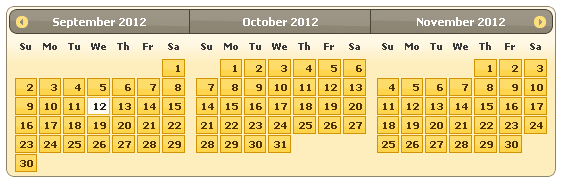
Today I needed to show a 3 months(multi month) jQuery UI Calendar and need to show current month in the middle. Read "Show multiple months in jQuery datepicker". By default, the current month is always displayed at first place. See the image.

But I need to display the current month (which is September) in the middle. So the order was August -> September -> October.

jQuery UI Datepicker provides a property "showCurrentAtPos" which "specify where in a multi-month display the current month shows, starting from 0 at the top/left." So to show the calendar in middle, set "showCurrentAtPos" to 1.
$('#inline').datepicker({
        numberOfMonths: 3,
        showCurrentAtPos:1
});
And to show in the last, set "showCurrentAtPos" to 2.
$('#inline').datepicker({
        numberOfMonths: 3,
        showCurrentAtPos:2
});
See result below


See Complete Code
Feel free to contact me for any help related to jQuery, I will gladly help you.
Read more...

Wednesday, July 11, 2012

Show jQuery DatePicker on button click

The default behavior of jQuery UI Datepicker control is to show Datepicker on click to the element to which it is bind. But sometimes it is required to open the datepicker control on click of button. So In this post, I will demonstrate how to show jQuery DatePicker on button click.


To achieve this, one need to set following options.
  • showOn: This is compulsory.
  • buttonText: This is optional. If set then text is displayed on the button on mouseover.
  • buttonImageOnly: This is optional but set to true to place an image after the field to use as the image without it appearing on a button.
  • buttonImage: This is also compulsory. The URL for the popup button image.
So the jQuery code is,
$(document).ready(function() {
  $("#txtDate").datepicker({
     showOn: 'button',
     buttonText: 'Show Date',
     buttonImageOnly: true,
     buttonImage: 'http://jqueryui.com/resources/demos/datepicker/images/calendar.gif'
  });
});​
See result below.


When "showOn:button" option is used, it display a button next to the textbox. However there is a concern. When you take mouse on the showDate button, the cursor does not change to Hand sign pointer which doesn't look good from UI perspective.

But you can change the CSS behavior to show hand pointer. Add below jQuery code in document.ready() function, where datepicker is placed.
$(".ui-datepicker-trigger").mouseover(function() {
        $(this).css('cursor', 'pointer');
    });
See result below.


See Complete Code
Feel free to contact me for any help related to jQuery, I will gladly help you.
Read more...

Tuesday, June 5, 2012

Show only Month and Year in jQuery UI DatePicker

jQuery UI Datepicker is a great control. The default behavior of the control shows dates along with Month and Year. But today for my requirement, I need to show only Month and Year as dropdown (with no dates). So when datepicker control is opened there should be only Month and Year dropdown. This was a bit challenging but after sometime I was able to achieve this.


How to do it?


First of all, hide the calendar area with dates. This can be done by setting "display:none" to ".ui-datepicker-calendar" CSS class. This class is responsible for styling the Date part area of the Calendar.
.ui-datepicker-calendar {
    display: none;
}​
Now,
  • Set changeMonth and changeYear to true so that Month and Year appear as Dropdown.
  • Set date format to "MM yy".
  • jQuery DatePicker has "onClose" event, which is called when Datepicker gets closed. So using this event, fetch the selected Month and Year and setDate of Datepicker.
  • jQuery DatePicker also has "beforeShow" event, which is called before the datepicker is displayed. So this event will be used to Show the previously selected Month and Year as selected. If you don't use this event, then datepicker will always show the current month and current year, irrespective of your previous selection.
$(document).ready(function() {
   $('#txtDate').datepicker({
     changeMonth: true,
     changeYear: true,
     dateFormat: 'MM yy',

     onClose: function() {
        var iMonth = $("#ui-datepicker-div .ui-datepicker-month :selected").val();
        var iYear = $("#ui-datepicker-div .ui-datepicker-year :selected").val();
        $(this).datepicker('setDate', new Date(iYear, iMonth, 1));
     },

     beforeShow: function() {
       if ((selDate = $(this).val()).length > 0) 
       {
          iYear = selDate.substring(selDate.length - 4, selDate.length);
          iMonth = jQuery.inArray(selDate.substring(0, selDate.length - 5), 
                   $(this).datepicker('option', 'monthNames'));
          $(this).datepicker('option', 'defaultDate', new Date(iYear, iMonth, 1));
          $(this).datepicker('setDate', new Date(iYear, iMonth, 1));
       }
    }
  });
});​
See result below.


If you want to show the buttonPanel as well (see below image) then set "showButtonPanel: true" in DatePicker options.


Feel free to contact me for any help related to jQuery, I will gladly help you.
Read more...

Friday, May 25, 2012

How to display ToolTip on jQuery UI Datepicker for specific dates

I had already posted about how to "Highlight Specific Dates in jQuery UI Datepicker". Yesterday one of my blog reader asked me that how to show any description or tool tip on the highlighted date in jQuery UI Datepicker.Would it be possible? I provided him the solution and thought of sharing with you as well.


To highlight a date(s), it is important to apply some kind of style so that it looks different from others dates. So define a CSS class, which will be used to show highlighted dates.
//Code Starts
.Highlighted a{
   background-color : Green !important;
   background-image :none !important;
   color: White !important;
   font-weight:bold !important;
   font-size: 12pt;
}
​//Code Ends
First, create an array of dates which should be highlighted. In the below jQuery code, you will see the array index value is also a date object and the value is also a date object. And also create another array, which will contain text that you want to show as tooltip.
//Code Starts
var SelectedDates = {};
SelectedDates[new Date('04/05/2012')] = new Date('04/05/2012');
SelectedDates[new Date('05/04/2012')] = new Date('05/04/2012');
SelectedDates[new Date('06/06/2012')] = new Date('06/06/2012');

var SeletedText = {};
SeletedText[new Date('04/05/2012')] = 'Holiday1';
SeletedText[new Date('05/04/2012')] = 'Holiday2';
SeletedText[new Date('06/06/2012')] = 'Holiday3'; 
//Code Ends
Now, the DatePicker control provide "beforeShowDay" event, which gets called before building the control. So use this event to highlight the date. Get the highlighted date and text from both the arrays.
//Code Starts
$('#txtDate').datepicker({
   beforeShowDay: function(date) 
   {
      var Highlight = SelectedDates[date];
      var HighlighText = SeletedText[date]; 
      if (Highlight) {
         return [true, "Highlighted", HighlighText];
      }
      else {
         return [true, '', ''];
      }
   }
});
//Code Ends
So the complete code is,
//Code Starts
$(document).ready(function() {
    var SelectedDates = {};
    SelectedDates[new Date('04/05/2012')] = new Date('04/05/2012');
    SelectedDates[new Date('05/04/2012')] = new Date('05/04/2012');
    SelectedDates[new Date('06/06/2012')] = new Date('06/06/2012');

    var SeletedText = {};
    SeletedText[new Date('04/05/2012')] = 'Holiday1';
    SeletedText[new Date('05/04/2012')] = 'Holiday2';
    SeletedText[new Date('06/06/2012')] = 'Holiday3';  

    $('#txtDate').datepicker({
        beforeShowDay: function(date) {
            var Highlight = SelectedDates[date];
            var HighlighText = SeletedText[date]; 
            if (Highlight) {
                return [true, "Highlighted", HighlighText];
            }
            else {
                return [true, '', ''];
            }
        }
    });
});​
//Code Ends
See result below.


See Complete Code
Feel free to contact me for any help related to jQuery, I will gladly help you.
Read more...

Monday, May 14, 2012

Highlight Specific Dates in jQuery UI DatePicker

Yesterday for one of my requirement, I need to show all the public holiday dates as highlighted in jQuery UI Datepicker so the user will come to know that this is a holiday. So I have implemented the solution and sharing with you. This might be useful for you when you want highlight specific date. In this post, I will show you how to highlight dates in jQuery UI DatePicker control.


To highlight a date(s), it is important to apply some kind of style so that it looks different from others dates. So define a CSS class, which will be used to show highlighted dates.
//Code Starts
.Highlighted a{
   background-color : Green !important;
   background-image :none !important;
   color: White !important;
   font-weight:bold !important;
   font-size: 12pt;
}
​//Code Ends
First, create an array of dates which should be highlighted. In the below jQuery code, you will see the array index value is also a date object and the value is also a date object.
//Code Starts
var SelectedDates = {};
SelectedDates[new Date('04/05/2012')] = new Date('04/05/2012');
SelectedDates[new Date('05/04/2012')] = new Date('05/04/2012');
SelectedDates[new Date('06/06/2012')] = new Date('06/06/2012');
//Code Ends
Now, the DatePicker control provide "beforeShowDay" event, which gets called before building the control. So use this event to highlight the date.
//Code Starts
$('#txtDate').datepicker({
   beforeShowDay: function(date) 
   {
      var Highlight = SelectedDates[date];
      if (Highlight) {
         return [true, "Highlighted", Highlight];
      }
      else {
         return [true, '', ''];
      }
   }
});
//Code Ends
So the complete code is,
//Code Starts
$(document).ready(function() {
    var SelectedDates = {};
    SelectedDates[new Date('04/05/2012')] = new Date('04/05/2012');
    SelectedDates[new Date('05/04/2012')] = new Date('05/04/2012');
    SelectedDates[new Date('06/06/2012')] = new Date('06/06/2012');

    $('#txtDate').datepicker({
        beforeShowDay: function(date) {
            var Highlight = SelectedDates[date];
            if (Highlight) {
                return [true, "Highlighted", Highlight];
            }
            else {
                return [true, '', ''];
            }
        }
    });
});​
//Code Ends
See result below.


See Complete Code
Feel free to contact me for any help related to jQuery, I will gladly help you.
Read more...

Wednesday, May 2, 2012

Add a Timepicker to jQuery UI Datepicker

jQuery UI DatePicker is one of the best date selection control available and it is most popular as well. DatePicker control doesn't have any option to provide time selection settings. But there is an addon "TimePicker" which adds a timepicker to jQuery UI Datepicker.

Please keep in mind that the datepicker and slider components (jQueryUI) are required for using this addon. Also, In addition all datepicker options are still available through the timepicker addon.

The beauty of this addon is that it provide great deal of customization options.Please visit the official website to find out all the available options.
Feel free to contact me for any help related to jQuery, I will gladly help you.
Read more...

Wednesday, April 18, 2012

Update another field when date selection is made using jQuery UI DatePicker

In this post, I will show you when using jQuery UI Datepicker how to update another field when date selection is made in another control.

jQuery UI Datepicker provides an options "altField", which can be used to set the selected date to another control. Set the ID of another control as value for this field and that's it.
//Code Starts
$(document).ready(function() {
  $('#txtDate').datepicker({
     altField: "#txtDateOther"
  });
});
​//Code Ends
See result below.


Feel free to contact me for any help related to jQuery, I will gladly help you.
Read more...

Friday, April 13, 2012

Show Hide jQuery UI DatePicker Programmatically

I just love "jQuery UI DatePicker" as its awesome and so easy to customize. Today for my requirement, I need to show the jQuery UI DatePicker control when textbox gets focus and hide the jQuery UI DatePicker automatically after 2 seconds if date is not selected by the end user, as if the date is selected by the user then DatePicker hides automatically.

jQuery UI DatePicker provides option "show" and "hide" to show/hide the DatePicker. So the idea was to show the DatePicker when textbox gets focus (using focus event) and call setTimeout to hide the datepicker after 2 seconds.

Read How to use jQuery setTimeout function
//Code Starts
$(document).ready(function() {
   $('#txtDate').datepicker();
   $('#txtDate').focus(function() {
     $(this).datepicker("show");
     setTimeout(function() {
       $('#txtDate').datepicker("hide");
       $('#txtDate').blur();
     }, 2000)
   })    
});
​​//Code Ends
See result below.


Feel free to contact me for any help related to jQuery, I will gladly help you.
Read more...

Thursday, April 12, 2012

Provide date format hint using jQuery UI DatePicker

jQuery UI Datepicker seems to be rocking because of the functionality and options for customization it comes with. If you are using DatePicker and the input textbox is not read only then user can enter the date via keyboard without selecting from the jQuery DatePicker And that's a good option. So in this post, I will show you that how to tell users that what date format you are expecting.

The jQuery UI DatePicker provides an option called "appendText", which just append the text of the control to which it is bind. So you can use this property to set the date format and which will appear next to the textbox.
//Code Starts
$(document).ready(function() {
  $('#txtDate').datepicker({
    appendText: '(mm/dd/yyyy)'
  });
});
//Code Ends
See result below.


If you are using HTML5, then you can use power of HTML5 to set the hint. The beauty of this will be that it will be displayed as watermark in the textbox. And this has nothing to do with jQuery UI Datepicker, its power of HTML5.
//Code Starts
$(document).ready(function() {
    $('#txtDate').attr("placeholder", "mm/dd/yyyy").datepicker();
});
//Code Ends
See result below.


Feel free to contact me for any help related to jQuery, I will gladly help you.
Read more...

Monday, January 23, 2012

End Date should not be less than Start Date using jQuery Date Picker

How many times you have seen this message on websites? OR as a programmer, you should have implemented this very common date validation which is "End Date should not be less than Start Date". Gone those days where you write long java script functions for date validation and alert/show a error message on screen. It will be a nice feature where you don't allow end user to make mistake.

Earlier I had posted about Validate Date format, Validate Date using jQuery, Validate email address and Validate Phone numbers. And in this post, find how to make "End Date should not be less than Start Date" using jQuery and jQuery UI Datepicker.

Read my series of articles about jQuery UI Datepicker.

Required Resources:
1. jQuery
2. jQuery UI and jQuery UI CSS

Okay, so there are mainly 2 kind of validation conditions which are,
  1. Start date should not greater than end date.
  2. End date should not less then start date.
So let's put 2 textboxes "txtFromDate" and "txtToDate" and assign Date picker to it. With jQuery UI Date picker, there is an event "onSelect" which fires when any date is selected. So using this event, set the date range for other date pickers.

For example, when from date is selected, then using this "onSelect" event we will set the "minDate" attribute of "txtToDate" textbox to the selected date in "txtFromDate". What it does is that, dates less than the selected from date will be disabled in "txtToDate" textbox. And same way set the "MaxDate" attribute for "txtFromDate" in onSelect event of "txtToDate" textbox. Below is the complete jQuery code.
$(document).ready(function(){
    $("#txtFromDate").datepicker({
        numberOfMonths: 2,
        onSelect: function(selected) {
          $("#txtToDate").datepicker("option","minDate", selected)
        }
    });
    $("#txtToDate").datepicker({ 
        numberOfMonths: 2,
        onSelect: function(selected) {
           $("#txtFromDate").datepicker("option","maxDate", selected)
        }
    });  
});
"numberOfMonths" attribute allows to display multiple months in date picker. Read here about all the attribute of jQuery UI Datepicker.

See result below.
See Complete Code
Okay, this is interesting. But there is one more important condition which is also needed.
  1. Start date should not be greater than today's date.
Along with, there is one more functionality which you must have seen like many websites like flight booking, railway booking where there is a limit for To Date as well. For example, in India train ticket booking is only possible for next 90 days from the current date.

Okay so let's see that how we can implement these 2 conditions as well using jQuery UI DatePicker.

jQuery UI DatePicker provides attributes "MinDate" and "MaxDate" which allows to set minimum permissible date and maximum permissible date. So when "minDate" attribute is set to 0, then past dates will become disable from current date. And set "maxDate" to "+90D" which will make all the future dates disable except 90 days from current date. See below jQuery code. In this example, I have set "maxDate" to 60 days plus only.
$(document).ready(function(){
    $("#txtFromDate").datepicker({
        minDate: 0,
        maxDate: "+60D",
        numberOfMonths: 2,
        onSelect: function(selected) {
          $("#txtToDate").datepicker("option","minDate", selected)
        }
    });
    $("#txtToDate").datepicker({ 
        minDate: 0,
        maxDate:"+60D",
        numberOfMonths: 2,
        onSelect: function(selected) {
           $("#txtFromDate").datepicker("option","maxDate", selected)
        }
    });  
});
See result below.
See Complete Code
One advice: If you are still using Java Script, stop using it and switch to jQuery.

Feel free to contact me for any help related to jQuery, I will gladly help you.
Read more...

Tuesday, November 29, 2011

List of Supported date format by jQuery UI Datepicker

In this post, we will see the supported date format by jQuery UI datepicker. I have already posted many articles on jQuery UI datepicker implementation and some other cool features which you can achieve using jQuery UI datepicker.

Read my series of articles about jQuery UI datepicker here.

Below is the list of jQuery UI datepicker format.

Option value Date format
$.datepicker.ATOM "yy-mm-dd"
$.datepicker.COOKIE "D, dd M y"
$.datepicker.ISO_8601 "yy-mm-dd"
$.datepicker.RFC_822 "D, d M y"
$.datepicker.RFC_850 "DD, dd-M-y"
$.datepicker.RFC_1036 "D, d M y"
$.datepicker.RFC_1123 "D, d M yy"
$.datepicker.RFC_2822 "D, d M yy"
$.datepicker.RSS "D, d M y"
$.datepicker.TIMESTAMP @ (UNIX timestamp)
$.datepicker.W3C "yy-mm-dd"

Below is the jQuery code to change the date format.
$(document).ready(function(){
var pickerOpts = {dateFormat: $.datepicker.ATOM};
  $("#txtDate").datepicker(
  { 
    $("#txtDate").datepicker(pickerOpts);
  });
});
Feel free to contact me for any help related to jQuery, I will gladly help you.
Read more...

Friday, December 24, 2010

Validate Date of Birth is not greater than current date using jQuery

This is a common situation where Date of birth needs to validated against the current or today's date. I have to implement the same functionality for my project. I have used jQuery UI datepicker control to select date and textbox was read only, it was pretty easy to implement.

Read my series of articles about jQuery UI datepicker here.

All I needed to do is to stop datepicker control to disable dates greater than today's date. jQuery UI datepicker control provides an option to set the max date. If its value is set to "-1d" then all the dates after current date will be disabled.

Note: I have set the year range statically but this can be set programatically.
$(document).ready(function(){
  $("#txtDate").datepicker(
  { 
  yearRange: 
  '<%=(System.DateTime.Now.Year - 150).ToString()%>:
  <%=System.DateTime.Now.Year.ToString() %>', 
  changeMonth:true, 
  changeYear:true, 
  maxDate: '-1d'
  });
});
See live Demo and Code.
Read my series of articles about jQuery UI datepicker here.

Also read, Validate Date using jQuery

Feel free to contact me for any help related to jQuery. I will gladly help you.
Read more...

Monday, October 4, 2010

Set Date range to one month in jQuery datepicker

In this post, I will show you how can you set the selected date range to only one month from the current date in jQuery UI datepicker. jQuery UI datepicker provides 2 options minDate and maxDate. minDate option allows you to set minimum selectable date in datepicker. Default is null which means no limit. Where maxDate option allows you to set maximum selectable date in datepicker. Default is null so no limit.

For both these options you can set a date via a Date object or as a string in the current dateFormat, or a number of days from today (e.g. +7) or a string of values and periods ('y' for years, 'm' for months, 'w' for weeks, 'd' for days, e.g. '+1m +1w'), or null for no limit.

To set date range of one month from current date, we will use 'M' option to "+1" for maxDate and for minDate "0" So the current date becomes the value of minDate. See below jQuery code.
$(document).ready(function(){
    $("#txtDate").datepicker({ minDate: 0, maxDate: '+1M', numberOfMonths:2 });
});
See live Demo and Code.
Read my other posts related to jQuery UI Datepicker.

1. Implement jQueryUI DatePicker with ASP.NET
2. Show Hand/Pointer cursor on image button with jQueryUI datepicker control
3. Disable Weekends in jQuery DatePicker
4. Enable weekends in jQuery Datepicker
5. Disable specific days in jQuery Datepicker
6. jQuery Datepicker does not work after Ajax Partial Postback
7. Show multiple months in jQuery UI datepicker

Feel free to contact me for any help related to jQuery. I will gladly help you.
Read more...