Showing posts with label XML. Show all posts

Wednesday, April 16, 2014

How to set a favicon in Webhelp pages

Share to Facebook Share to Twitter Email This Share on Google Plus Share on Tumblr
Small additions or customizations are frequently needed or desirable in the WebHelp pages generated by the DITA Map WebHelp transformation in Oxygen. This need will prompt a serial of blog posts with specific WebHelp customizations and the required source code modifications.

In the first installment let's see how we can add one of those small but significant details which lend a mark of distinction and help to increase the consistency with the overall website design theme: setting a favicon.  [ BTW the upcoming version of Oxygen will introduce a set of built-in WebHelp skins (design themes) and also a small WebHelp Skin Builder web app for visually building your own WebHelp skin/theme. Sounds like an interesting topic for a future blog post! ]

The recent versions of all the mainstream browsers (by that I mean the Web browsers with more than 3% Web usage share) will know how to interpret the following link XHTML elements:


<link rel="icon" href="/favicon.ico" type="image/x-icon"/>

<link rel="shortcut icon" href="/favicon.ico" type="image/x-icon"/>


The href attribute obviously must point to the favicon file available on the server which hosts the Webhelp pages.

These two elements must be inserted in the file:

OXYGEN_INSTALL_DIR\frameworks\dita\DITA-OT\plugins\com.oxygenxml.webhelp\xsl\createMainFiles.xsl
in the template with the attribute name="create-toc-common-file", in the head element, after title:


<title> 
    <xsl:value-of select="$title"/>
</title>

<link rel="icon" href="/favicon.ico" type="image/x-icon"/>
<link rel="shortcut icon" href="/favicon.ico" type="image/x-icon"/>


That's it! Repeating the WebHelp transformation will add the favicon to the title of the browser tab.

It would be nice to have a customization mechanism for separating the built-in WebHelp files and the custom code files, but that is an enhancement for a future version of Oxygen.

Wednesday, November 27, 2013

Generating and using IDs for DITA elements

Share to Facebook Share to Twitter Email This Share on Google Plus Share on Tumblr

Generating and using IDs for DITA elements

Generating IDs in DITA

ID values can be generated either on request or automatically for DITA elements. 
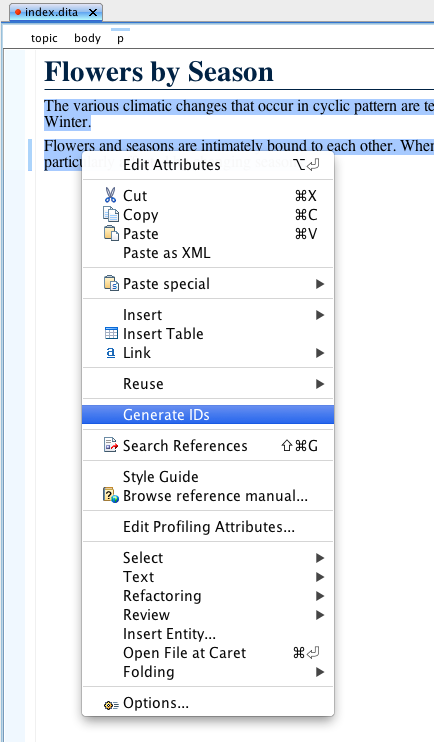
Generate ID values on two paragraphs
Generate ID values on two paragraphs using the contextual menu
The action that you can invoke to generate IDs is called Generate IDs and you can access this from the contextual menu or from the DITA main menu. The action acts on the current selection or, if there is no selection, on the current element. The format of the ID value as well as the elements on which ID values are generated automatically can be customized from the DITA->ID Options menu.
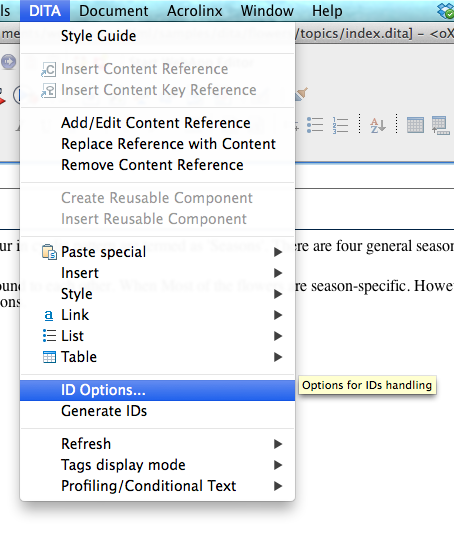
DITA ID Options menu
DITA -> ID Options menu
The default settings will configure oXygen to generate automatically IDs for topics, tables, figures and lists and the ID value will start with the element local name followed by some unique string.
The elements for which ID values will be generated automatically are specified using class attribute values, that means the automatic ID generation is specialization-aware, it will work not only for the elements defined as part of the DITA standard, but also for any custom specialization that defines its own specialized topics, tables, figures or lists.
The ID Options dialog
The pattern for the ID values can be customized using constant strings and editor variables. The common editor variables that are used for these values are ${lcoalName}, ${id} and ${uuid}, please refer to the user guide for more information on editor variables.
The ID value of an element can be manually added, removed or modified using the Attributes panel to access the id attribute of that element.
This action to generate ID values for DITA is part of the DITA framework configuration, so you can easily remove it or configure a different custom action to generate IDs. But in general, you should not need to change the ID generation because specific ID values should not matter that much.

Using IDs in DITA

Elements that have an ID value defined for their id attribute can be referred by that ID value from other parts of the DITA topic or from other topics, in order to create links or to reuse those elements. oXygen provides DITA specific actions to create DITA links and content references as part of the DITA framework. These default actions feature search and filter capabilities that should help you identify the element to point to, without the need to put semantic information in the ID value itself.

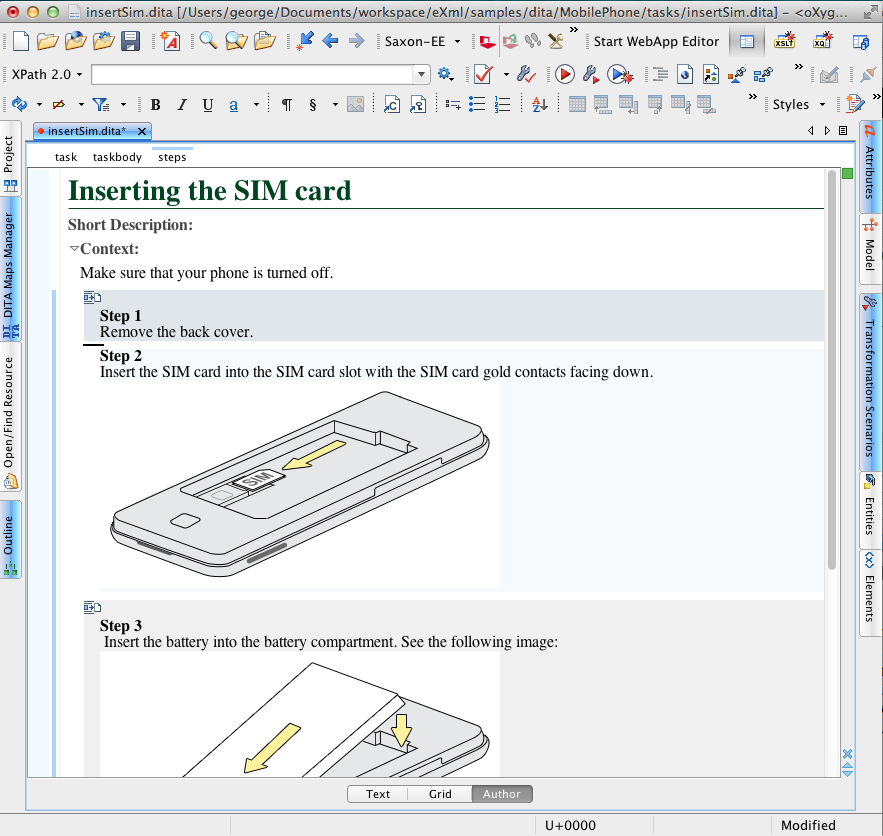
Here it is an example of adding a content reference to a topic. Let's say we have this topic talking about inserting the SIM card in a phone. For that we need to remove the battery, insert the SIM and then add the battery. If we already have a task for removing the battery then we can reuse those steps instead of duplicating them. At the beginning of the steps element we need to add a content reference to refer to the steps from the task that describes how to remove the battery.
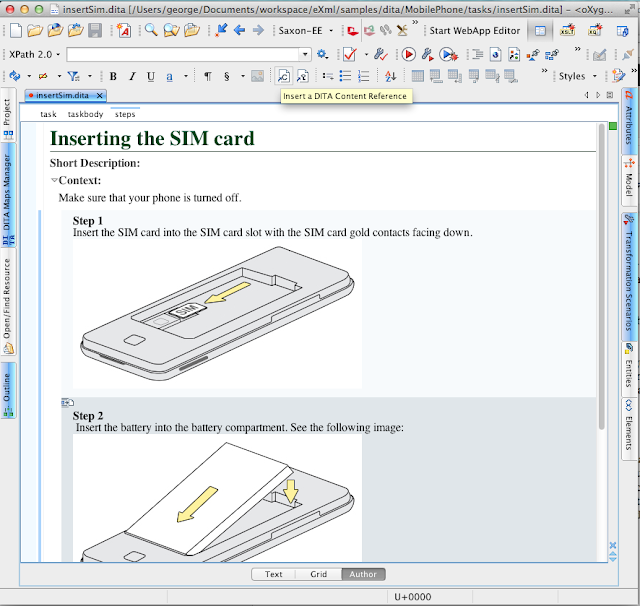
A task that describes how to insert a SIM in a telephone
We position the caret inside the steps element, before the first step and invoke the Insert a DITA content reference action. This will show the Insert Content Reference dialog.
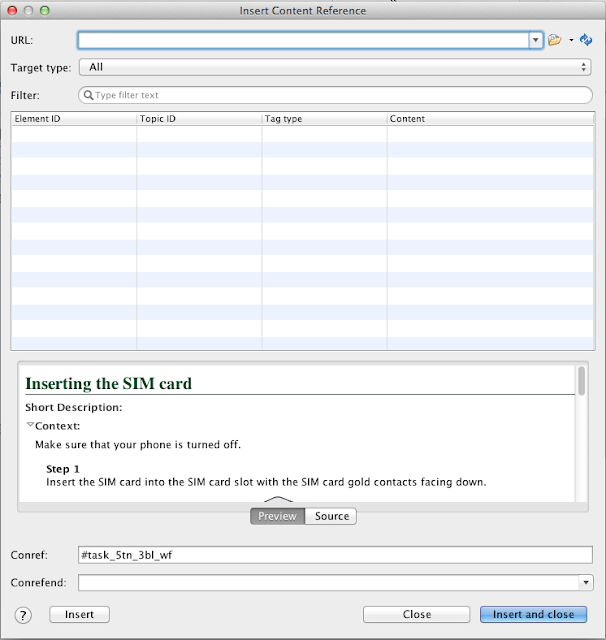
The insert content reference dialog


Now, let's suppose we do not remember the task file name that talked about removing the battery, what can we do? We can use the drop-down from the action next to the URL field and choose Search for file.

Trigger the Find Resource dialog


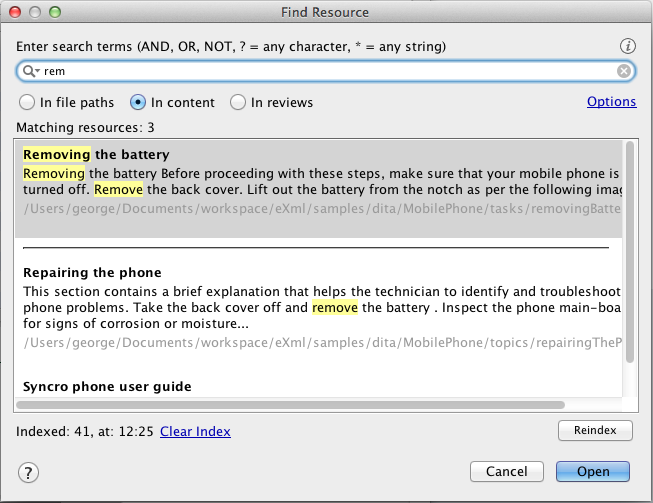
Now oXygen will show the Find Resource dialog where you can search for content to identify the task that describes how to remove the battery. For example, once you start typing in the search field "rem", oXygen will show you the topics that match this prefix, sorted by relevance.
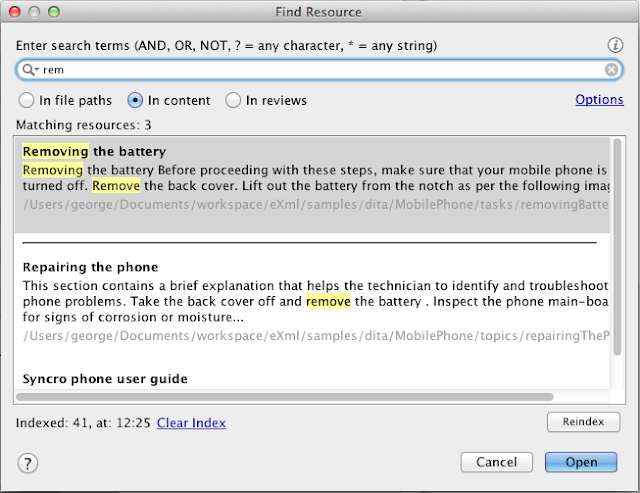
The Find Resource dialog showing topics that match the search criteria

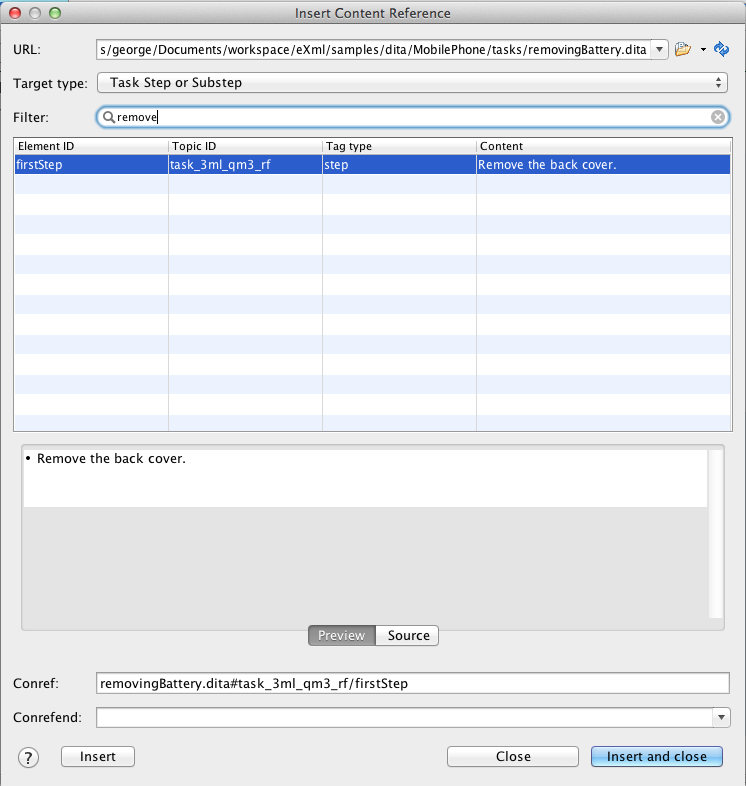
The first match seems to be the one we want, if we look at the title, so we select it. oXygen will load that topic in the Insert Content Reference dialog and it will present all the defined IDs, showing a preview of each entry you select.
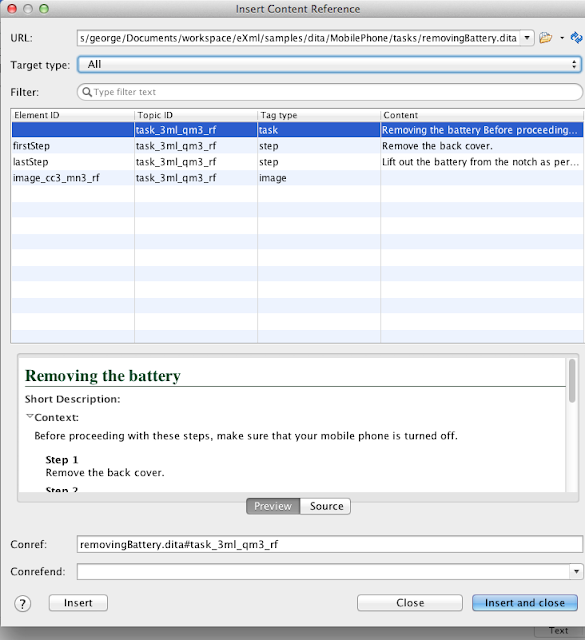
Insert content reference displaying the available IDs in a topic


 Now, you can filter on the type of element that you want to refer using the Target Type combobox and you can also filter on content, topic ID and element ID using the Filter input. As the content is dynamically gathered from each element, it is a better practice to use this search functionality than to put part of the content in the ID value. If the content changes in time that ID value will be very difficult to maintain to keep it up-to-date with the changes made to content - either you leave an old ID value that does not match the updated content, or you change the ID value and then you need to change all the references to that ID.
We can filter for example to see only the task steps that contain "remove"
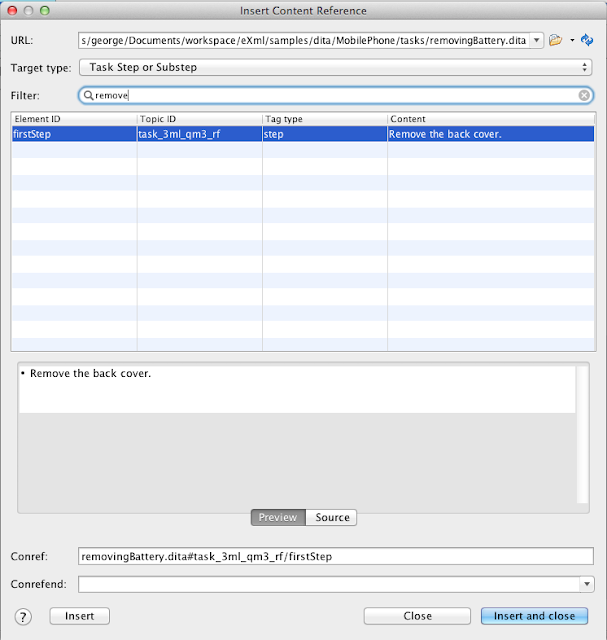
Filtered IDs

We see now the entry that we want, we preview it and choose to make a conref to this step.
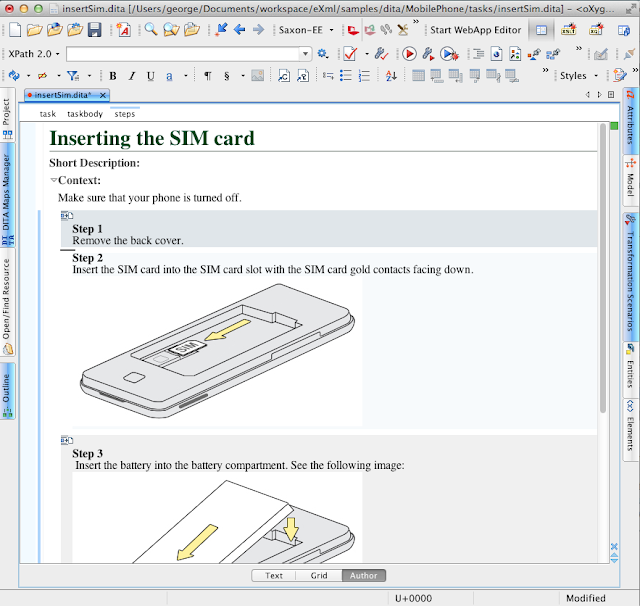
The topic contains a content reference to the identified step

This functionality works similarly for links and helps you search on the content itself and not on the ID value to refer to an element.
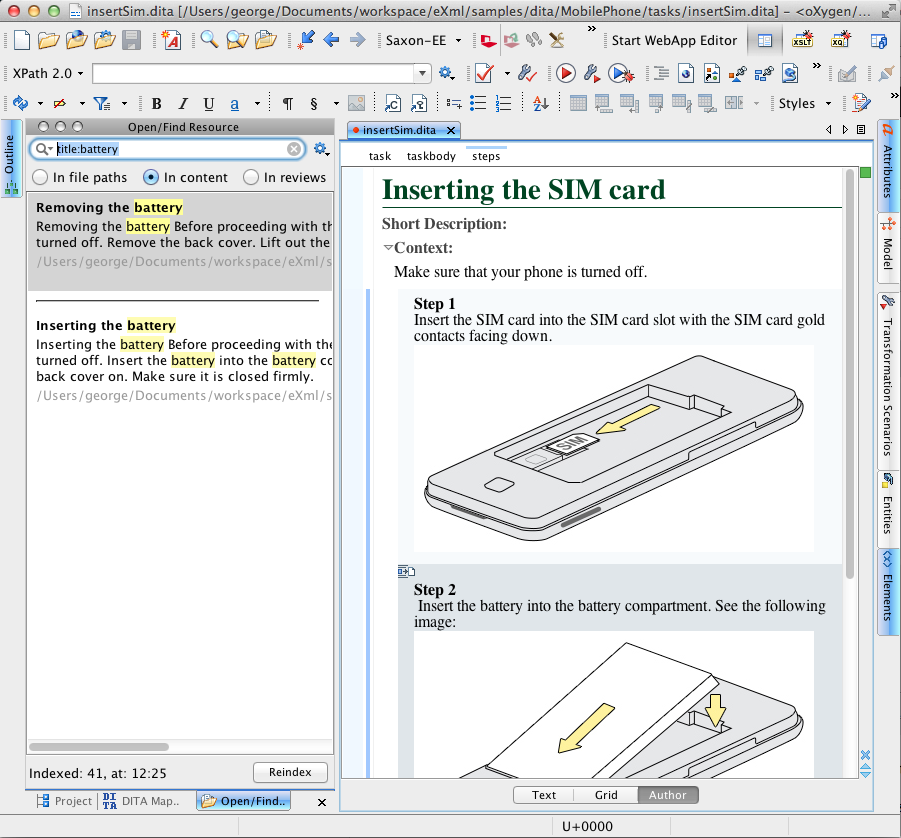
The search functionality is available also directly in oXygen, both as a dialog and as a side view, for example if you use Window->Show View->Open/Find Resource then you will see the Open/Find Resource view that will help you search through all your resources, in content, in file paths and in reviews. The content search also supports XML elements, for example "title:battery" will find all topics that have the word battery in their title.
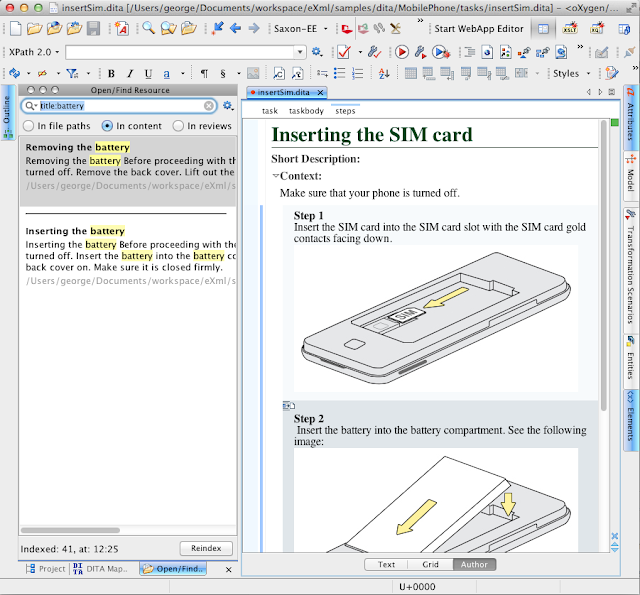
The find resources view
 
You can then open the topic you found, maybe generate IDs for elements that you want to reuse and then you can also drag and drop or copy and paste as link or paste as content reference to quickly link or reuse that content.


Some conclusions

You can use oXygen to automatically add ID values the elements that you usually reuse in your DITA topics or you can generate ID values on request, for specific elements. You can customize to some degree the ID format but that should not be very important, because if you want to store semantic information inside the ID value, like adding some of the content of the element, then maintenance will became a nightmare. Instead, you should take advantage of the search and filtering support that oXygen provides to search for the actual content of the element you want to link to.


Wednesday, April 08, 2009

10.2 beta release notes

Share to Facebook Share to Twitter Email This Share on Google Plus Share on Tumblr
oXygen 10.2 beta is available... the first question is "what is new in 10.2?". Let's see...

Related with the Author visual editing mode we have:
  • Change tracking support
  • Support for the CSS width properties: min-width, max-width and width
  • Table width and column width support for XHTML, DocBook and DITA tables
  • Drag and drop to re-size table and table columns in the Author mode for XHTML, DocBook, DITA
  • A more compact representation for full tags in the Author editing mode
  • Better handling of included content, supports inline includes and presents only an icon that allows to open the included file
  • Support for image scaling
  • oXygen integrates the latest DITA Open Toolkit, version 1.4.3
  • DITA topics can be transformed using the DITA Open Toolkit by opening them in the DITA Maps Manager View and using the available DITA ANT transformations
  • [this does not work in the beta!] olink support for DocBook to easily insert a link by browsing/searching the olink database
  • DocBook 4.5 DTD are available in the DocBook 4 framework
  • Use patterns when defining the document type matching rules, for the file name for instance
  • New CSS extension function attributes() that allows writing a CSS for oXygen XML Author that presents the XML source in the Author view
XML development related:
  • Hierarchy/Dependencies view for XML Schema import/include links
  • Hierarchy/Dependencies view for XSLT import/include links
  • Hierarchy/Dependencies view for Relax NG import/externalRef links
  • External validation action available on schema editors
  • New design for the XML Schema diagram
  • In diagram editing for attributes in the XML Schema diagram on Alt+Enter
  • In-place editing for all/sequence/choice in the XML Schema diagram
  • Allow more drag and drop actions in the Schema Diagram, like for instance dropping a type on an element to set the element type
  • Better layout on expanding/collapsing XML Schema diagram components
  • Split the XHTML output at component level for the XML Schema documentation
  • The schema documentation dialog allows using editor variables for the Schema URL field
  • Sequence view for presenting XQuery transformation output
  • The Elements view shows the other elements are allowed inside the current element but not at the current position
  • Contextual actions of the Archive Browser View to preview images and SVG files

Linking between development and authoring:
  • The Author page is available on the XML Schema editor allowing to edit the annotations visually and presenting a really nice and compact view of the XML Schema, with support for links on included/imported schemas. Embedded Schematron is also supported
  • The Author page is available on the Relax NG schema presenting the schema very similar with the Relax NG compact syntax. It links to imported schemas and external references. Embedded Schematron is also supported.
  • The Author page is available on the the Schematron editor presenting the Schematron and ISO Schematron schemas in a nice visual rendering.
  • The Author page is available on the NVDL scripts editor presenting them in a compact and easy to understand representation.
New frameworks:
  • A Widgets framework provides a default schema for the widget configuration files
  • A Twitter framework to render in the Author mode Twitter statuses
General and usability features:
  • Support for read-only files - a lock decoration appears in the editor tab and the content cannot be changed
  • Editor variable for path separator ${ps} that allows creating portable command lines for external tools
  • The editor variable for oXygen home folder ${oxygenInstallDir} is available when configuring an external FO processor
  • Filter for the Menu shortcut keys options to quickly locate an action
  • The XSLT and XQuery content completion shows Saxon specific functions
  • Automatic mnemonics on dialogs actions so you can use ALT+letter to invoke them
  • Delete line action on CTRL+D

Component updates:
  • oXygen includes the latest Saxon-SA, version 9.1.0.6
  • oXygen integrates the latest NekoHTML, version 1.9.11 for converting HTML to XHTML
  • Support for the latest Oracle XML DB, version 2.4.16
There are also some other changes but they are either too small or I cannot remember them right now.

Again, send us your feedback - version 10.2 is planned to be generally available as soon as possible.

oXygen XML Editor 10.2 beta

Share to Facebook Share to Twitter Email This Share on Google Plus Share on Tumblr
Want to see what's available in oXygen 10.2?
You can give it a try - we made a beta available. An all platform distribution as tar.gz and zip is available from

http://www.oxygenxml.com/update/10.2/beta/Editor/All/oxygen.tar.gz

http://www.oxygenxml.com/update/10.2/beta/Editor/All/oxygen.zip

Enjoy! And do not forget to send us your feedback at support at oxygenxml.com or on the oxygen-user list!

Tuesday, October 02, 2007

oXygen 9 beta with WYSIWYG-like editing

Share to Facebook Share to Twitter Email This Share on Google Plus Share on Tumblr
Everything you need to get started in a few minutes is here (no registration required):
http://www.oxygenxml.com/download-beta.html

Sunday, April 22, 2007

NVDL XSLT implementation

Share to Facebook Share to Twitter Email This Share on Google Plus Share on Tumblr
There are a few implementations already for NVDL: enovdl on Mono, JNVDL and oNVDL in Java. While I had a few discussions to explain how NVDL works I started to explain it in terms of XSLT processing and soon after that I thought, well, how about implementing NVDL dispatching in XSLT?
It proofed to be not so difficult - the implementation will be available in oNVDL starting with its next release.

Tuesday, March 27, 2007

NVDL

Share to Facebook Share to Twitter Email This Share on Google Plus Share on Tumblr
NVDL stands for Namespace-based Validation and Dispatching Language.
NVDL allows validating parts of an XML document with different schemas. Thus it allows working with compound documents that contain content from multiple languages without the need to modify the schema for each language.

oNVDL is an open source implementation of NVDL on top of Jing.
oXygen XML Editor integrates oNVDL and offers editing and validation of NVDL scripts and editing and validation of XML files against NVDL scripts.