Search the documentation:
+ Getting Started Guide »
Jump directly to...
WPML consists of several modules. The basic module turns WordPress sites multilingual. Other modules help with an enhanced translation process, string translation, media translation and other functions.
You can learn about the different modules in the WPML Core and Addons page.
After you enable WPML, you’ll see a Multilingual Widget in the Admin Dashboard. This widget provides access to the different functions in WPML. You can also access them through the WPML menu.
+ Translating Content »
Jump directly to...
When you think about translating your content, you may think about the page ‘title’ and ‘body’. However, fully translated content requires more attention. In this document, we explain what you need to know before starting to translate your content and how to handle the different elements in your sites.

Choosing the content translation method
Choosing the content translation method
WPML offers you different methods, which address different stages of the site and different needs.
The simplest way to translate content is by clicking on the ‘+’ icons (add translation) when editing content. Using this method, you will be editing translations in the same way you edit the content in the original language of the site. We call this method manual translation. When you use manual translation, you need to take care of all technical issues related to translation. This is why manual translation is best suited for developers who are building sites and only create small amounts of content.
When you need to manage large amounts of content, including its translation, you should look at either using WPML’s Translation Editor or professional translation. Professional translation is available via a growing list of partner translation services. Both these options will take care of all the technical issues related to translation, letting you focus on content only.
You can also let your own translators use desktop CAT tools (programs that translators use as their editors). WPML will export the content as XLIFF, translators will translate content using their dedicated translation editors and return the completed XLIFF files to WPML.
- Manually creating posts and pages in other languages
- Create translations as new posts or pages using the standard WordPress editor.
- Using the Translation Management module
- Control who’s translating what and give your translators better tools.
- Professional translation by a translation service
- Select your translation vendor and streamline the translation process.

Connecting translated pages to translated parents
Connecting translated pages to translated parents
Most WordPress sites use ‘pages’. Pages have parents. For example, the parent page of this page is our main documentation page. When you translate content, you surely want to create the same hierarchy in all languages.
Let’s consider an example:
Page A is the parent of pages B and C. The hierarchy of the translated pages should therefore be:
- Xa < Xb
- Xa < Xc
When you translate content manually, you need to take care of assigning parents yourself. It would be easiest for you to first translate the parent pages, then translate the child pages and assign the parents, as you create the child pages. The ‘page parent’ selector, in the page editor, will only show you pages in the language you are editing.
When you translate using WPML’s Translation Editor or using translation services, WPML takes care of assigning parents for you. The order in which you translate the content is not important. If you translate the children first, as soon as you translate the parents, they will be auto-assigned to the children. Of course, if you translate the parents first, children will have the correct parent assignment as soon as the children are translated.
Remember that you can only assigned ‘published’ pages as the parents of other pages. Also, different post types can have parents. We are using ‘pages’ here only as an example.

Translating links in content
Translating links in content
Content often includes links to other content inside your site and outside of the site. When you translate content, you want links to go to other content in the same language.
Let’s look at an example of two pages. ‘Page A’ links to ‘page B’ and ‘page B’ links to ‘page A’. Once both pages have been translated, you want Xa to link to Xb and Xb to link to Xa. You don’t want any of the translated content to keep linking to the respective content in the original language.
When you translate content manually, you need to manually create links to translated content.
When you use WPML’s Translation Editor or professional translation, all links are automatically adjusted to content in the same language. In this case, the order in which you translate the content does not matter. In fact, it’s often impossible for you to translate content in the “correct order”, because many pages link to each other.
Your translators don’t need to edit links when they translate. They should only edit link text, but not the link targets (the URLs in the links). When translations complete, WPML scans links in the content and automatically adjusts them to link to content in the same language. This operation is complex, but happens only once and only inside the WordPress admin. Links are adjusted in the database and will be correct when the content is rendered.

Choosing which content types to translate
Choosing which content types to translate
You can tell WPML if content should be ‘translatable’ or not. Translatable content means that:
- You will see the controls for manual translation when editing content
- You can translate the content manually, using WPML’s Translation Editor or using professional translation
- Only content in the current language will load and display
The last point about loading content in the current language deserves a bit more explaining. Let’s looks at two examples to illustrate it.
If you create a ‘showcase’ custom content type that only includes images and links, there’s nothing to translate. You will want to display the exact same ‘showcase items’ in content in any language. In this case, you should set the ‘showcase’ content to be ‘not translatable’.
If you create a ‘services’ custom content type that includes titles, description and additional text fields, you want to make these services ‘translatable’. In this case, you will be able to translate services and only translated services will display in different languages. Until you translate a service, it will not display.
You can choose which post types are translatable when you edit content, in the Multilingual Content Setup section and in WPML->Translation Management->Multilingual Content Setup->Custom posts.
If you make content translatable and want to display it even though it’s not yet translated, use WPML’s Content Duplication feature.

Translating custom fields
Translating custom fields
Most WordPress sites include custom fields, many of which require translation. WPML lets you choose how to treat custom fields when translating content.
First, you need to tell WPML which fields require translation. You can do this when editing content, in the Multilingual Content Setup meta box, or from WPML->Translation Management->Multilingual Content Setup->Custom fields translation.
For each custom field, you can choose between:
- Don’t translate
- Copy from original to translation
- Translate
Don’t translate means that WPML will not do anything with this custom field when sending content to translation. You should choose this option for fields that don’t need to appear in the translation.
Copy from original to translation means that WPML will automatically copy the value of the field from the original content to the translation. This option is good for numeric and boolean fields, which need to have the same value in all languages. For example, a ‘price’ field should have the same value for all translations of a product (providing that you are offering the product for the same price in all languages). This copying will occur in all translation methods (manual translation, WPML’s Translation Editor or professional translation).
Translate means that WPML will include the field in the content for translation, when using the Translation Editor or professional translation. The translators will see the field as a text field and will need to translate it.

Translating taxonomy
Translating taxonomy
Taxonomy is different than fields, as it’s shared to different content. For example, if your site uses ‘post categories’, the categories are managed centrally (in Posts->Categories) and not unique to each post. You can assign categories to posts, but when you edit a category for a post, you affect the category and not the post.
You can translate all taxonomy that belongs to your site in WPML->Taxonomy Translation.
Alternatively, when you use WPML’s Translation Editor or Professional Translation, you can include taxonomy terms together with the translation of content. When you send content for translation, WPML will automatically include new or updated taxonomy terms. Keep in mind that translating the taxonomy that’s used for one piece of content can change the same taxonomy, when displayed on other content.

Translating image texts and image galleries
Translating image texts and image galleries
Often, when you include images in content, these images will have captions, alt-text and a description. You want all these texts to be translated.
When you use WPML’s Translation Editor or professional translation, these texts are included together with the content. Your translators need to make sure not to break ‘caption’ shortcodes and to translate only the values of the attributes. This way, images will appear in the text with the translated texts.
Additionally, some content uses the WordPress ‘gallery’ shortcodes to display image galleries. This uses the ‘attachment’ mechanism in WordPress, which makes images belong to content. If your content uses galleries, be sure to enable WPML’s Media Translation module. This module will attach the same images to all translated content. This way, the same image files will appear in galleries in all languages.

Additional resources
Additional resources
In order to have fully translated websites, you need to translate the content and all other texts that are found in the theme and active plugins. But that’s not all, you also need to make sure that PHP code that loads and displays content, loads the content in the correct language.
We recommend that you choose a theme from the growing list of multilingual-ready themes. You can also find a list of major multilingual-ready plugins.
To translate the texts in themes and plugins, read about theme and plugins localization.
+ Professional Translation »
Jump directly to...
Professional Translation
WPML’s professional translation option allows you to translate your WordPress sites in the most convenient, cost effective and accurate way possible.
What’s the Professional Translation Option in WPML
What’s the Professional Translation Option in WPML
When you buy WPML, you get the capability to create multilingual WordPress sites. WPML doesn’t translate your content. It lets you translate or send content to translators. If you need help translating your content, the professional translation option is for you.
Using WPML’s Professional Translation, you enjoy:
- A simple and convenient process for sending content to translation and receiving it back
- Access to leading translation services, completely integrated with WPML, who can translate the content for you
- Competitive pricing
- Outstanding translation quality
How it Works
How it Works
To use the Professional Translation option, you need to install WPML’s Translation Management module. You also need to register your site to enable professional translation.
Once Translation Management is installed and activated, go to WPML->Translation Management->Translators.
There, under Available Translation Services select the translation service that you want to use. Enter your credentials for the translation service that you’ve selected.
Sending Content to Translation
Sending Content to Translation
Once you’ve selected a translation service and authenticated with your account information (for the translation service), go to the Translation Dashboard (WPML->Translation Management).
Select the content that you want to send to translation. Scroll down to Translation options and choose the languages to translate to. Then, click on Add to translation basket. The Translation Basket is a temporary place to keep track of documents that you intend to send to translation. Adding to the Translation Basket doesn’t trigger actual translation (or payment for translation).
When you are done adding content to the Translation Basket, click on the Translation Basket tab to review them. You can still remove items from the basket before sending to your translation service.
Finally, select the translation service and send the jobs.
Now, the documents that you have selected are going to your translation service. If you need to complete any steps in your translation service, do that now. Some services don’t require any manual steps after sending jobs to translation. Other require making some choices before translation begins.
Receiving Completed Translations
Receiving Completed Translations
When translation completes, you don’t need to do anything. The newly translated or updated content will appear in WordPress for you.
You can always review the status of your content’s translation in WPML->Translation Management->Translators->Translation Jobs
Payment for Translation Work
Payment for Translation Work
Payment for all professional translation work is handled directly between you and the translation service that you’ve selected. WPML doesn’t take part in this payment or in the cost of getting your content translated.
Partner Translation Services
Partner Translation Services
WPML team is working with leading translation services on the technical integration into WPML. Right now, the following translation services are available for you to choose from:
ICanLocalize
ICanLocalize provides a hassle-free and safe environment for getting translation work. All translators are qualified and hold an academic degree in translation. ICanLocalize translation technology enables translators to work 50% faster and the savings are passed on to you.
Cloudwords
Cloudwords offers quality translation for both small and large websites. In-context review guarantees that all published content meets high standards and you can work with your favorite translation service or locate a translation service in the Cloudwords Marketplace.

TranslateMedia
TranslateMedia provides a professional website translation service for small, medium and large businesses. They help businesses go global by translating website copy and applying SEO to their web pages, blog articles and other digital assets.

Translations.com
Translations.com is a leading provider of enterprise localization services and technology solutions. From offices in 90 cities on six continents, Translations.com offers a full range of services in 170+ languages to clients worldwide. More than 3,000 global organizations employ Translations.com's GlobalLink® Product Suite to simplify management of multilingual content.

OneHourTranslation
One Hour Translation, considered by many the fastest professional translation service in the world, specializes in providing business translations in various fields including legal, technical, websites, applications and software, and marketing.

SDL
The SDL integrated language platform provides the technology and services you need to deliver local language content for each step of the customer’s journey. The quality of translation is ensured by their intelligent machine translation technology and over 1,000 in-house ISO certified translators.

Gengo
Gengo is a web-based human translation platform headquartered in Tokyo. The platform currently draws from a network of approximately 10,000+ pre-tested translators working with 34 languages.

Wordbee Beebox
Wordbee Beebox is a Translation service connector. Send content for translation to your preferred language service provider (LSP).

Lionbridge
Lionbridge is the global leader of translation and localization solutions. With 26 offices in 46 countries, our highly-tested linguistic assets provide quality translations in more than 250 language pairings around the clock. Lionbridge can handle any content, including legal, technical, life sciences, software, and more to provide the solution you need to manage your multilingual content.

Transifex
Transifex is the leading provider of technology to support the localization and translation of digital content for websites and applications. The Transifex platform enables companies to produce high-quality translations by connecting their sources of digital content to the translation team of their choice.

Capita
Capita Translation and Interpreting, one of the fastest growing Language Service Providers in the world, offers accurate, timely and cost effective translation and interpreting services in over 180 languages. We ensure that your key messages can build your brand and make you heard - in any language.

SDL Language Cloud
The SDL Language Cloud connector for WPML provides a seamless link between WPML and SDL Language Cloud, allowing fast and easy management of multilingual web content and translation projects from within WordPress. The connector may be deployed rapidly with minimal IT support, enabling you and your teams to get started in minutes.

TextMaster
TextMaster offers a professional online translation service that enables businesses to easily expand their international reach. By combining advanced technology with a network of verified expert translators, TextMaster is redefining how businesses handle translation. More than 10000 companies in 110 countries trust TextMaster to optimize their translation workflow.

Pre-selecting the translation service for client sites
If you like to set WPML to use a particular Translation Service use the Preferred Translation Service account option
Adding translation services to WPML
We are always open to new cooperation with translation services. If you are representing a translation service and want to connect with WPML, read how to add translation services to WPML.
Disabling Professional Translation
Disabling Professional Translation
Sometimes, you may not want the site’s admin to see the professional translation services that WPML offers. To completely disable the ‘professional translation’ section in WPML, add the following to the wp-config.php file:
define( 'ICL_HIDE_TRANSLATION_SERVICES', true );
Add it before the text:
/* That’s all, stop editing! Happy blogging. */
Additional Resources for Professional Translation
Additional Resources for Professional Translation
- Getting Started Guide
- Translating Content
- Professional Translation
- A List of Multilingual-Ready Themes, Compatible with WPML
- WPML Core and Add-on Plugins
- Plugins Compatibility
- Essential Multilingual Plugins
- WooCommerce Extensions Compatibility
- Related Projects
- Developers Information
- Affiliate Program
- FAQ
+ A List of Multilingual-Ready Themes, Compatible with WPML »
Jump directly to...
- Multilingual Avada Sites Using WPML
- Storefront & WPML – create a multilingual shop
- Using WPML with U-Design theme
- How to build a multilingual site with Upstart
- Go-Global Program
- How to translate sites built with ACF
- Running Multilingual Sites with Template Monster’s Themes and WPML
- Running Multilingual Sites with Elegantthemes and WPML
- How to build a multilingual site with Canvas
- How to Develop Multilingual Classifieds Sites
- How to build RTL WordPress themes
- Tutorials
Many themes work fine on multilingual sites. To make sure, we work with theme authors and perform extensive testing. Then, we list those theme here.
+ WPML Core and Add-on Plugins »
WPML is made of a core plugin and add-ons. The core WPML Multilingual CMS is always required. You can install any combination of the add-on plugins for additional functionality.
+ Plugins Compatibility »
Jump directly to...
Many plugins work fine on multilingual sites. To make sure, we work with plugin authors and perform extensive testing. Then, we list those plugin here.
+ Essential Multilingual Plugins »
We work with other authors to ensure compatibility with WordPress plugins. These are major plugins that are multilingual-ready.
Website Development
 Toolset plugins allow to build WordPress sites quickly and easily. They work with any theme and let you develop sites without programming. You will be able to design layouts with drag and drop, display content anyway you choose and create forms for front-end content editing.
With Toolset, you can create brochure sites quickly, build custom e-commerce sites, develop classifieds and listing sites and more.
Toolset plugins are completely compatible with WPML, so anything that you build with Toolset is also multilingual-ready.
Search Engine Optimization
Yoast SEO is an all-around solution for optimizing WordPress sites for search engines. The plugin lets you specify titles and description for any WordPress content and archive page and shows how each page will appear in Google search results.
It includes a language configuration file that tells WPML which strings require translation. This way, you can translate everything, without having to configure anything.
E-Commerce
The go-to solution for multilingual e-commerce sites is WooCommerce, with our WooCommerce Multilingual extension.
WooCommerce Multilingual allows you to translate anything that you build with WooCommerce. It is completely compatible with the core WooCommerce functionality and also supports many popular WooCommerce extensions.
Search
While the built-in WordPress search leaves much to be desired, Relevanssi fills the gap beautifully. It lets users search and find what they’re looking for. You can download Relevanssi for free from the WordPress repository or purchase the pro-version from Relevanssi.com.
Both versions of Relevanssi run smooth with WPML and return search results in the current language.
Admin Page Order
If your site has hundreds, or thousands of pages, it may be a bit difficult to find them in the WordPress Admin. CMS Tree Page View presents your pages in a hierarchical tree, which you can expand and collapse. It works smooth with WPML and displays the correct tree per language.
+ WooCommerce Extensions Compatibility »
Many WooCommerce Extensions work fine on multilingual sites. To make sure, we work with extensions authors and perform extensive testing. Then, we list those extensions here.
+ Related Projects »
Jump directly to...
- Migrate from Polylang to WPML
- Toolset
- WooCommerce Multilingual – Run E-Commerce Sites in Several Languages
- Gravity Forms Multilingual
- BuddyPress Multilingual
- WPML All Import plugin – website Import with WPML
- WooCommerce Gateways Country Limiter
- Adding E-Commerce to any Theme With WooCommerce Views
- qTranslate Importer
- Multilingual Tools Plugin
- Easy Digital Downloads Multilingual
Along with WPML, we also maintain several related projects, which allow other kinds of sites to run multilingual.
+ Developers Information »
Jump directly to...
- WPML Contractors
- Multisite Support
- Achieving WPML Compatibility for Your Themes and plugins
- Debugging Theme Compatibility
- Language Configuration Files
- Sending Emails with WPML
- Embedded installer for authors
- WPML’s Languages Table
- XML-RPC language interface
- WPML Coding API
- Adding hreflang to Multilingual WordPress Sites
- WPML’s tables
- Custom multilingual themes
- Debugging WPML
- Translating user input texts from plugins and themes
- Troubleshooting String Localization
- WPML Admin Capabilities
- String Package Translation
- Tracking Affiliate Performance using Google Analytics Events
- Making WooCommerce Themes Multilingual and Multi-Currency Ready
- Multilingual SEO
- Translating Custom Data Structures
- Translating WooCommerce sites when the default language is not English
WPML lets you run one WordPress site in multiple languages. The basic setup takes a few minutes and you can see the site multilingual. Then, you can customize the behavior and appearance of your site to match your exact specifications.
+ Affiliate Program »
Are you enjoying WPML? Tell the world about it and earn 30% affiliate commission for every new customer that you bring.
WPML’s affiliate program is open only to WPML clients. We truly believe that you can only recommend a product that you’re actually using.
Log in to your WPML account and click on the ‘Affiliate’ link.
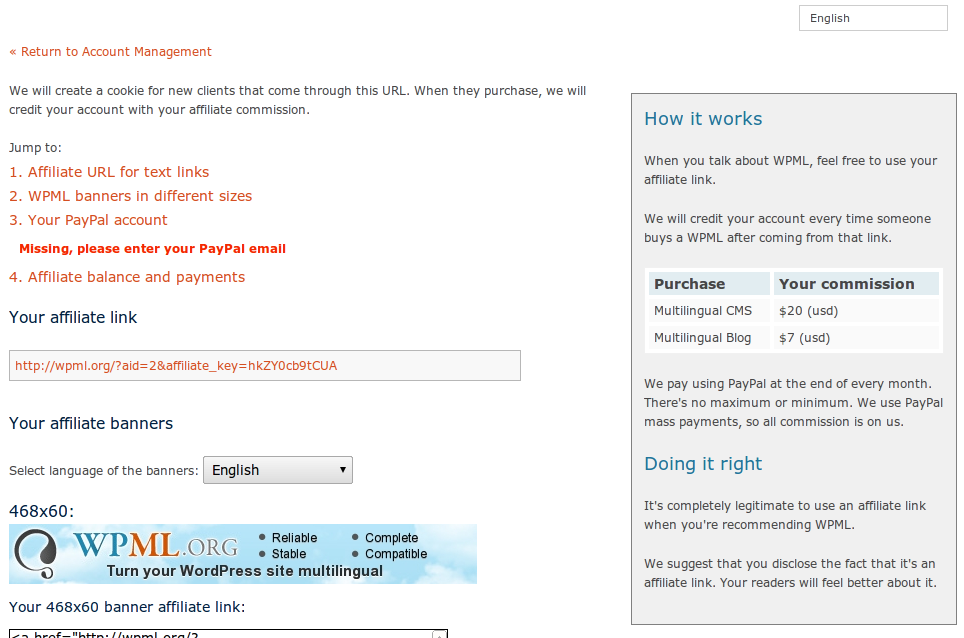
WPML affiliate page
On that page, you will see:
- Your affiliate text link
- A collection of affiliate banners
- A place to enter your PayPal email, so that we can pay you
- Your affiliate balance
How it works
Whenever you refer to people to WPML, through your affiliate link, we create a cookie in their browsers. The cookie doesn’t expire. It will only be set if this is the first visit to WPML.org.
Then, when this visitor becomes a client, we detect the cookie and associate the new account with yours, remembering that you brought this new client. Your affiliate account is immediately credited with every new purchase.
Using text links
You can link to us using a regular text link. Your affiliate link is displayed at the top of your affiliate page.
You can include such links to any page in WPML.org. Remember to add the aid and affiliate_key arguments to the URL. For example, my own affiliate link to our ‘Purchase’ page would be:
http://wpml.org/purchase/?aid=2&affiliate_key=hkZY0cb9tCUA
From past experience, we know that the most conversions happen when linking to both the homepage and purchase page.
Using banners
If you have available banner space, you’re welcome to use the WPML banners we’ve prepared for you.
There are banners in six sizes and in fifteen languages (more coming soon). Just above the banners you’ll find a language switcher (not the top-right of the screen, the one over the banners). This language switcher controls the language of the banners.
The banner graphics comes from our CDN (content distribution network). It’s a high-speed network with no bandwidth cap and terrific uptime. You’re welcome to use the images from there, or download them and serve from your own server.
Below each banner, you’ll find a link that include your affiliate info, the localized ALT and TITLE attributes and a link to the image. If you want to link to anything else than the home-page, feel free to edit the HREF attribute.
Permitted Usage of WPML Affiliate Program
You are welcome to use our affiliate program to drive traffic to wpml.org and receive affiliate commission. Your affiliate traffic must come from your content, including web content and email marketing.
You are not permitted to set up ads, except on your own website, that link directly to wpml.org. For example, no ads on Google Adwords or banners in other people’s websites, that link to wpml.org.
Additionally, you are not allowed to create advertisement that targets the WPML name, which is trademarked.
WPML will not pay affiliate commission for people who violate these guidelines. If you are not sure, ask us.
Getting paid
We pay via PayPal mass payments once per month, at the beginning of the month. Mass-payments means that you’re getting the full amount without seeing any PayPal fees (we pay them).
Be sure to enter your PayPal email, so that we can actually send your payment. If we don’t have that email, we’ll keep holding your due payment, until we can send it.
At the table in the bottom of the affiliate page, you’ll see your current balance, your total earnings (from day one) and when you last got paid.
All set?
We hope that this is enough to get started. If you need anything else, please contact us.
+ FAQ »
See answers to frequently asked questions.
 English
 Español
 Deutsch
 Français
 Português
 日本語
日本語 Русский
 简体中文
简体中文 Italiano
 עברית
עברית العربية