

Do you want to add navigation menus in your WordPress site? Did you know that there is a very easy drag-and-drop menu interface that allows you to create drop-down menus in WordPress. In this step by step guide, we will show you how to add navigation menu in WordPress.
Navigation menus allow you to present a site structure to your users. They help users find information and browse through different sections of your website. Since navigation menus are so important, they are usually placed close to the header in most WordPress themes.

Navigation Menus in WordPress
WordPress comes with a navigation menu system that makes it quite easy for beginner users to create and manage menus. The location of the menus can vary from theme to theme. Almost all WordPress themes come with at least one menu location. Some WordPress themes come with multiple menu locations to accommodate for more complex websites.
Video Tutorial
If you don’t like the video or need more instructions, then continue reading.
Creating Your First Custom Navigation Menu
You can create menus in WordPress by visiting Appearance » Menus in your WordPress admin area.

This will bring you to the Edit Menus screen which is divided into two columns. The column on your left has your pages, categories, and custom links tab. The column on the right is where you add and adjust menu items.

Let’s create your first custom navigation menu.
Provide a name for your menu, e.g. ‘My First Menu’ and then click on the create menu button. This will expand the menu area, and it will look like this:

As you can see in the screenshot, our demo site has three theme locations labeled primary, secondary, and social. The location names and placements vary from theme to theme.
Next, you need to select the pages you want to add to the menu. You can do this by selecting the pages listed on the left hand side and clicking on Add to Menu button.
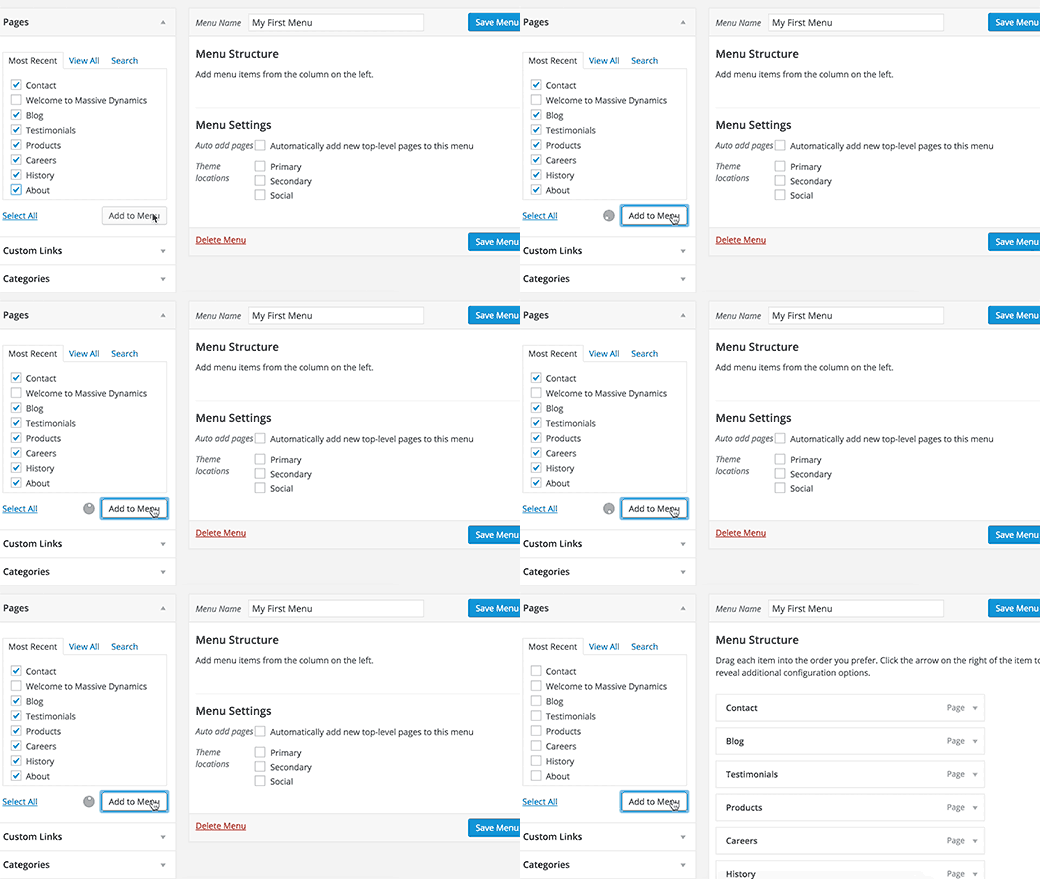
After adding pages to the menu, select the theme location where you want to display the menu and click on the ‘Save Menu’ button.

Don’t worry if you’re unsure where each menu location is on your site. You can visit the website to see the menu in action. If you don’t like it, then you can always change the menu location.

Arranging Items in a Custom Navigation Menu
You probably noticed that each menu item you added is arranged in the order you added them. For example, your about link appears at the end, while the contact page link appears first. Don’t worry you can easily rearrange your WordPress menu items in any order you want.
Simply drag and drop a menu item to adjust its position in the menu.

Repeat the process to create new menus for other theme locations.
Creating Nested Drop-Down Menus in WordPress
Nested menus, also known as drop-down menus, are navigational menus with parent and child menu items. These menus are usually styled by WordPress themes in such a way that when a user takes their mouse to a parent item, all their sub-menus are displayed.

Creating nested menus allow you to add a properly structured navigation system to your site. Here is how you can add a menu item as a sub-menu in WordPress.
In your menu structure, drag the menu item just below the parent item. Next, slightly drag the menu item to the right. You will notice that it will automatically become a sub-menu item.

You can add multiple layers of sub-items to create deeply nested navigation menus. However, it’s important to note that not all themes support multi-layer nested menus. Most do up to 2-layers.

Adding Categories to WordPress Menus
If you’re using WordPress to run a blog, then you can add your blog categories as a drop-down in your WordPress menu.
By default, WordPress provides an easier way to add pages and categories from the left-hand column on the menu editor screen.
Start by clicking on the Categories tab to expand it. You will see your blog categories listed there. Simply select the categories you want to add to the menu, and then click on add to menu button.

You will notice that categories will appear as menu items under menu structure column. Just like pages, you can simply drag and drop them to arrange their position on the menu. In this example, we have dragged all categories to appear as sub-menu items under the Blog.

Here’s our tutorial on how to create a separate blog page in WordPress which is very helpful if you want to have a custom homepage for your site.
Adding Custom Links to Your WordPress Navigation Menus
While adding categories and pages is easy, what if you want to add a link to your social media profile or another location? This is when you can use the custom link option.
Simply click on the custom link tab in the left-hand column to expand it. You will notice that it only has two fields. The first one is for URL where you will need to add the actual link you want to add. The second field is labeled link text where you will add the anchor text for the link.

Note: It’s important that you must start all links with http:// or https://. If you don’t, then the links will be broken.
Editing a Menu Item in WordPress Navigation Menus
When you add pages or categories to your custom navigation menu, WordPress automatically uses the page title or category name as the link text. This does not mean that you cannot change it.
All menu items can be edited by simply clicking on the downward arrow next to a menu item.

Here you can change the menu’s navigational title or link text. You can also add a title attribute to the link. Don’t forget to click on the save menu button to store your changes before previewing your website.
Removing a Link From Navigation Menus in WordPress
You can remove a link in the same way you edit them. Just click on the downward arrow icon next to a menu item, and you will notice a red Remove link. When you clicking on it, the link will be removed from your navigation menus.

Understanding Theme Locations For Your Navigation Menus
Navigation Menus are a theme feature in WordPress. Their appearance and display is controlled entirely by your WordPress theme. The admin area only provides a user interface to add and manage those menus.

WordPress themes usually have at least one theme location for navigation menus. However, some themes may have more than one theme locations such as the theme we used while writing this article which had three theme locations primary, secondary, and a social menu.

Also it’s important to note that the names of these menu locations would also vary from theme to theme. While some may call it primary another may call it header. It’s entirely based on theme developer’s preference.
Adding Navigation Menus in Sidebars and Other Widget Ready Areas
Aside from the designated menu locations set by themes, you can also add navigation menus in your sidebar and other widget-ready areas of your theme.
For example, if you look at our founder Syed Balkhi’s website, he’s using menus to add social links and sites he like in his sidebar.

You can add menus in your sidebars by using widgets. Simply go to Appearance » Widgets and add Custom Menu widget from the list of available widgets to a sidebar.

Next, you need to provide a title for the widget heading and select one of your custom menus from the select menu drop down list. Lastly, click on the save button to store your widget settings.
You can now visit your website to see your custom menu displayed in your sidebar widget.

As for social icons, some themes may come with pre-built social media icons in the menus. Alternatively, you can use a plugin like Menu Social Icons to add icons in your navigation menus.
We hope this article helped you learn how to add custom navigation menu in WordPress. You may also want to check out our guide on how to style navigation menus in WordPress and how to add image icons with navigation menus in WordPress.
If you liked this article, then please subscribe to our YouTube Channel for WordPress video tutorials. You can also find us on Twitter and Facebook.


Thank you so much for this, been trying to figure out how to create drop down menus, this really helped!
hello
I Am A Beginner Not Professional , I Am Using A Template Theme & You Can See It In My Site .. I Have An Arabic Menu .. I Need To Create An English Menu Underneath It So English Speaking Browser Can Access The English Pages .. Thanks A Lot .. Isa
Helo – I have a subdomain for . I really do not use it except to store pages. On one experiment, I use a css code for a page to hide header and navbar. But since then when I removed the css code and tried to create a menu, the nav bar will not show. I am quite familuar with wordpress menus and how to place them. But I just cannot get this one to show. I exported some pages into this subdomain and tried to create a menu – but it is no use – it just will not show. This is what gets me about wordpress – you never know when or how it is going to go haywire. Would ou know what the matter is?
How can I add a drop down menu in an area of a page other than my sidebar widget?
HI there,
I was actually wondering if the custom menu takes the place of the default navigation menu. How does it effect the existing default menu and its nesting?
I would have to remember to add my pages to the custom menu.
It may sound silly, but this seems very complicated to me.
I wanted to make a few pages unclickable (like “reviews”) and I like the eventual idea of sub nesting
Thanks for putting so much energy into this article. Mary
Hi all
how could i add a menu on a certain page of my website? (i don’t need the menu to appear on the home page or the front page)
thank you all
super to quickly understand
Hey bro, i have a question for you.
How to create side menu like this
thank bro.
Can be achieved using CSS and JavaScript. See our article on how to add a slide panel menu in WordPress themes, and try using it as a starting point.
Hi, I don’t see all those fancy options (e.g., drag and drop sub menus etc) on my FREE wordpress site. I wonder if the information you gave is for the premium wordpress version. Thanks
Hi Zac,
These options described in the tutorial are available in self hosted WordPress.org sites. You are probably using a free WordPress.com website. Please see our guide on the difference between self hosted WordPress.org vs free WordPress.com blog.
Thank your for this video. It all seems very simple, but for me when I open wordpress, I do not have the option to choose “appearance.” There is just a link for “menu.” I have created a menu that appears on my blog, but I cannot add categories to it, so the menu is basically useless. When you click on, say, “travel planning” in the menu, it won’t take you to all the article about travel planning, just to something random. I am working on an 11″ laptop, and I read something that said possibly the issue is the size of the screen? If so, I am not sure how to work around that since I travel long term and this is all I have to use. Do you have any suggestions? I really want the menu to work so people can find what they’re looking for! Thanks! Bridget
Hello,
under the menu theme location, i’m not seeing ‘Primary’, ‘Secondary’, thus the pages I added were not shown on the main header, can you please help.
Thanks much
thanks for the guide and how to create the catagerious (if you know please create the video)
Hello Sir, I wan t to create more navigation menu in my wordpress themes. Please tell me how to add more
Thank you for the insight, found this very helpful.
Question,
I currently have a menu button link to a certain area of my home page, for instance I named a section/column “#portfolio” so the page will scroll down to that section when the menu button “Portfolio” is clicked.
My problem is that when the user goes to a menu page that loads a new page, my portfolio button wont go back to the home page, its just a dead link/ menu button.
Great-thank you sooooo much for making it so succibt, precise, clear and understandable!!!
Really nice ,every step s defined clearly ,nice material.
thanks
Thank you for the information! Understand
1) If I can create different menus but may I know if I can tailor make the location (even if the theme doesn’t provide it) ?
OR
2) Create a double line menu bar at the primary menu (instead of hide those tabs that don’t fit in one line)
I’m using pique theme at wordpress.com
Many thanks and really look forward to a solution.
Cheers,
Carrie
This helped me so much! Thank you! Thank you! Thank you!
Thanks for this informative how to, article, Sayed. I have a question. I changed my menu and for some weird reason it’s now overlapping into my side bar. So, it’s uneven on the top. Do you know how that can be corrected? I appreciate any tips you have.
Hi, Thanks for the nice detailed explanation of adding menu, it really helped me
It really helped. thanks.
Super excellent information on a navigation menu. Very easy to learn.
Really nice. Go it very easily. Thank you a lot!
You Rock
very very useful information…now it is easy to create navigation menu
thanks a lot
Excellent material. Every step is defined so clearly that even a novice can implement this step without any difficulty. Thanks for sharing such material as it will be very helpful for beginners in website development.
Nice article.
Thanks!