
This tutorial shows you how to add a Google map to your iOS app. The map includes a marker, also called a pin, to indicate a specific location.
Get the code
Clone or download the Google Maps iOS samples repository from GitHub.
Set up your development project
Follow these steps to install the Google Maps SDK for iOS:
- Download and install Xcode.
- If you don't already have the CocoaPods tool, install it on macOS by
running the following command from the terminal:
sudo gem install cocoapods
- Clone or download the Google Maps iOS samples repository.
- Navigate to the
map-with-markerdirectory. - Run the
pod installcommand. This will install the APIs specified in thePodfile, along with any dependencies they may have. - Open map-with-marker.xcworkspace in Xcode.
Get an API key and enable the necessary APIs
To complete this tutorial, you need a Google API key that's authorized to use the Google Maps SDK for iOS. Click the button below to get a key and activate the API.
Get a KeyFor more details, see Get an API key.
Add the API key to your application
Add your API key to your AppDelegate.swift as follows:
- Add the following import statements:
import GoogleMaps
- Add the following to your
application(_:didFinishLaunchingWithOptions:)method, replacing YOUR_API_KEY with your API key:GMSServices.provideAPIKey("YOUR_API_KEY")
Build and run your app
- Connect an iOS device to your computer, or select a simulator from the Xcode scheme pop-up menu.
- If you're using a device, make sure that location services are enabled. If you're using a simulator, select a location from the Debug/Location menu.
- In Xcode, click the Product/Run menu option (or the play button icon).
Xcode builds the app, and then runs the app on the device or on the simulator.
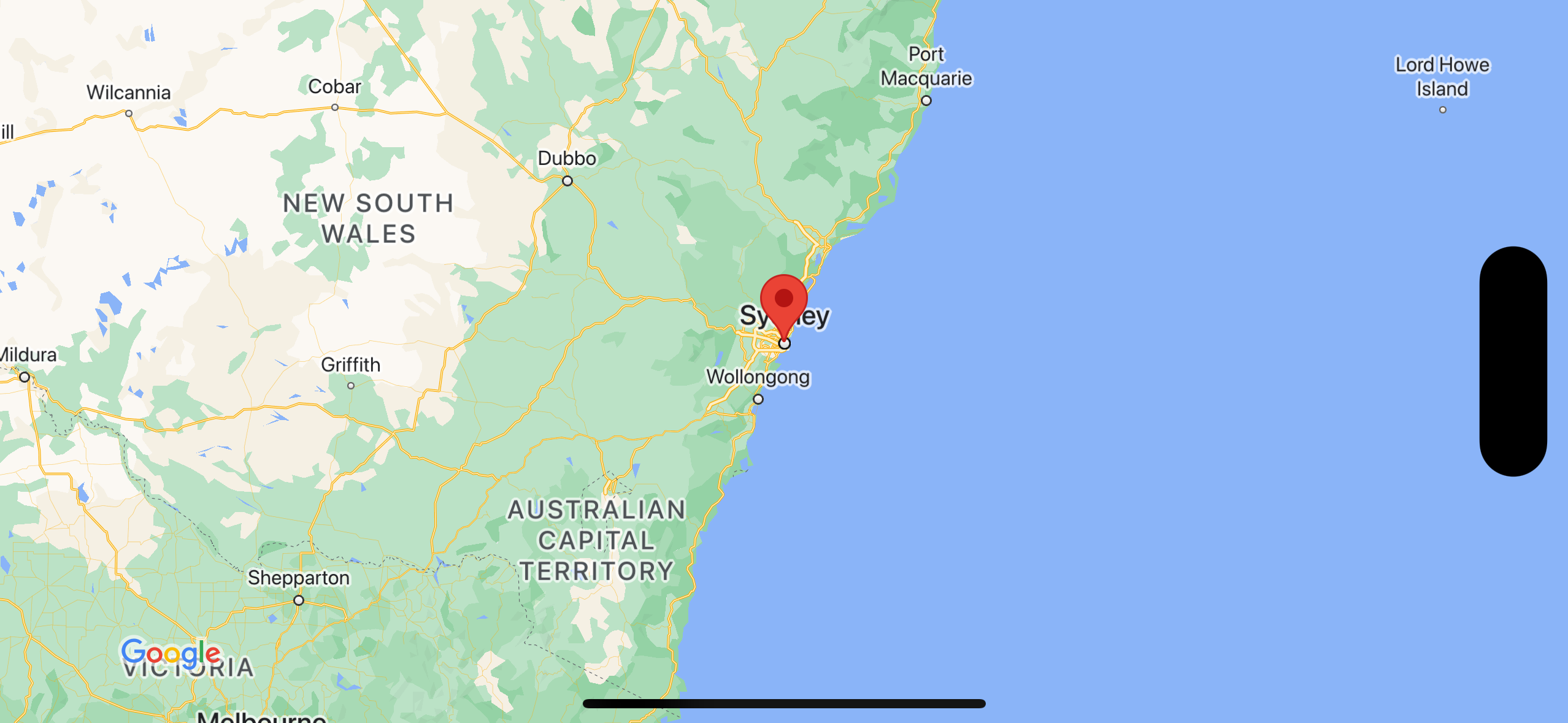
You should see a map with a marker centered on Sydney on the east coast of Australia, similar to the image on this page.
Troubleshooting:
- If you don't see a map, check that you've obtained an API key and added it to the app, as described above. Check Xcode's debugging console for error messages about the API key.
- Ensure that you have a good WiFi or GPS connection.
- Use the Xcode debugging tools to view logs and debug the app.
Understand the code
- Create a map and set it as the view in
loadView(). - Add a marker to the map in
loadView().
// Create a GMSCameraPosition that tells the map to display the
// coordinate -33.86,151.20 at zoom level 6.
let camera = GMSCameraPosition.camera(withLatitude: -33.86, longitude: 151.20, zoom: 6.0)
let mapView = GMSMapView.map(withFrame: CGRect.zero, camera: camera)
view = mapView
// Creates a marker in the center of the map.
let marker = GMSMarker()
marker.position = CLLocationCoordinate2D(latitude: -33.86, longitude: 151.20)
marker.title = "Sydney"
marker.snippet = "Australia"
marker.map = mapView
By default, the Google Maps SDK for iOS displays the content of the info window when the user taps a marker. There's no need to add a click listener for the marker if you're happy to use the default behavior.
Congratulations! You've built an iOS app that displays a Google map with a marker to indicate a particular location. You've also learned how to use the Maps SDK for iOS.
Next steps
Learn more about the map object, and what you can do with markers.
 Need help? Visit our